
Release date: August 14th 2024
Welcome to my Omnissa App Volumes series. In this session I will describe how I upgraded the App Volumes Agent in my Horizon Template to v. 2406. According to Omnissa’s official documentation, this should be done as step 11 in the supported update sequence, as shown below.

I start out by downloading the installation media from Omnissa Customer Connect

As I’ve gone over to using MDT to create templates, I will update the App Volumes Agent in the Deployment Share and run through the task sequence to create a new template. To update the App Volumes Agent in the Deployment Share, I will first delete the existing agent from the Deployment Share

Next, I copy the new VMware App Volumes Agent msi-file to the “AppVolumesAgent” folder in the Deployment Share. It is important to make sure that the executable isn’t blocked by Windows Security, therefore I right-click the msi-file, select Properties and tick the Unblock box, if it exists. This also applies to the other executable files under the “D:DeploymentShareVMware” folder.

When I now open the Deployment Workbench MMC, the new App Volumes Agent will be identified correctly

Finally, I update the deployment Share, before I run through a task sequence and push the new template to my desktop pool. In scenarios with persistent desktop pools, I would advice using “silent install” upgrades, as described by Omnissa here: Upgrade App Volumes Agent Silently
I will also update my App Volumes Capture VM by doing a manual upgrade of the App Volumes Agent. First I verify the running version

I start out by powering on the VM, attach the ISO-file and launch the setup-file
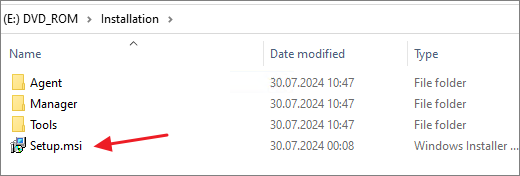
The App Volumes Installation Wizard launches, Next…
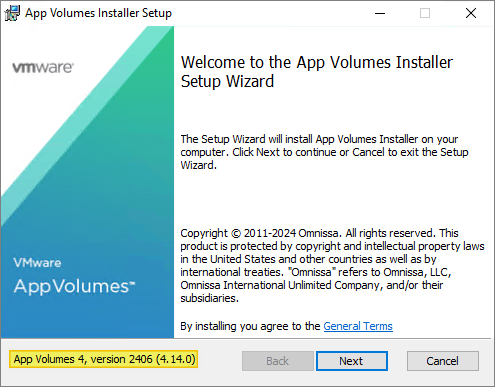
In the App Volumes Install Screen, I select “Install App Volumes Agent”, Install…

This selection launches the App Volumes Agent Upgrade Wizard, Next…

Install…

OK…(twice!)

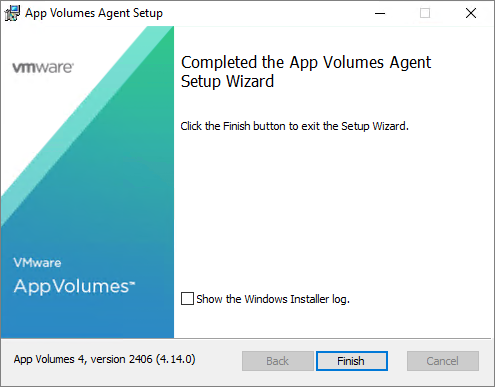
When the App Volumes Installation Wizard finishes, click Finish…
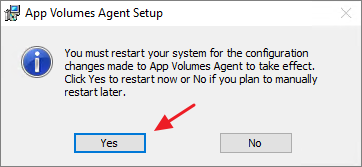
Click Yes to reboot the VM
Once the VM has rebooted, I verify the new version in Control Panel. Finally, I prepare the VM for Application Capture by shutting it down and take a snapshot.
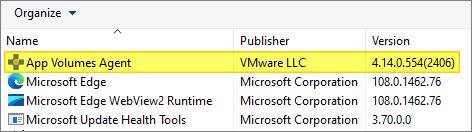
Similarly, I upgrade the App Volumes Tools installation, as follows:


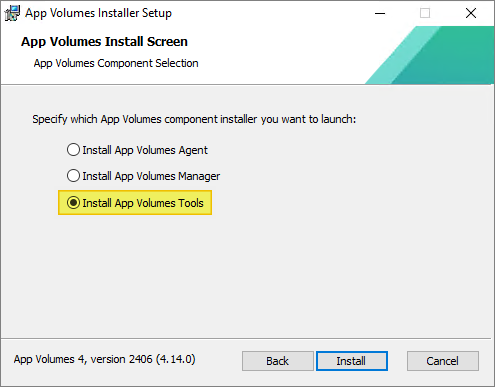
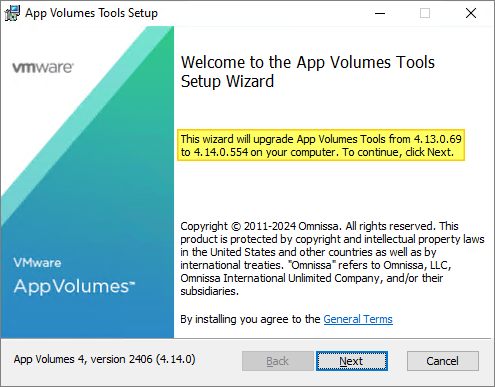
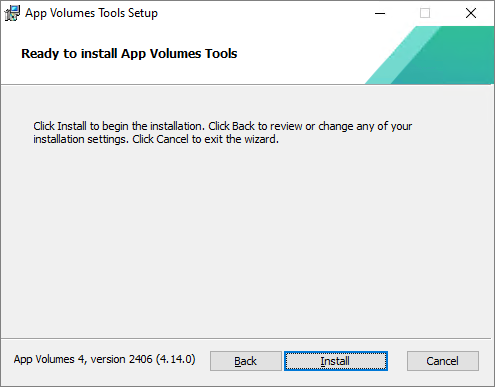
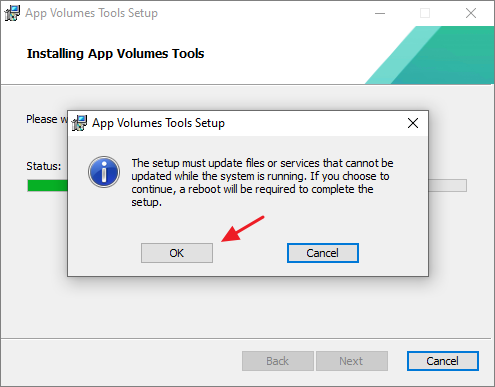
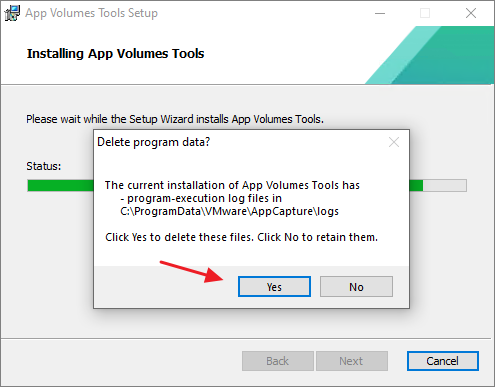

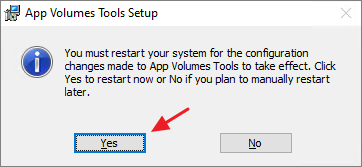

This completes my upgrade of the App Volumes Agent and Tools. My next logical step would now be to upgrade the App Volumes Templates, this I have posted here: App Volumes – Upgrade Templates to v. 2406
Omnissa Documentation:
- App Volumes 4 Release Notes
- Upgrade App Volumes Agent Silently
- Horizon 8 Upgrade Overview
- Product Interoperability Matrix
- Omnissa Product Documentation
VMware App Volumes planning, deployment etc.
Disclaimer: Every tips/tricks/posting I have published here, is tried and tested in different it-solutions. It is not guaranteed to work everywhere, but is meant as a tip for other users out there. Remember, Google is your friend and don’t be afraid to steal with pride! Feel free to comment below as needed.
 bjosoren's IT-Tech blog