
Release date: August 14th 2024
Welcome to my Omnissa App Volumes series. In this session I will describe the steps I took to upgrade my App Volumes Managers to v.2406 (4.14.0.346). According to Omnissa’s official documentation, this should be done as step 5 in the supported update sequence, as shown below.
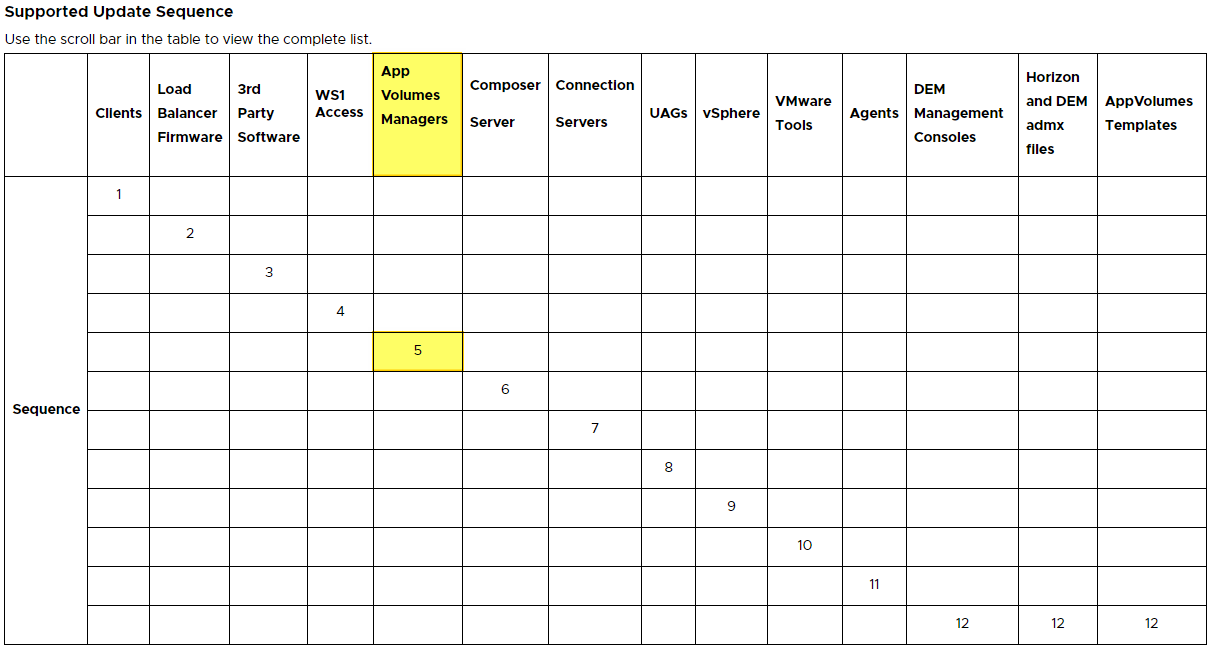
In environments with more than one App Volumes Manager, as I have, I review VMware’s guidelines for Rolling Upgrades before I do the upgrades, available here: Considerations for Performing Rolling Upgrades
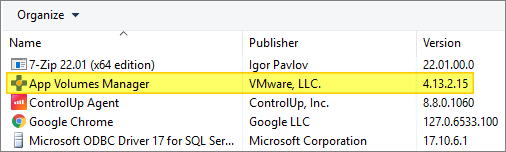
Previously, I have shown how to do this manually, but in this session I will do this using PowerShell from my management server. Before I start the upgrade, I verify the installed version
Once done, I start out by downloading the installation media from Omnissa Customer Connect and open the ISO-file.

Before I start I make myself a little workflow as show below.

First, I create the following credentials to be used in the script:
- vCenter admin-user:
New-VICredentialStoreItem -User <user> -Password <user> -Host <server> -File C:<your location.xml>- App Volumes Manager admin-user:
$credential = Get-Credential
$credential | Export-CliXml -Path '<path>appvol_admin.xml'
Now that I have the credentials ready, I am good to go. (PS: I know I’m no programmer and a lot of this script have the potential for improvement, but, it gets the job done, and that’s good enough for me).
upgradeAVM.ps1
# --- Initialize PowerCLI Modules ---

Import-Module VMware.VimAutomation.Core
Import-Module VMware.VimAutomation.Common
Set-PowerCLIConfiguration -Scope User -ParticipateInCeip $false -Confirm:$false
Set-PowerCLIConfiguration -InvalidCertificateAction ignore -Confirm:$false
Set-PowerCLIConfiguration -DefaultVIServerMode Multiple -Confirm:$false

# --- Connect to vCenter with Get-VICredentialStoreItem ---

$viserver = "vCenter fqdn"
$viuser = Get-VICredentialStoreItem -File "<path to vCenter Credentials>.xml" -host $viserver
Connect-viserver -Server $viserver -User $viuser.user -Password $viuser.password

$avm = "avm fqdn"    # The reason I use fqdn for my VM-name, is that all my vm's are named the same as the fqdn's

#  --- Check for Snapshots and remove any ---

Get-Snapshot $avm | Remove-Snapshot -confirm:$false

# --- Shut Down VM ---

Try{
   $vm = Get-VM -Name $avm -ErrorAction Stop
   switch($vm.PowerState){
   'poweredon' {
  Shutdown-VMGuest -VM $vm -Confirm:$false
   while($vm.PowerState -eq 'PoweredOn'){
  sleep 5
   $vm = Get-VM -Name $avm
   }
   }
   Default {
   Write-Host "VM '$($avm)' is not powered on!"
   }
   }
   Write-Host "$($avm) has shutdown. It should be ready for configuration."
}
Catch{
   Write-Host "VM '$($avm)' not found!"
}

# --- Take Snapshot ---

$SnapshotName = "Pre-Upgrade"
Get-VM $avm | New-Snapshot -Name $SnapshotName

# --- Power On VM ---

Start-VM -VM $avm
# Wait 5 minutes - SLOW LAB :)
Start-Sleep 300

# --- Configure PSSession ---

$credential = Import-CliXml -Path "<path to App Volumes Admin>appvol_admin_${env:USERNAME}_${env:COMPUTERNAME}.xml"
$session = New-PSSession -ComputerName $avm -Credential $credential -Authentication CredSSP

# --- Define, Copy and Run Installers ---

Invoke-Command -Session $session -ScriptBlock {
    # Create Temp Folder
    $installDir = "C:Install"
    New-Item -Path $installDir -type directory -Force

    # Backup Nginx
    $NginxConf = "C:Program Files (x86)CloudVolumesManagernginxconfnginx.conf"
    $NginxCRT = "C:Program Files (x86)CloudVolumesManagernginxconfavm-cert.crt"
    $NginxPEM = "C:Program Files (x86)CloudVolumesManagernginxconfavm-cert-PEM.key"
    Copy-Item -Path $NginxConf -Destination $installDir -Force
    Copy-Item -Path $NginxCRT -Destination $installDir -Force
    Copy-Item -Path $NginxPEM -Destination $installDir -Force

    # App Volumes Manager Installation
    $avmMSI = "<Network Path>App Volumes Manager.msi"
    $avmVendor = "VMware"
    $avmProduct = "App Volumes Manager"
    $avmVersion = "4.10.0.27"
    $avmPackageName = "C:InstallApp Volumes Manager.msi"
    Copy-Item -Path $avmMSI -Destination $installDir -Force
    $avmArgs = "/qb /l* UpgradeAppVol.log"
    Write-Verbose "Upgrade $avmVendor $avmProduct to $avmVersion" -Verbose
    (Start-Process $avmPackageName $avmArgs -Wait -Passthru).ExitCode
}

Remove-PSSession $session

Write-Verbose "Restarting App Volumes Manager" -Verbose
Restart-Computer -ComputerName $avm -Force

# Wait 5 minutes - SLOW LAB :)
Start-Sleep 300

# --- Configure PSSession ---

$session = New-PSSession -ComputerName $avm -Credential $credential -Authentication CredSSP
Write-Verbose "Configure avm certificates" -Verbose

# --- Restore Nginx ---

Invoke-Command -Session $session -ScriptBlock {
    $NginxDir = "C:Program Files (x86)CloudVolumesManagernginxconf"
    $installDir = "C:Install"
    Copy-Item -Path $installDirnginx.conf -Destination $NginxDir -Force
    Copy-Item -Path $installDiravm-cert.crt -Destination $NginxDir -Force
    Copy-Item -Path $installDiravm-cert-PEM.key -Destination $NginxDir -Force
}

Remove-PSSession $session
Write-Verbose "Restarting App Volumes Manager" -Verbose
Restart-Computer -ComputerName $avm -Force

Start-Sleep 180

# --- Configure PSSession ---
$session = New-PSSession -ComputerName $avm -Credential $credential -Authentication CredSSP
Write-Verbose "Remove temp folder and snapshot" -Verbose

# --- Do a little cleanup ---
Invoke-Command -Session $session -ScriptBlock {
    $installDir = "C:Install"
    Remove-Item –path $installDir –Recurse -Force
}

Remove-PSSession $session

# --- Remove Pre-Upgrade Snapshot ---
Get-VM $avm | Get-snapshot -Name $SnapshotName | Remove-Snapshot  -Confirm:$false

Write-Verbose "Disconnection from vCenter" -Verbose
Once the script finishes I can verify the upgraded version

As I have multiple App Volumes Managers I repeat the procedure above with the other AVM. Once done I check the status in App Volumes Manager Console

Having finished the upgrades, I can now proceed with updating the App Volumes Agent, posted here: App Volumes – Upgrade Agent to v. 2406
Omnissa Documentation:
- App Volumes 4 Release Notes
- Horizon 8 Upgrade Overview
- Product Interoperability Matrix
- Omnissa Product Documentation
VMware App Volumes planning, deployment etc.
Disclaimer: Every tips/tricks/posting I have published here, is tried and tested in different it-solutions. It is not guaranteed to work everywhere, but is meant as a tip for other users out there. Remember, Google is your friend and don’t be afraid to steal with pride! Feel free to comment below as needed.
 bjosoren's IT-Tech blog