
Released/updated: May 7th 2025
Welcome to my Omnissa App Volumes series. In this session I will describe the steps I took to upload the new App Volumes templates that came with the new version. According to Omnissa’s official documentation, this should be done as step 12 in the supported update sequence, as shown below.

In App Volumes Manager I click Configuration from the top menu.

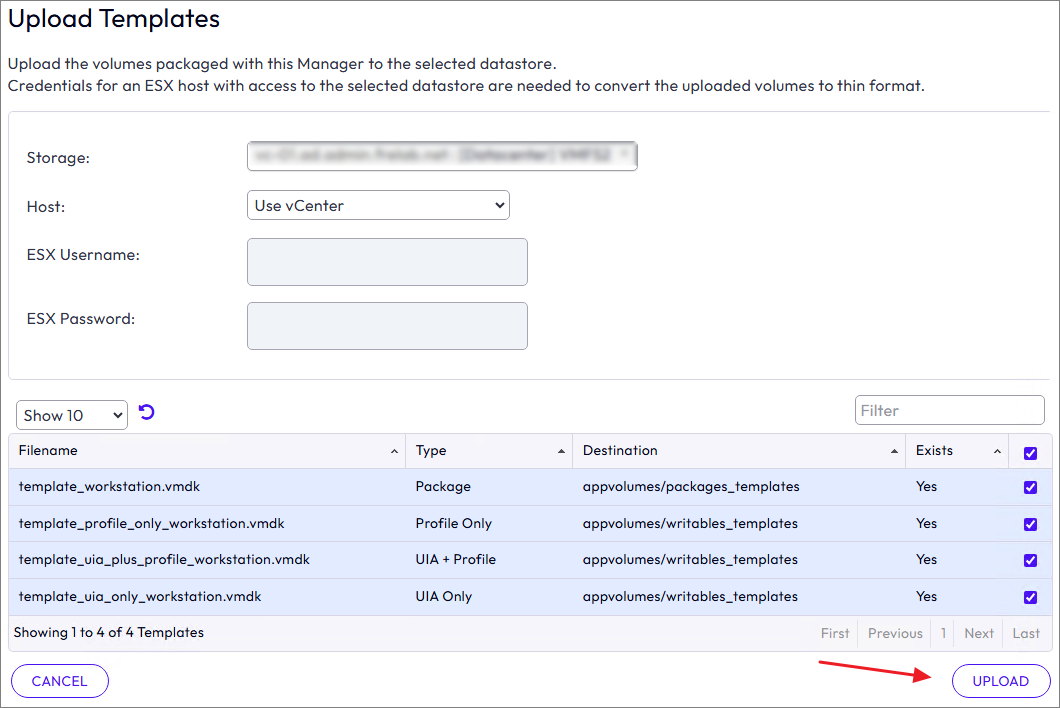
Next, I click the Storage tab and the Upload Templates button

I select the templates I want to update and click Upload…
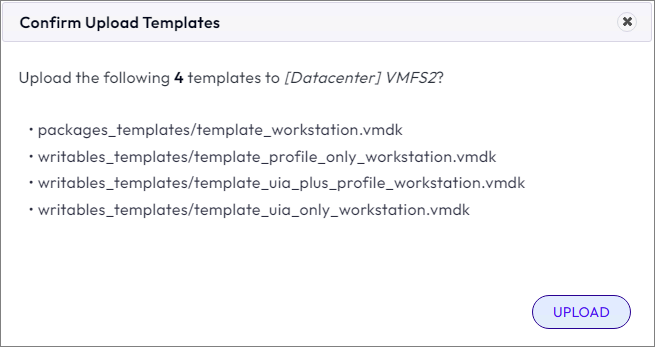
This completes my upgrade of the App Volumes Templates and the Omnissa App Volumes upgrade.
App Volumes Documentation:
Omnissa Documentation:
- Rebranding Changes in Omnissa Horizon Products (6000681)
- Horizon 8 Upgrade Overview
- Product Interoperability Matrix
- Omnissa Product Documentation
App Volumes planning, deployment etc.
Disclaimer: Every tips/tricks/posting I have published here, is tried and tested in different it-solutions. It is not guaranteed to work everywhere, but is meant as a tip for other users out there. Remember, Google is your friend and don’t be afraid to steal with pride! Feel free to comment below as needed.
 bjosoren's IT-Tech blog