
Release date: December 14th 2023, updated December 30th 2023
Welcome to my ControlUp section. The ControlUp Agent is responsible for collecting real-time data from endpoints, facilitating management actions, and providing insights into the performance and health of monitored resources. It is a monitoring and management agent deployed on each endpoint within an IT infrastructure.
The key roles and functions of the ControlUp Agent include:
- Data Collection and Monitoring – The Agent collects real-time data on system performance, resource utilization, application behavior, user sessions, and other metrics from each managed endpoint. This data forms the basis for monitoring and analysis within the ControlUp platform.
- Real-time Reporting – It sends collected data to the ControlUp Monitor, providing administrators with real-time insights and visibility into the status and performance of individual endpoints or the entire infrastructure.
- User Session Management – The Agent tracks and reports user session information, including active sessions, logged-in users, session performance metrics, and resource consumption per user. This information assists in troubleshooting and optimizing user experience.
- Application Performance Monitoring – It monitors applications running on endpoints, capturing data on application responsiveness, resource usage, and performance metrics. This monitoring aids in identifying poorly performing applications or resource-intensive processes.
- Remote Actions and Troubleshooting – ControlUp Agents allow administrators to perform remote actions on monitored endpoints. This includes executing scripts, starting or stopping services, terminating processes, and initiating remote control sessions for troubleshooting purposes.
- Integration and Compatibility – The Agent is designed to be lightweight and compatible with various operating systems and virtualization platforms, ensuring seamless deployment and minimal impact on endpoint performance.
- Security and Communication – It maintains secure communication channels with the ControlUp Monitor, employing encryption protocols to protect data transmitted between endpoints and the ControlUp infrastructure.
- Efficiency and Resource Optimization – ControlUp Agents are optimized to collect necessary data efficiently without causing performance degradation on monitored endpoints. They ensure minimal resource consumption while providing comprehensive monitoring capabilities.
The ControlUp Agent serves as the link between the ControlUp platform and the endpoints, enabling real-time monitoring, data collection, management actions, and performance insights essential for effective IT infrastructure management.
Here I will show how I installed the ControlUp agent in my VMware Horizon templates. As I’ve gone over to using MDT to create templates, I will install the ControlUp Agent in the Deployment Share and run through the task sequence to create a new template. I will also show how to get the Horizon Desktops synchronized to ControlUp.
As pr. ControlUp’s documentation here: Connect to Your Machines, the prerequisites for the ControlUp Agent are:
- Windows 10 or higher.
- Windows Server 2016 or higher.
- .NET Framework 4.5 or higher.
- Open inbound TCP port 40705 for communication with the ControlUp Console and ControlUp Monitor.
Before I start the installation, I download the Agent MSI file from ControlUp Download Center.

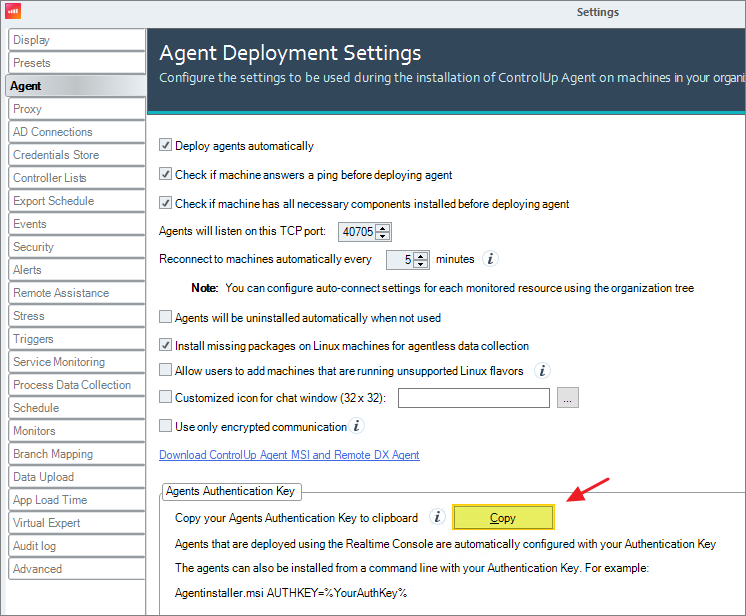
I also copy the Agents Authentication Key from the Real-Time Console Settings page, to be used with the msi installation
I open the MDT Deployment Workbench MMC and add the ControlUp agent as a new application…

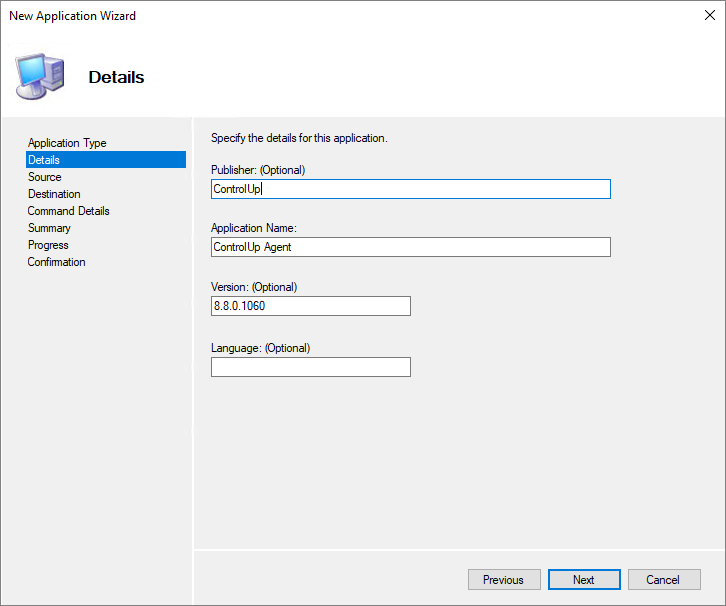
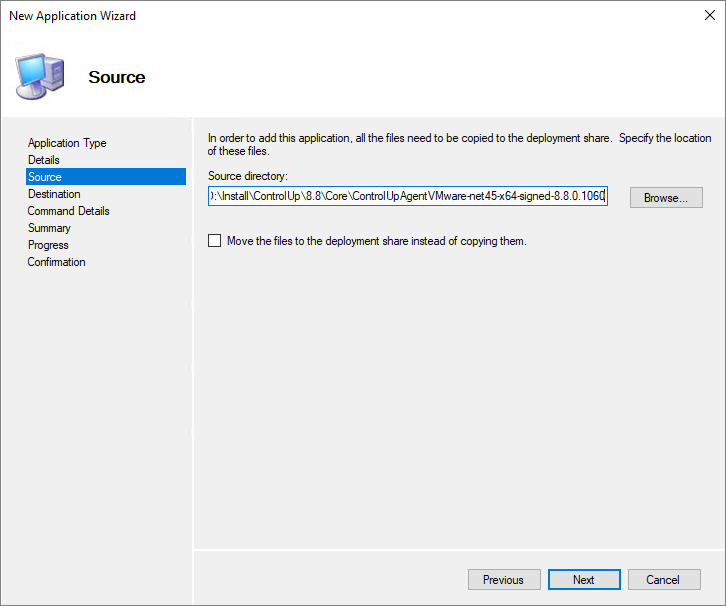
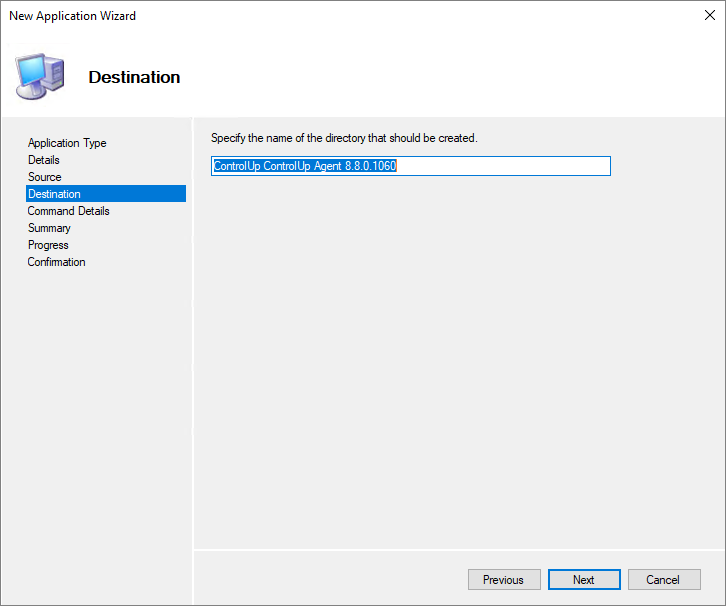
At this point I will need the Authentication Key I copied above. I enter the command line as follows:
msiexec.exe /i ControlUpAgentVMware-net45-x64-8.8.0.1060-signed.msi /quiet /norestart AUTHKEY=BgIAAA..............

Finally, I add the ControlUp agent installation to my Task Sequence…

While having the agent installed correctly is a good start, this wont activate the agents in the ControlUp Real-time Console. As pr. the documentation the VMware Horizon desktop agents has to be synchronized to ControlUp: EUC Synchronization with Universal Sync Script
The prerequisites for running this synchronization is:
- ControlUp version 8.6.5 or higher
- You must already have EUC environments added to the ControlUp organization tree. This can be either VMware Horizon, CVAD or Citrix Cloud
- A running ControlUp Monitor machine
- PowerShell execution policy on the monitor server:
- Bypass or
- Unrestricted
- A service account that has the following permissions:
- Local Administrator privileges
- Log on as a batch job user right
- Password never changes attribute
- User actions to be allowed in the ControlUp Security Policy:
* Add Machine
* Remove Machine
* Add Folder
* Remove Folder
Before I can start, I need to download the sync script xml-file to my console server: Universal EUC Sync.xml Next, I open the Real-Time Console and click Script Actions. From the My Draft Scripts tab, I click Import to import the xml file
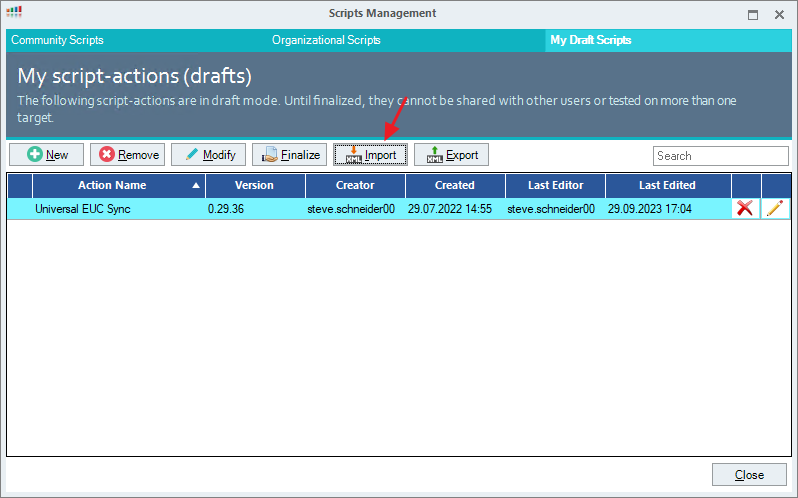
I click Modify and from the Settings tab, I select Other Machine as the Execution Context and in the Security Context, I select Shared credentials to use my predefined credentials, OK…

Once done, I click Finalize…
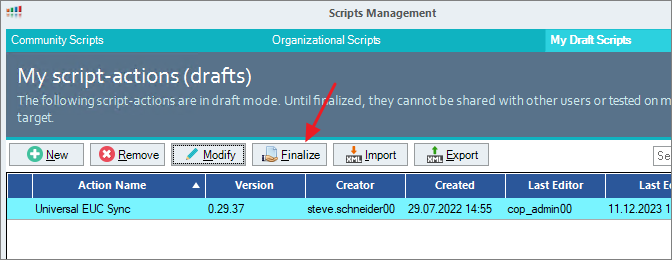
Although possible, I wont be sharing this to the Community, Next…

Finally, I can decide who will be able to run this script, OK…

To run the script, I right-click the monitor machine, click Script Actions and select the Universal EUC Sync script.
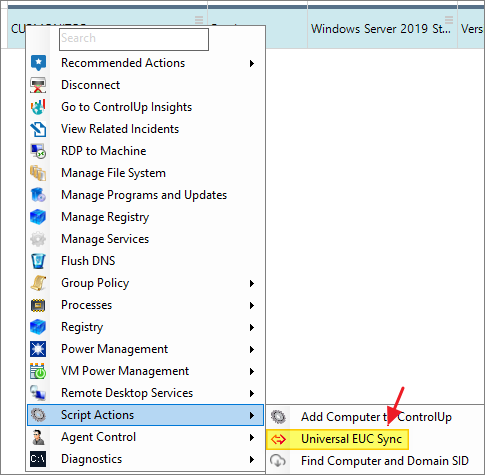
In the script arguments window, I configure the script behavior. For the test-run, I set the Commit changes to No and the Mode parameter to Save. The script parameters are explained here: Script-arguments

Upon successful execution of the script, the following screen appears

Next, I log into the monitor server and verify that the config files are created under %ProgramData%\ControlUp\SyncScripts.
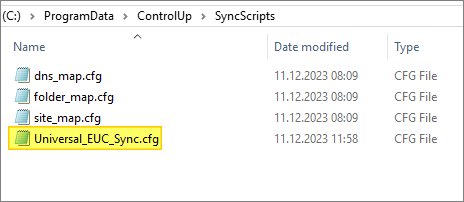
The Universal_EUC_Sync.cfg configuration file holds the basic configuration for the sync script.

After verifying that the script runs as supposed, I change the Commit changes to Yes and the Mode parameter to Run. I also set Preview to False in the Universal_EUC_Sync.cfg file


Once done, I can verify that the VMware Horizon machines are successfully synchronized to ControlUp.

Having the script above running successfully is nice, but this has to be run scheduled. To do this I click Triggers, Add Trigger, Scheduled…in the Real-Time Console

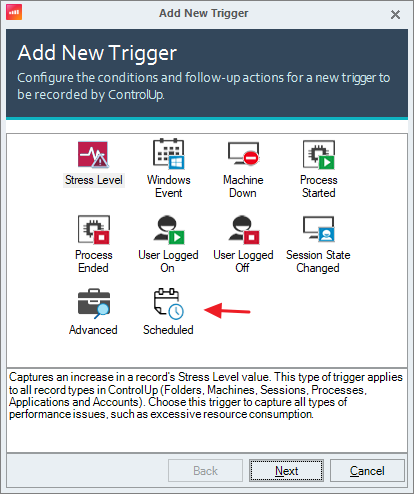
I select the following options and click Next…
- Record Type: Machine
- Schedule: Per Minute
- Recur every 60 minutes
- End. Expiry date of the trigger.

I wont be configuring any conditions for this trigger, Next…

As suggested by ControlUp, before I started this session, I created a folder in the ControlUp organizational tree for my monitors and moved them there. I use this folder as Scope and click Next…
Note:
ControlUp recommend adding the ControlUp Monitors to a dedicated folder in the ControlUp organizational tree.

I click Add to add the Universal EUC sync script, Next…

I select the following options and click OK…
- Type: Run an action
- Action Type: Script Action
- Script Action: Universal EUC Sync
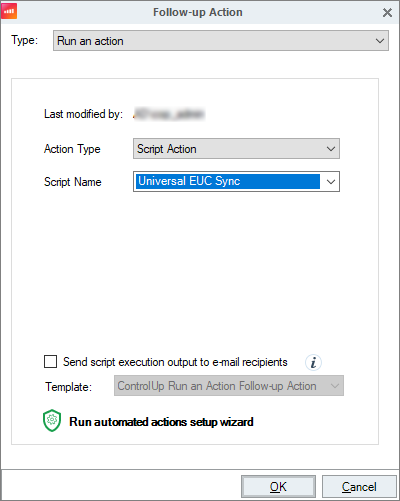
Next…

I provide a somewhat descriptive Trigger Name, Finish…

Back in the Trigger Settings, I click Apply and then OK…

ControlUp On-Premises setup:
- Solve
- Insights
- ControlUp Server
- Real-Time Console
- Define Credentials
- Connect VMware vCenter
- Connect VMware Horizon
- Monitor
- IOP Forwarder
- Agent (Silent)
- RemoteDX
Official ControlUp documentation:
- Welcome to ControlUp for VDI & DaaS
- ControlUp Download Center
- Connect to Your Machines
- EUC Synchronization with Universal Sync Script
- ControlUp Architecture – On-Premises
Other miscellaneous Tips & Tricks
Disclaimer: Every tips/tricks/posting I have published here, is tried and tested in different it-solutions. It is not guaranteed to work everywhere, but is meant as a tip for other users out there. Remember, Google is your friend and don’t be afraid to steal with pride! Feel free to comment below as needed.
 bjosoren's IT-Tech blog