
Release date: October 12th 2023, updated December 30th 2023
Welcome to my ControlUp section. Here I will show how I installed the ControlUp Real-Time Console On-Premises. As I mentioned during planning, the ControlUp Real-time Console is the user interface through which administrators and IT professionals interact with the ControlUp platform in real-time. It serves as the primary tool for monitoring, managing, and troubleshooting IT environments efficiently.
The key roles and functions of the ControlUp Real-time Console:
- Real-time Monitoring – The console provides a live, real-time view of the monitored infrastructure. It displays comprehensive data on system performance, resource utilization, user sessions, application performance, and network metrics. This live monitoring capability allows administrators to identify issues as they occur and take immediate action.
- Dashboard and Alerts – It offers customizable dashboards and configurable alerts that provide at-a-glance insights into the health and performance of the IT environment. Administrators can set up personalized dashboards with specific metrics and create alerts based on predefined thresholds, ensuring proactive management and timely response to potential issues.
- User Session Management – ControlUp Real-time Console enables administrators to manage user sessions efficiently. It provides visibility into active user sessions, their resource usage, and application performance. Administrators can troubleshoot session-related issues, shadow user sessions for assistance, and perform actions such as logoff or disconnect when necessary.
- Performance Metrics and Analysis – The console offers detailed performance metrics and historical data analysis. It allows users to review performance trends, conduct deep dives into specific metrics, and perform comparative analysis to identify patterns or anomalies that may impact system performance.
- Remote Actions and Troubleshooting – It empowers administrators to take remote actions on monitored endpoints. This includes initiating tasks such as restarting services, running scripts, terminating processes, or initiating remote control sessions for troubleshooting purposes—all performed from within the ControlUp Real-time Console.
- Application and Resource Insights – Administrators can gain insights into application behavior and resource consumption. They can track application performance, identify resource-intensive applications, and optimize resource allocation to enhance overall system performance.
- Reporting and Analysis – The Real-time Console facilitates the generation of reports and data analysis for performance evaluation, compliance audits, and trend analysis. It offers customizable reporting capabilities to extract specific data sets and generate insights tailored to organizational requirements.
- Integration and Collaboration – It serves as a platform for integrating with other tools and solutions, allowing collaboration and extending functionalities. The console’s integration capabilities enable administrators to work seamlessly with third-party systems or tools, enhancing the overall management capabilities.
The ControlUp Real-time Console provides a user-friendly interface that empowers administrators with real-time visibility, actionable insights, and powerful management capabilities, enabling efficient monitoring, troubleshooting, and optimization of IT environments.
As pr. ControlUp’s documentation here: ControlUp On-Premises Real-Time Console Installation, the prerequisites for the ControlUp Real-Time Console are:
- You must meet the requirements explained in the prerequisites article in order to install the console.
- For ControlUp On-Premises (COP) 8.6.5 and all later versions, you must install the DigiCert Trusted G4 (RSA default) certificate on each machine that you install the console. If you have the latest Windows updates installed, this certificate should already be installed on your machine(s). You can download the certificate here.
Before I start the installation, I check that I have the DigiCert Trusted Root G4 certificate present in the Trusted Root Certification Authorities store.

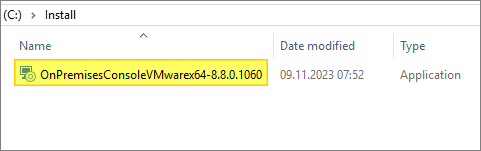
Once done, I locate the installer I downloaded, unzipped and launch the executable. This opens the ControlUp Server wizard’s welcome screen, Next…

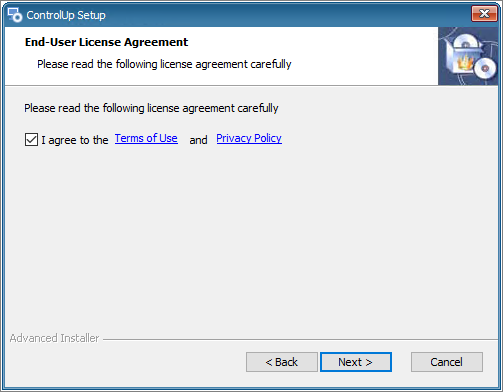
In the next screen, I agree to the EULA Tems of Use, Next…
The suggested destination folder looks fine, Next…

Finally, I click Install…

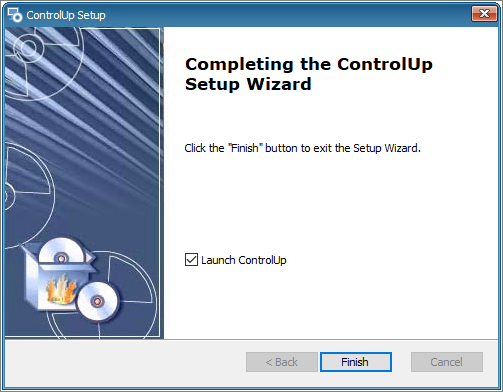
The installation was successful, Finish..
When the ControlUp Real-Time Console launches, I provide the name of my ControlUp Server, Continue…

I click Yes to authorize secured communication with this server

I can now continue with configuring the rest of the environment

ControlUp On-Premises setup:
- Solve
- Insights
- ControlUp Server
- Real-Time Console
- Define Credentials
- Connect VMware vCenter
- Connect VMware Horizon
- Monitor
- IOP Forwarder
- Agent (Silent)
- RemoteDX
Official ControlUp documentation:
- Welcome to ControlUp for VDI & DaaS
- ControlUp On-Premises Real-Time Console Installation
- ControlUp Architecture – On-Premises
Other miscellaneous Tips & Tricks
Disclaimer: Every tips/tricks/posting I have published here, is tried and tested in different it-solutions. It is not guaranteed to work everywhere, but is meant as a tip for other users out there. Remember, Google is your friend and don’t be afraid to steal with pride! Feel free to comment below as needed.
 bjosoren's IT-Tech blog