
Release date: October 12th 2023, updated December 30th 2023
Welcome to my ControlUp section. Here I will show how I installed the ControlUp Insights On-Premises Virtual Appliance. As I mentioned during planning, ControlUp Insights is an analytics and reporting platform designed to complement the ControlUp Real-time Console by offering enhanced data analytics, historical reporting, and long-term performance trend analysis.
The key roles and functions of the ControlUp Insights:
- Centralized Data Repository – ControlUp Insights serves as a centralized repository for historical data collected from the monitored environments. It aggregates and stores this data securely in the cloud, allowing for long-term retention and analysis.
- Historical Performance Analysis – It provides historical performance data, enabling in-depth analysis of trends and patterns over time. Insights allows administrators to compare historical data, identify performance trends, and pinpoint recurring issues or anomalies within the IT infrastructure.
- Advanced Analytics and Trend Identification – ControlUp Insights leverages advanced analytics to identify performance trends, anomalies, and correlations that might impact system performance. By analyzing historical data, it assists in predicting potential issues and optimizing system performance.
- Customized Reporting and Dashboards – It offers customizable reporting and dashboard creation capabilities. Administrators can generate detailed reports and build personalized dashboards tailored to specific metrics, providing comprehensive insights into the IT environment’s performance and health.
- Capacity Planning and Optimization – Insights assists in capacity planning by analyzing historical data and forecasting resource utilization trends. It helps in optimizing resource allocation, scaling infrastructure, and making informed decisions about future capacity needs.
- Troubleshooting and Root Cause Analysis – Administrators can use Insights to perform root cause analysis by examining historical data associated with incidents or performance issues. It enables them to understand the context of past events and identify underlying causes for better troubleshooting.
- Integration with Real-time Console – ControlUp Insights seamlessly integrates with the ControlUp Real-time Console, providing a holistic view of both real-time and historical data. This integration enables administrators to correlate real-time events with historical trends for a comprehensive understanding of system performance.
- Data Security and Compliance – It ensures data security and compliance by adhering to industry-standard security practices for data storage and transmission. ControlUp Insights maintains data integrity while allowing authorized personnel to access and analyze historical performance data.
ControlUp Insights enhances ControlUp’s capabilities by providing historical data analysis, advanced analytics, and long-term performance trend identification. It empowers administrators with actionable insights derived from historical data, enabling proactive management and optimization of IT environments.
As pr. ControlUp’s documentation here: Insights On-Premises Virtual Appliance Installation, the prerequisites for the ControlUp Insights On-Premises Virtual Appliance are:
- General IOP prerequisites
- VMware vCenter Server with a vSphere Web Client installed
- OVA file for IOP
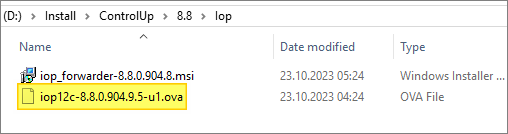
In this setup I will be deploying a standalone servere, but it is also possible to set up this as clustered deployment according to ControlUp: Deploy IOP Server in a Cluster. Before I start I download the necessary OVA file.
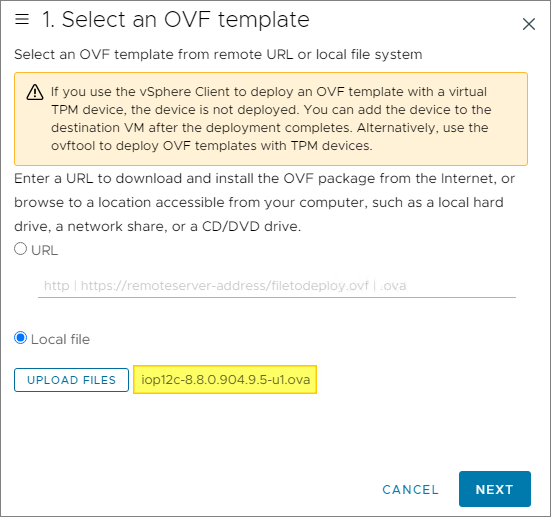
In vCenter, I select Deploy OVF Template. Browse and select the OVA file, Next…
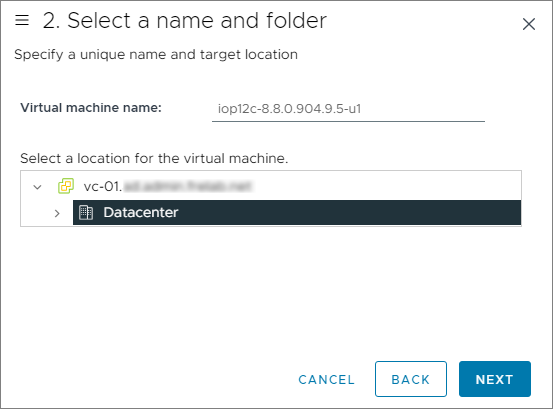
I provide a VM name and select a folder for placement, Next…
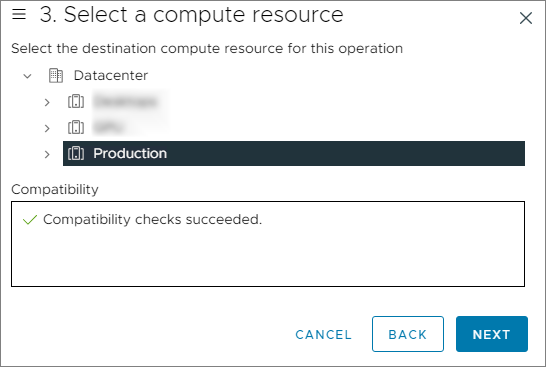
I select my Production Cluster as compute resource, Next…
I review the details and click Next…
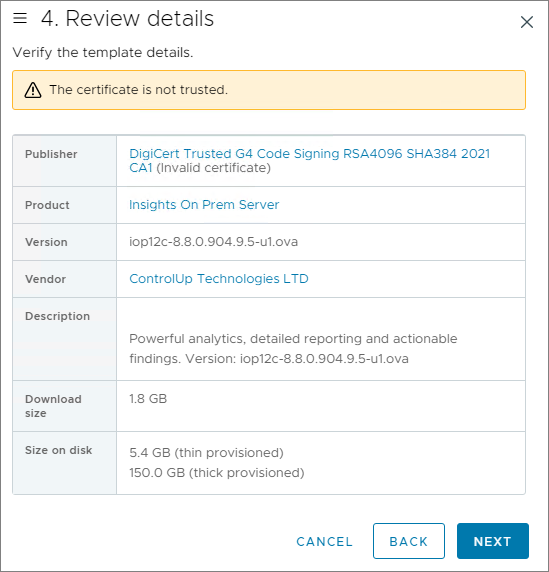
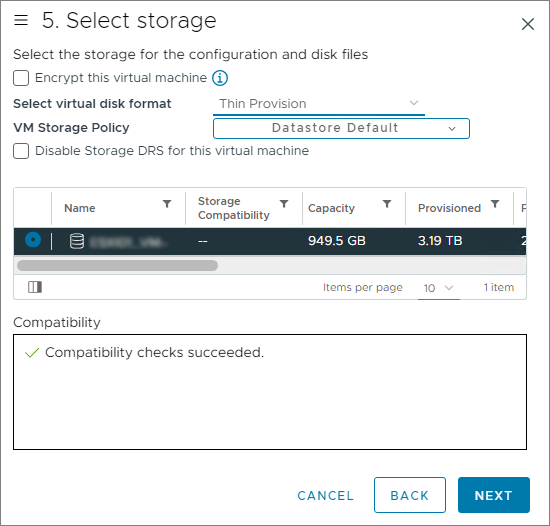
I choose datastore and virtual disk format, Next…
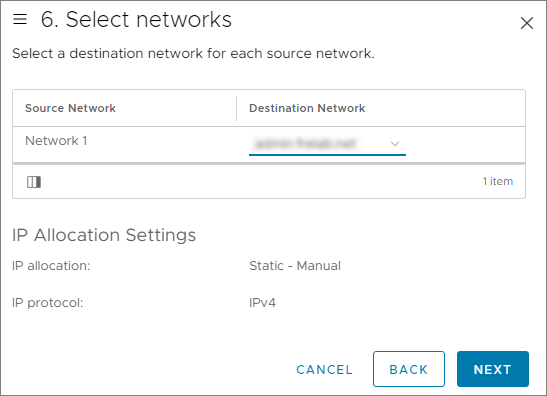
I select the correct Destination Network, Next…
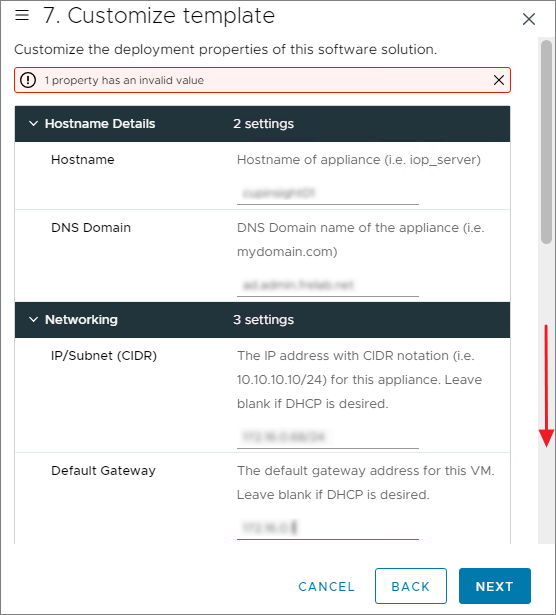
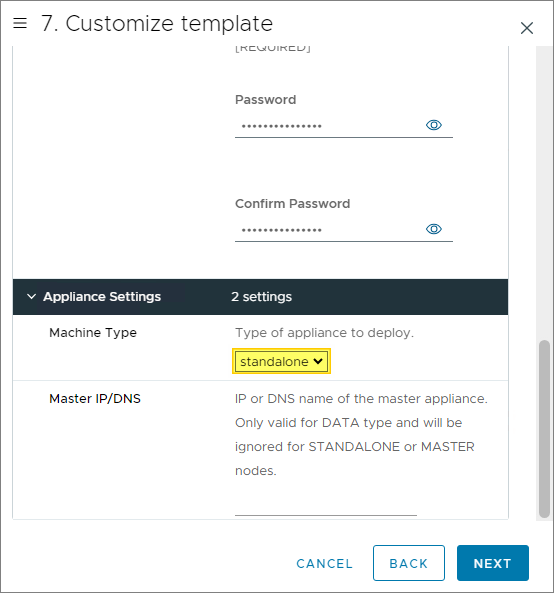
In the customize template wizard, I fill in all the necessary network-information, Next…

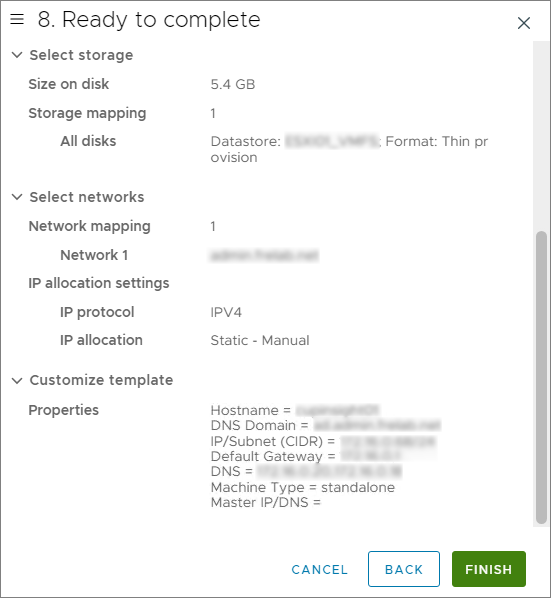
Finally I click FINISH to start the installation of the new IOP server.
While the installation finishes in vCenter, I create a static DNS-pointer for the new IOP server.

Once the installation is done, I power on the VM in vCenter. As pr. the documentation I should do the following Post-Install tasks:
- Change Disk Size of Data Partition (I wont do this as this isn’t a production install)
- Verify Connectivity:
- I connect with Putty and log in with the user cuadmin user and the password you provided during the OVF deployment – OK

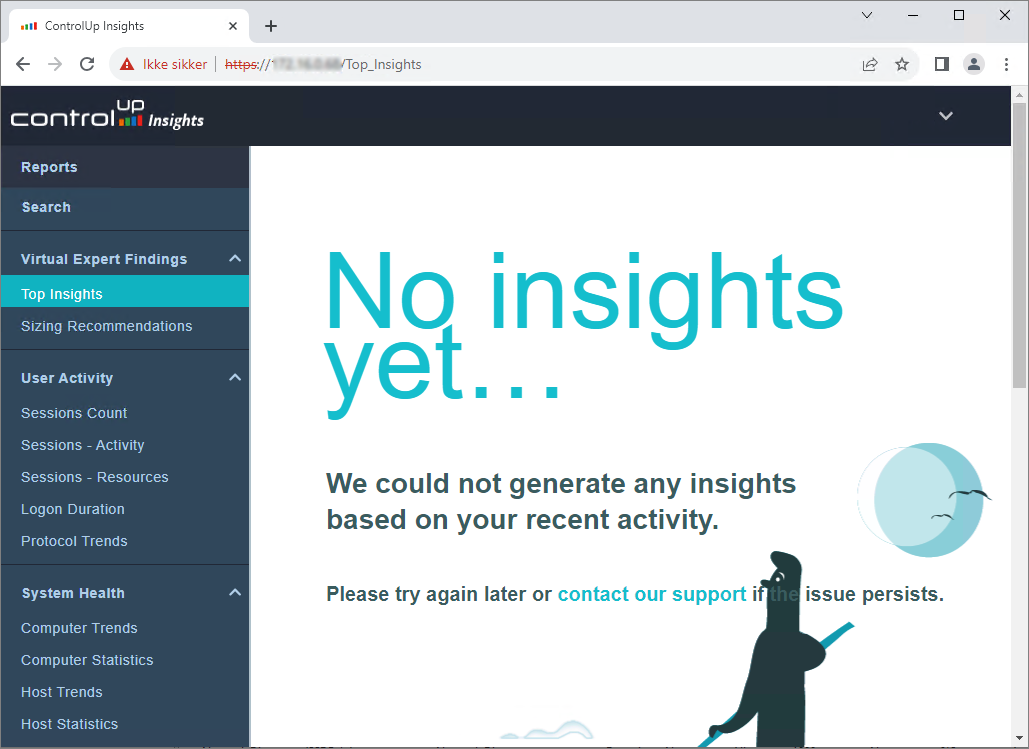
- I open a browser windows and enter the FQDN of the new IOP server, log in with the user admin and the password you defined during the OVF deployment – OK
ControlUp On-Premises setup:
- Solve
- Insights
- ControlUp Server
- Real-Time Console
- Define Credentials
- Connect VMware vCenter
- Connect VMware Horizon
- Monitor
- IOP Forwarder
- Agent (Silent)
- RemoteDX
Official ControlUp documentation:
- Welcome to ControlUp for VDI & DaaS
- Insights On-Premises Virtual Appliance Installation
- General IOP prerequisites
- Deploy IOP Server in a Cluster
- ControlUp Architecture – On-Premises
Other miscellaneous Tips & Tricks
Disclaimer: Every tips/tricks/posting I have published here, is tried and tested in different it-solutions. It is not guaranteed to work everywhere, but is meant as a tip for other users out there. Remember, Google is your friend and don’t be afraid to steal with pride! Feel free to comment below as needed.
 bjosoren's IT-Tech blog