
Release date: October 24th 2023, updated December 30th 2023
Welcome to my ControlUp section. Here I will show how I installed the ControlUp IOP Forwarder On-Premises. The ControlUp Insights Operations (IOP) Forwarder serves as a bridge between the infrastructure and the ControlUp Insights analytics and reporting platform. This component uploads the activity files from a specified location to the IOP server. This specified location can either be the local disk of the monitor machine or a network share. This is required if ControlUp Insights is in use and must be installed separately on each ControlUp Monitor machine.
The key roles and functions of the ControlUp IOP Forwarder:
- Data Aggregation and Forwarding – The IOP Forwarder collects and forwards operational data from the on-premises ControlUp Monitor to the ControlUp Insights platform. It aggregates data collected by the ControlUp Monitor and securely transmits it to ControlUp Insights for analysis and long-term storage.
- Secure Data Transmission – It ensures the secure transmission of data from the infrastructure to ControlUp Insights. This includes employing encryption protocols and secure communication channels to protect sensitive operational data during transit.
- Bandwidth Optimization – The IOP Forwarder is designed to optimize bandwidth usage by efficiently transmitting aggregated data to ControlUp Insights. It employs mechanisms to minimize the impact on network bandwidth while ensuring timely and reliable data transfer.
- Connection and Integration – It establishes and maintains the connection between the ControlUp environment and ControlUp Insights. This integration allows for the seamless transfer of data, enabling the Insights platform to leverage the collected information for analysis and reporting.
- Synchronization and Reliability – The IOP Forwarder ensures the synchronization and reliability of data transmission to ControlUp Insights. It manages data flow, maintains consistency, and handles potential issues or interruptions in the data transfer process to ensure reliable data delivery.
- Configuration and Monitoring – Administrators can configure and manage the IOP Forwarder settings to control the data transfer process. They can monitor the status of data transmission, manage connection settings, and troubleshoot potential issues related to data forwarding.
- Analytics and Reporting – By forwarding operational data to ControlUp Insights, the IOP Forwarder enables organizations to leverage the analytics and reporting capabilities of ControlUp Insights. This includes historical data analysis, trend identification, and customized reporting for performance evaluation.
The ControlUp IOP Forwarder enables the integration between the ControlUp monitoring infrastructure and the analytics platform provided by ControlUp Insights. It ensures secure, efficient, and reliable transmission of operational data, empowering organizations to gain actionable insights and make informed decisions based on historical performance data.
As pr. ControlUp’s documentation here: Insights On-Premises Forwarder Installation, the prerequisites for the ControlUp IOP Forwarder are:
- A Windows Server machine with the ControlUp Monitor installed
- An IOP server that retrieves the activity files from the IOP Forwarder.
Before I start the installation, I check that I have the DigiCert Trusted Root G4 certificate present in the Trusted Root Certification Authorities store.

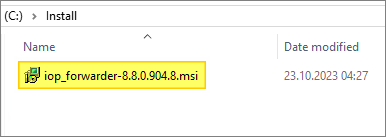
Once done, I locate the installer I downloaded and launch the executable. This opens the ControlUp Forwarder wizard’s welcome screen, Next…
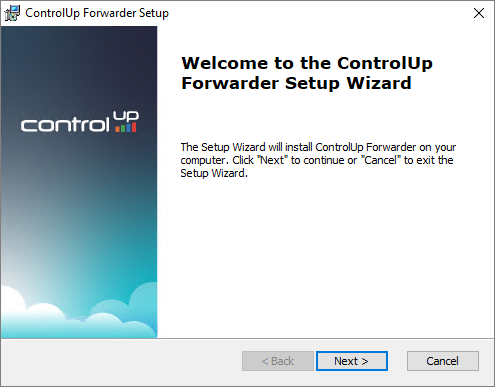
The suggested installation folder looks fine, Next…

I select my Standalone IOP installation architecture, Next…

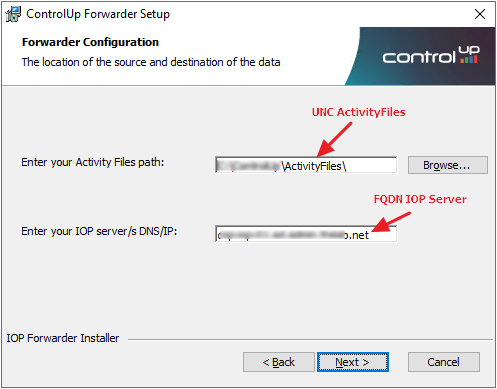
I enter the UNC-path to the share I use for ActivityFiles on the ControlUp Server and the FQDN of my IOP server, Next..
Install…
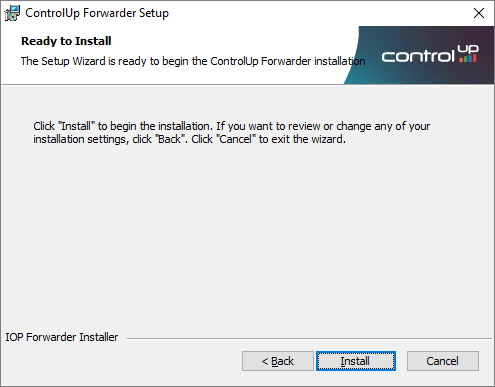
When the installation is complete, Finish…

ControlUp On-Premises setup:
- Solve
- Insights
- ControlUp Server
- Real-Time Console
- Define Credentials
- Connect VMware vCenter
- Connect VMware Horizon
- Monitor
- IOP Forwarder
- Agent (Silent)
- RemoteDX
Official ControlUp documentation:
- Welcome to ControlUp for VDI & DaaS
- Insights On-Premises Forwarder Installation
- ControlUp Architecture – On-Premises
Other miscellaneous Tips & Tricks
Disclaimer: Every tips/tricks/posting I have published here, is tried and tested in different it-solutions. It is not guaranteed to work everywhere, but is meant as a tip for other users out there. Remember, Google is your friend and don’t be afraid to steal with pride! Feel free to comment below as needed.
 bjosoren's IT-Tech blog