
Release date: Desember 21st 2023
Welcome to my ControlUp section. In this session I will demonstrate how to setup and collect extremely useful information about endpoints, that comes in handy when troubleshooting poor user experience, due to endpoint performance.
Remote DX offers the following key capabilities:
- Real-time Monitoring – It enables real-time monitoring of user sessions, applications, and the overall health of virtualized environments. This includes monitoring session latency, application responsiveness, resource consumption, etc.
- User Experience Metrics – Remote DX gathers user experience metrics to assess session quality, such as session latency, screen refresh rates, input responsiveness, and potential network issues affecting user experience.
- Advanced Troubleshooting – It provides advanced diagnostic capabilities to identify and troubleshoot issues within remote sessions quickly. This involves monitoring application behavior, network performance, resource usage, and more.
- Session Analytics and Reporting – Remote DX gathers session data, which can be utilized for analytics and generating reports. This allows administrators to gain insights into user behavior, resource utilization patterns, and performance trends over time.
- Integration with ControlUp Console – Remote DX is integrated into the ControlUp management console, offering a unified interface for managing, monitoring, and troubleshooting virtualized environments.
ControlUp’s documentation Hybrid work monitoring describes Remote DX as follows:
Designed for employees that use Citrix, VMware Horizon or Microsoft Azure virtual desktops and applications, ControlUp Remote DX collects relevant user-side telemetry that affects their Digital Employee Experience, such as the quality and speed of the Wi-Fi connection, as well as the performance of their internet connection.
To setup Remote DX I first check that I am licensed for this in the ControlUp Real-Time Console.
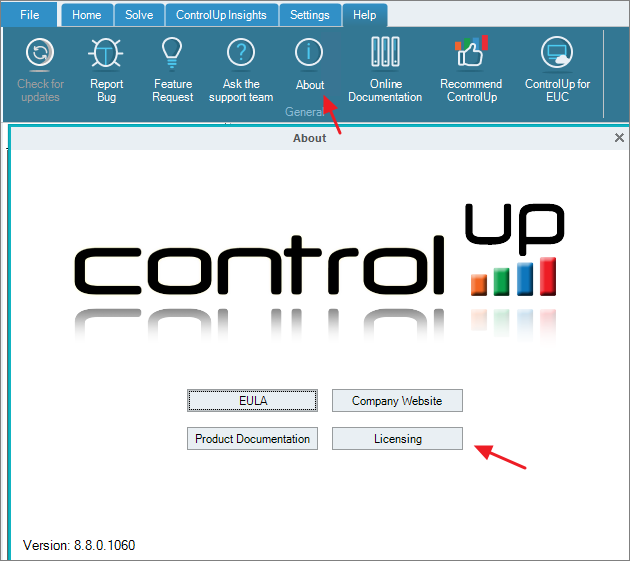
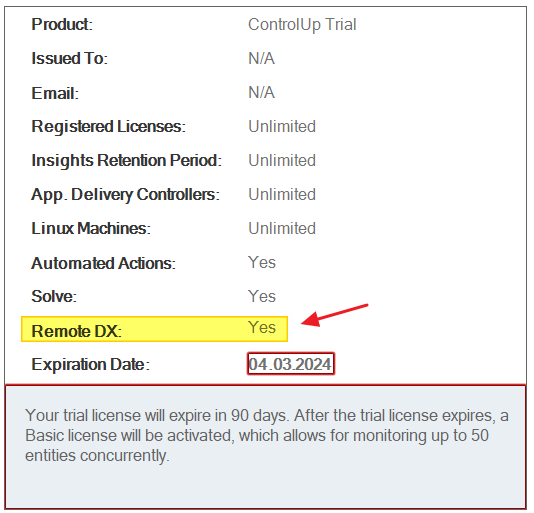
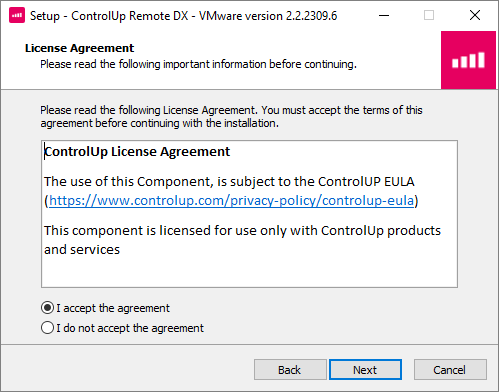
ControlUp Remote DX is pr. now supported on endpoints running Windows, macOS, IGEL OS, or HP ThinPro, however, I will also show how to use this on Dell Wyse ThinOS endpoints, below. But first, I will setup this on my Windows endpoint. I start by downloading the Remote DX Plugin for VMware Horizon Clients from the ControlUp Download Center

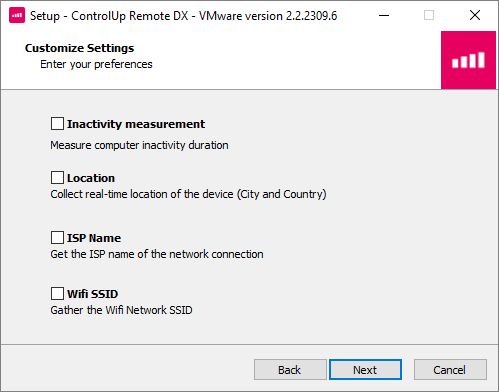
The installation of the Remote DX plugin is quite straight forward

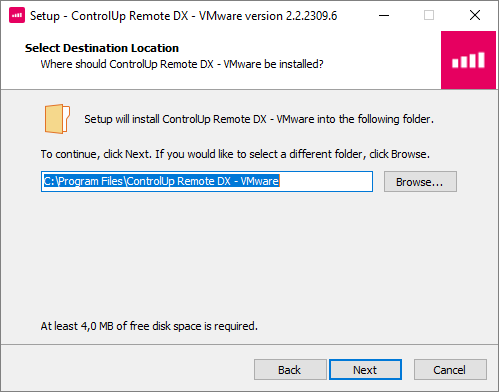
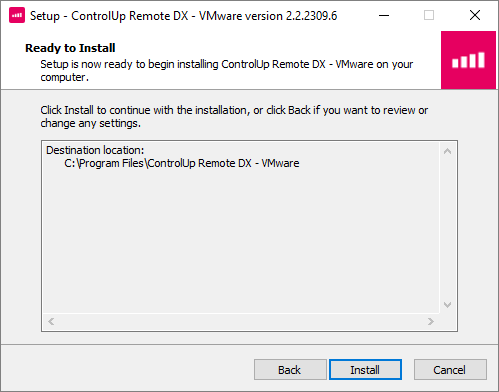
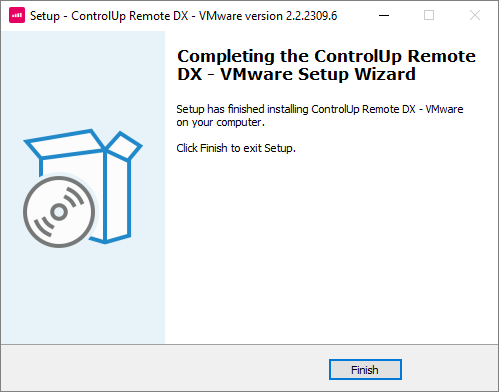
To test the functionality and view the Remote DX metrics, I log into a Horizon Desktop from the windows endpoint I installed the Remote DX plugin on above. Once done, I open up the ControlUp Real-Time Console and select the desktop pool and then Sessions. From the Column Preset drop-down menu, select Remote DX.
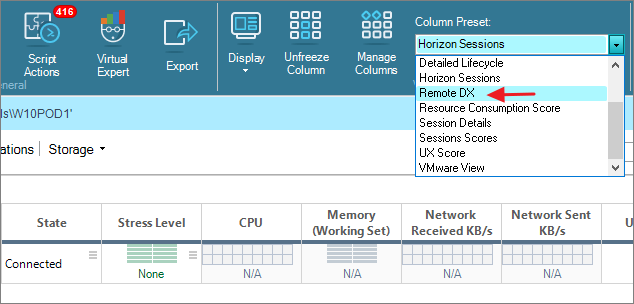
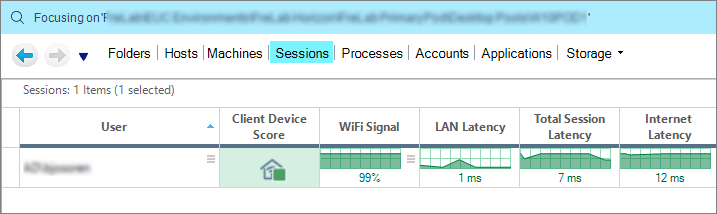
I can now see the collected information from the endpoint, everything from Wi-Fi-signal strength, latency etc.
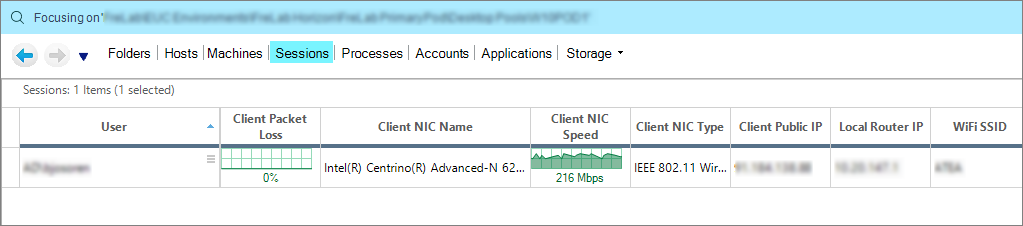
Furthermore, to the right I can get more information about network card, router etc.
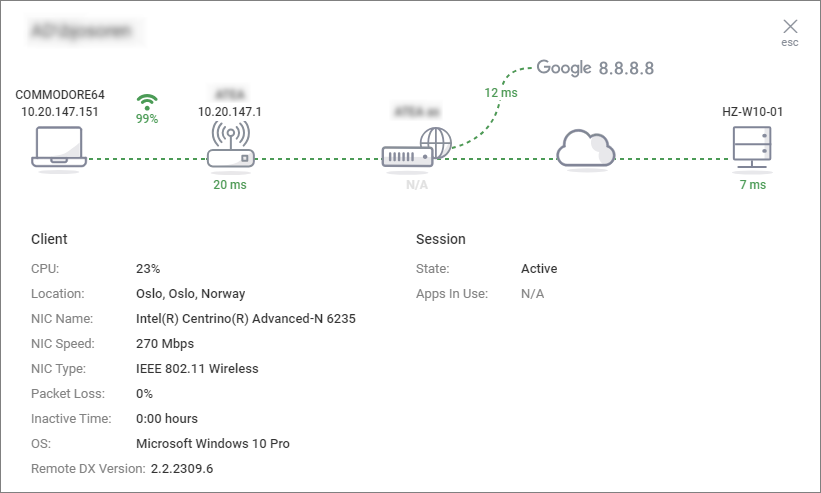
I can also use ControlUp Solve to get detailed information about the endpoint.
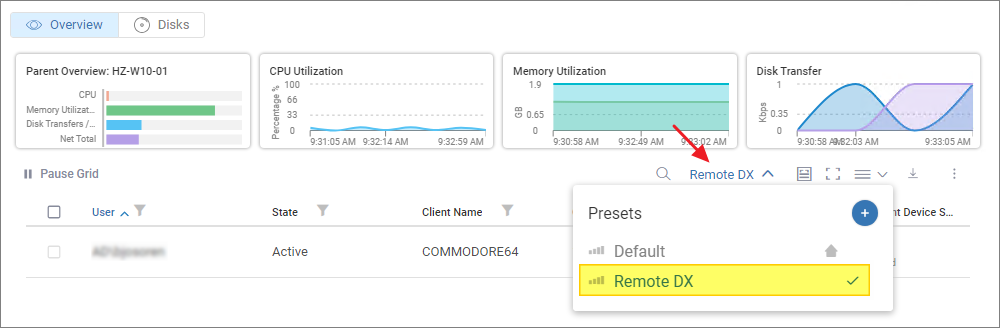
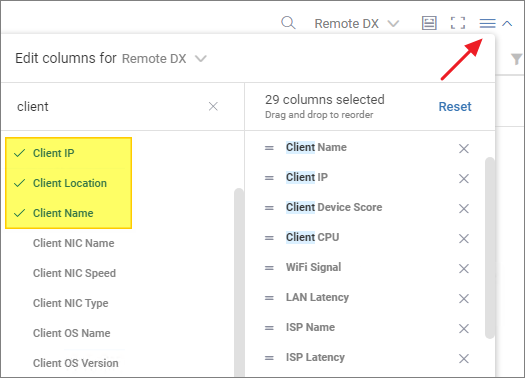
Using the Grid Column Picker provides additional information as needed.
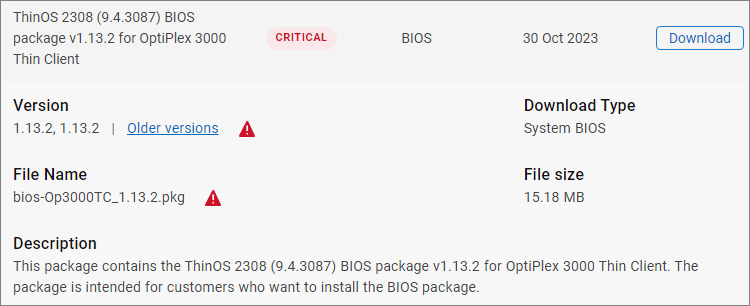
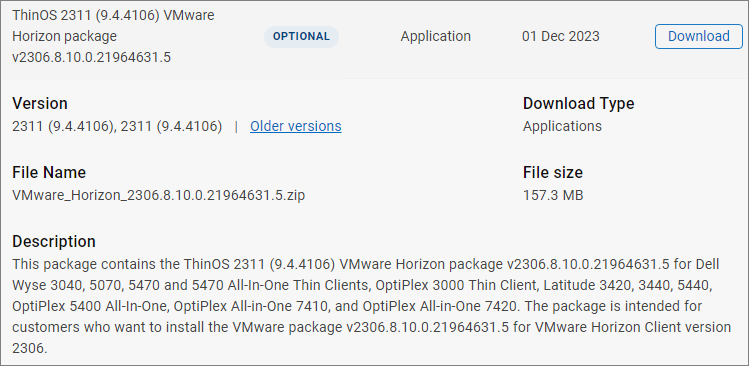
As I mentioned to begin with, I will also show how to get endpoint information from my Dell Wyse endpoints. Before I begin, I download and push out the latest BIOS, Firmware and Applications packages to the endpoint.


Once done, I log in from a Wyse unit and test the same I tested above from a Windows endpoint, in both ControlUp Real-Time Console and Solve
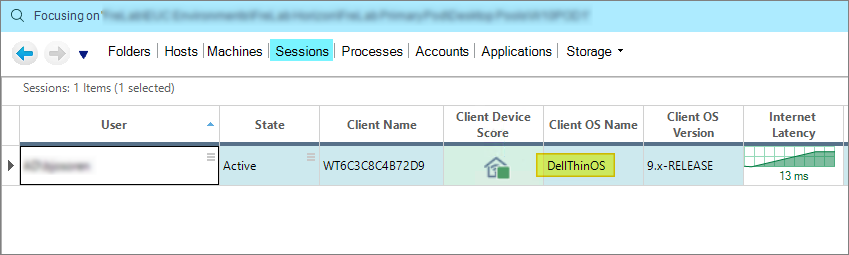

As we can see, ControlUp Remote DX gives valuable information about the endpoints that are extremely helpful when troubleshooting poor user experience.
ControlUp On-Premises setup:
- Solve
- Insights
- ControlUp Server
- Real-Time Console
- Define Credentials
- Connect VMware vCenter
- Connect VMware Horizon
- Monitor
- IOP Forwarder
- Agent (Silent)
- RemoteDX
Official ControlUp documentation:
Official VMware documentation:
Get started with ControlUp Remote DX and VMware Horizon
Other miscellaneous Tips & Tricks
Disclaimer: Every tips/tricks/posting I have published here, is tried and tested in different it-solutions. It is not guaranteed to work everywhere, but is meant as a tip for other users out there. Remember, Google is your friend and don’t be afraid to steal with pride! Feel free to comment below as needed.
 bjosoren's IT-Tech blog