
Release date: November 21st 2023
Welcome to my ControlUp section. Here I will show how to replace the self-signed certificate for Solve with a domain CA signed certificate. When I first deployed the Solve appliance, it came installed with a self-signed certificate. As pr. ControlUp’s documentation here: Solve On-Premises Configuration, it is possible to use a domain CA signed certificate for this role. The procedure for this is somewhat different than doing this for Insights as this involves requesting a certificate from the Domain CA and exporting both certificate and key.
As the Solve server isn’t domain joined, and therefore not eligible for enrollment through AD, I will request the certificate from a server that has enrollment permissions on the certificate template I want to use. I start out by running certlm.msc. I wont go into details about requesting the certificate, but do a quick run through with screenshots below. The most important step during this is to set both Common Name and DNS to the Solve server’s FQDN.


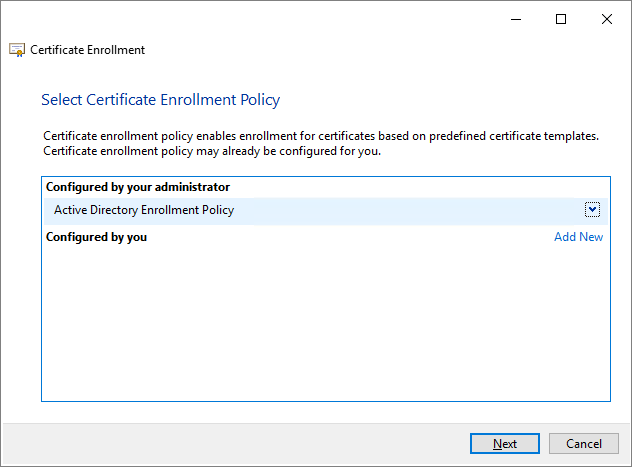
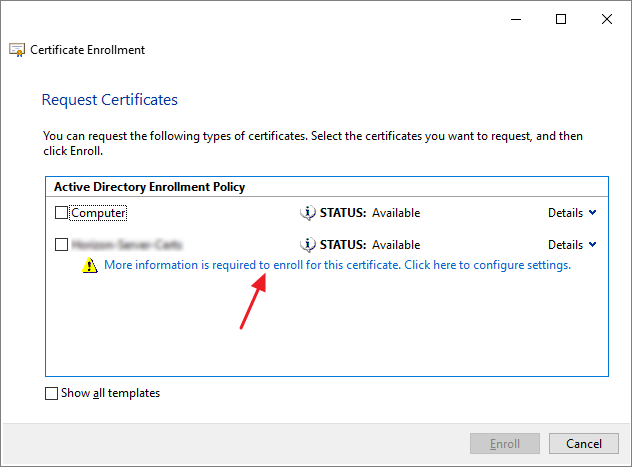
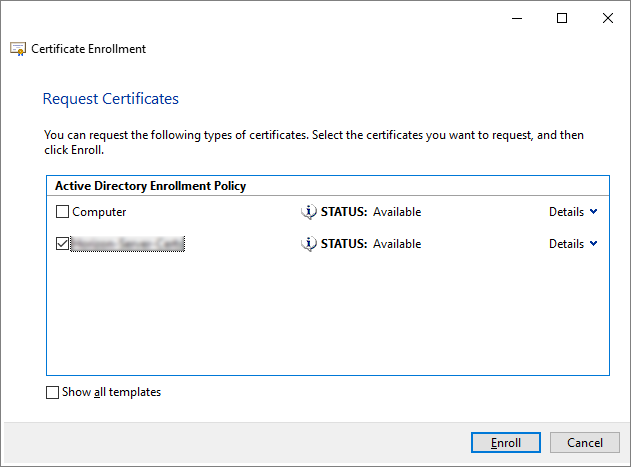
I provide the Solve server’s FQDN as both Common Name and DNS. I also set a recognizable Friend Name



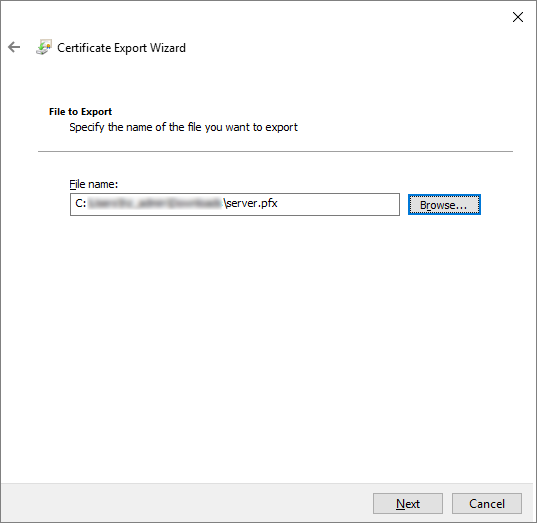
Next, I will Export the Certificate and Private Key to a pfx-file


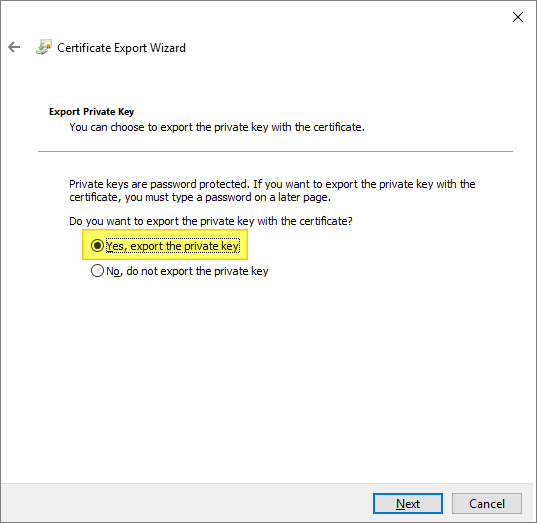

I enter a password to protect the private key. It is important to remember this as it will used to decrypt the private key file below using OpenSSL.


Before I can use the certificate with Solve, I will first need to export the encrypted key from the pfx certificate. I do this by running the following OpenSSL command:
openssl.exe pkcs12 -in server.pfx -nocerts -out encrypted-server.keyI run the following command to decrypt the encrypted-server.key file
openssl.exe rsa -in encrypted-server.key -out server.keyFinally, I export the certificate from the pfx-file
openssl.exe pkcs12 -in server.pfx -clcerts -nokeys -out server.crtNow that I have both the server.crt and the server.key file ready, I log into Solve and from the Settings page, I upload the certificate and key file.
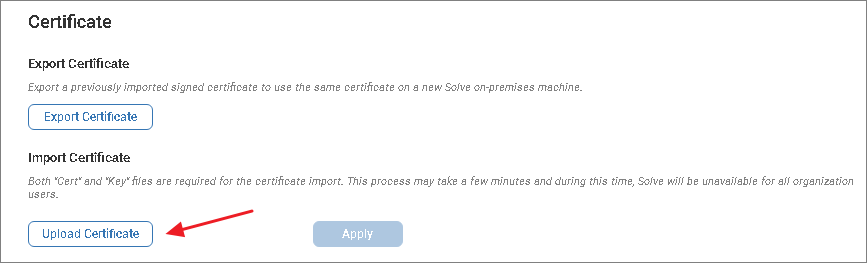
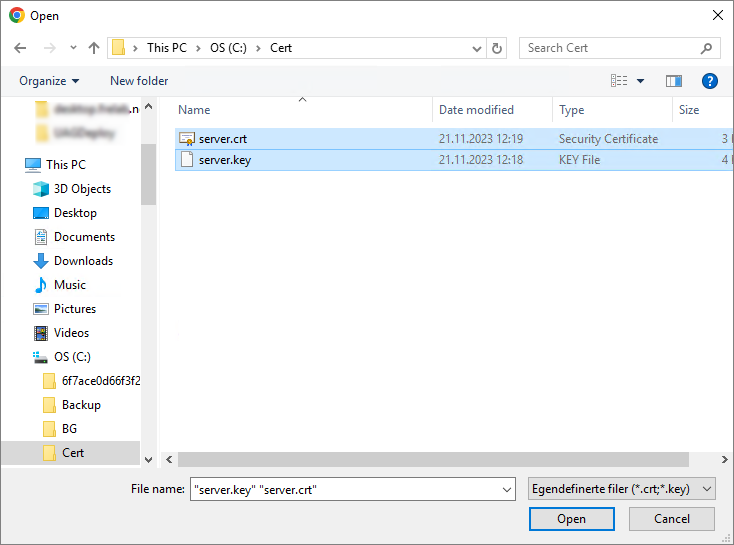
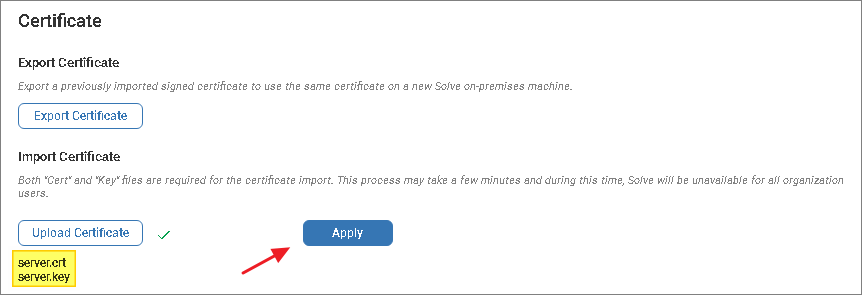
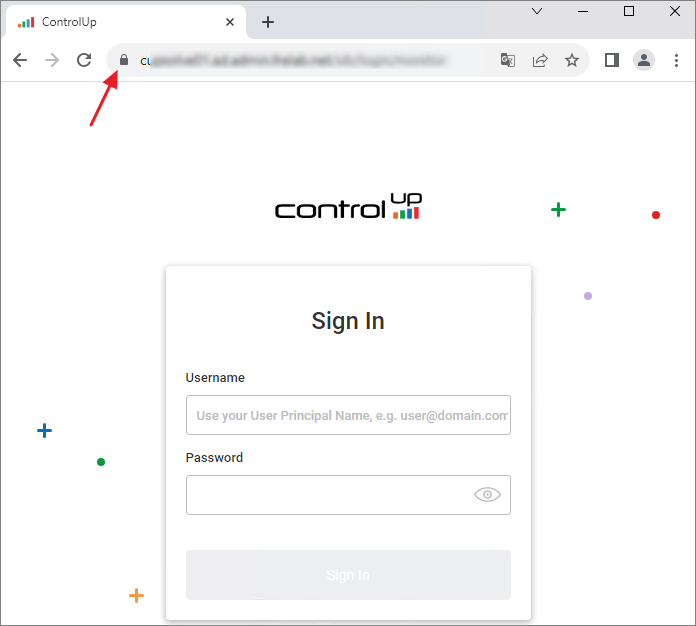
Once I click Apply, the web service is restarted and I am logged out. I can now verify that the certificate-error is resolved.
ControlUp On-Premises setup:
- Solve
- Export JSON Web Token File
- Replace Solve Self-Signed Certificate
- Insights
- ControlUp Server
- Real-Time Console
- Define Credentials
- Connect VMware vCenter
- Connect VMware Horizon
- Monitor
- IOP Forwarder
- Agent (Silent)
- RemoteDX
Official ControlUp documentation:
Other miscellaneous Tips & Tricks
Disclaimer: Every tips/tricks/posting I have published here, is tried and tested in different it-solutions. It is not guaranteed to work everywhere, but is meant as a tip for other users out there. Remember, Google is your friend and don’t be afraid to steal with pride! Feel free to comment below as needed.
 bjosoren's IT-Tech blog