
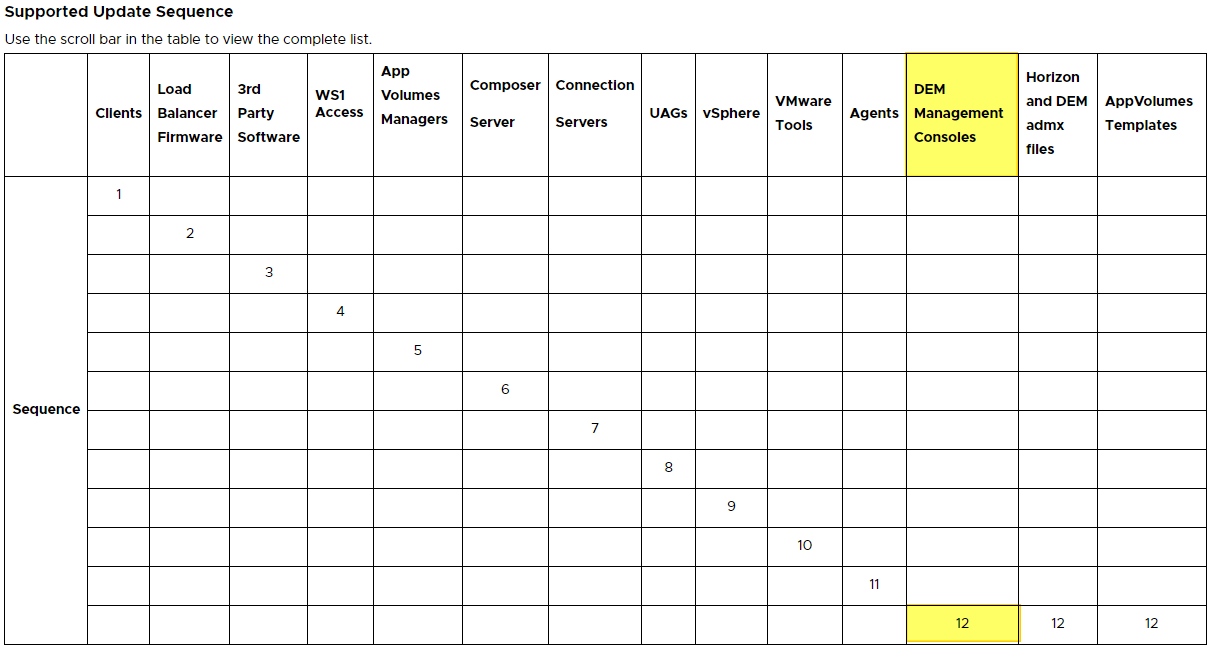
Welcome to my Omnissa Dynamic Environment Manager series. In this session I will describe how I upgraded the Dynamic Environment Manager Management Console to v. 2512. According to Omnissa’s official documentation, this should be done as step 12 in the supported update sequence.
Dynamic Environment Manager 2512 Release Notes
I start out by downloading the installation media from Omnissa Customer Connect

Before I start the upgrade, I verify the installed version and build

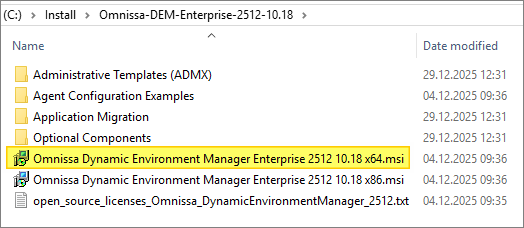
I extract the downloaded “Omnissa-DEM-Enterprise-2512-10.18.zip“-file and launch the executable “Omnissa Dynamic Environment Manager Enterprise 2512 10.18 x64.msi“
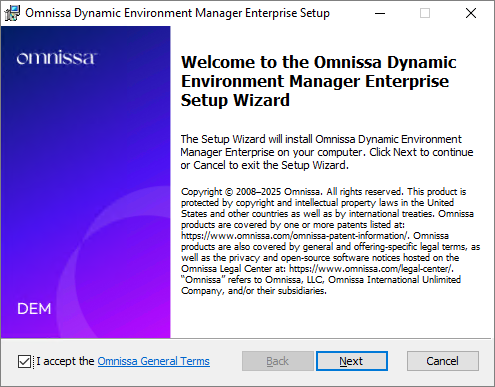
When the Omnissa Dynamic Environment Manager Enterprise Setup Wizard launches, I accept the license terms, Next…
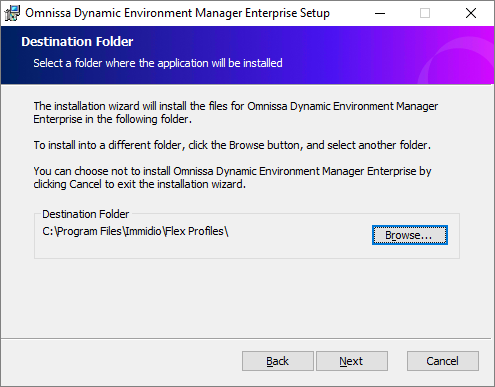
I confirm the destination folder, Next…
Select the Management Console feature, Next…

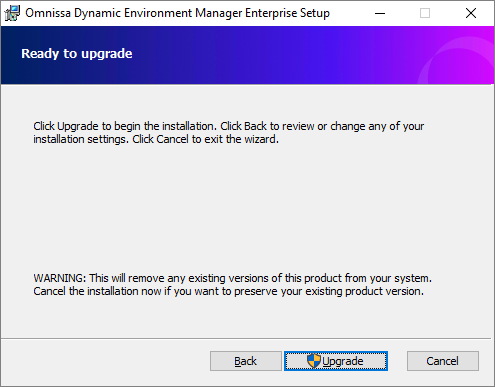
Upgrade…
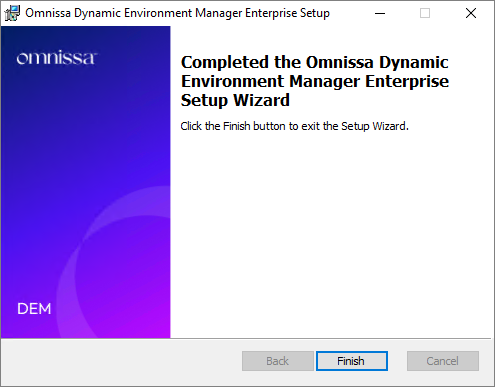
Once the installer finishes, click Finish…
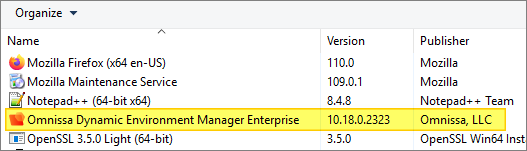
Once the installer has upgraded the DEM Console, I verify the installed version
This concludes my session about upgrading the Dynamic Environment Manager Management Console to v. 2512. I can now proceed with upgrading the GPO-bundles, posted here: Dynamic Environment Manager – Upgrade GPO Templates to v. 2512
DEM Documentation:
Omnissa Documentation:
- Rebranding Changes in Omnissa Horizon Products (6000681)
- Horizon 8 Upgrade Overview
- Product Interoperability Matrix
- Omnissa Product Documentation
Dynamic Environment Manager – Upgrades
Disclaimer: Every tips/tricks/posting I have published here, is tried and tested in different it-solutions. It is not guaranteed to work everywhere, but is meant as a tip for other users out there. Remember, Google is your friend and don’t be afraid to steal with pride! Feel free to comment below as needed.
 bjosoren's IT-Tech blog