
Release date: March 20th 2025
Welcome to my Omnissa Horizon series. In this session I will describe how I installed and configured the Horizon Client inside a Horizon Desktop to use the LoginAsCurrentUser-feature when launching Horizon Applications from an RDSH-server. This setup is done using the 2412 version of Client, Agent, Connection Server and DEM. The drawing below shows the components involved and how they interract.
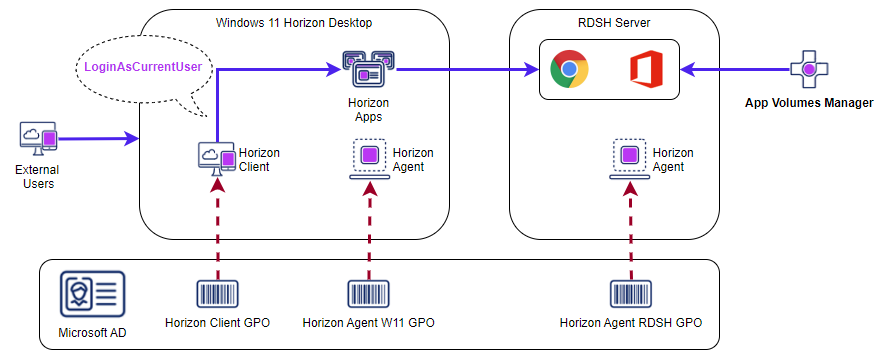
To get this working, I had to do the following:
- Install the Horizon Client inside my Horizon Desktop with the LoginAsCurrentUser feature
- Configure GPO-settings for the Horizon Client
- Configure the Connection Servers to allow LogInAsCurrentUser
- Configure the Application Pool shortcuts
- Create a shortcut in DEM that auto-launch at logon which starts the Horizon Client with the parameter: installShortcutsThenQuit
Horizon Client – silent install
- As I use MDT to create the template where the Horizon client needs to be installed, I will create a powershell script to do this. The Log in as Current User feature is installed by adding the TSSO-parameter. Omnissa has documented the command line options here: Install Horizon Client From the Command Line
Omnissa-Horizon-Client-xxx.exe /silent LOGINASCURRENTUSER_DISPLAY=1 LOGINASCURRENTUSER_DEFAULT=1 ADDLOCAL=TSSO /norestartHorizon Client – GPO Settings
- To control the basic settings of the Horizon client, I create a GPO for this purpose. In this I configure the following settings:
- Computer Configuration – Policies – Administrative Templates
- Omnissa Horizon Client Configuration
- Allow display scaling – Enabled
- Allow user to skip Horizon Client update – Enabled
- Automatically check for updates – Disabled
- Automatically install shortcuts when configured on the Horizon server – Enabled
- Enable Horizon Client online update – Disabled
- Omnissa Horizon Client Configuration – Scripting definitions
- Server URL – Enabled
- Server URL – https://ConnectionServerUrl
- Lock the Server URL – Disabled
- Server URL – Enabled
- Omnissa Horizon Client Configuration – Security Settings
- Omnissa Horizon Client Configuration
- Computer Configuration – Policies – Administrative Templates
Horizon Connection Server
- Current User Authentication setting: In order to use the Logon as Current User feature, this has to be enabled on the Connection Server, as shown below

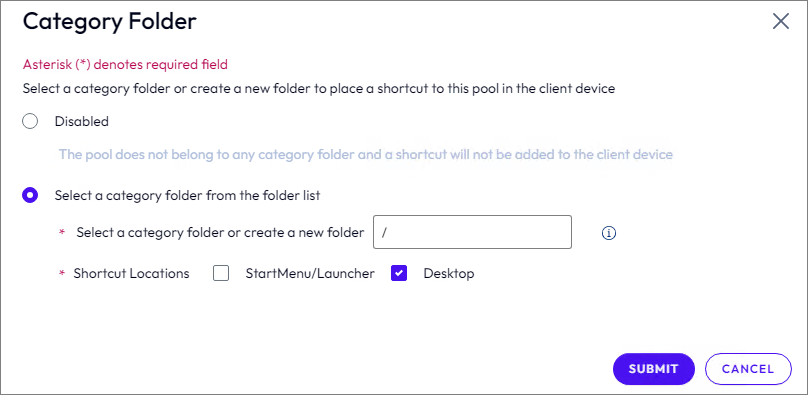
- Application Pool, shortcut settings: To automatically create shortcut to the application, I edit the application pool as follows:
Dynamic Environment Manager Settings
- To ensure that the shortcuts above get installed on the desktop, I will create a shortcut in Dynamic Environment Manager which gets put in the Startup folder. This shortcut will launch the Horizon Client, login in as current user, install shortcuts and the quit. That way making sure the Horizon client is connected and logged in before the user launch an application.

- Shortcut name: Horizon Client
- Target: C:\Program Files\Omnissa\Omnissa Horizon Client\horizon-client.exe
- Arguments: -serverURL https://ConnectionServerFQDN (LB VIP) -logInAsCurrentUser true –installShortcutsThenQuit
- Start in: C:\Program Files\Omnissa\Omnissa Horizon Client
This concludes my session about LoginAsCurrentUser in nested Horizon-Client. With this configuration in place the users are now able to launch Horizon Apps inside their Horizon Desktop without the need for additional authentication.
Omnissa Documentation:
Horizon planning, deployment etc.
Disclaimer: Every tips/tricks/posting I have published here, is tried and tested in different it-solutions. It is not guaranteed to work everywhere, but is meant as a tip for other users out there. Remember, Google is your friend and don’t be afraid to steal with pride! Feel free to comment below as needed.
 bjosoren's IT-Tech blog