
Release date: February 14th 2025
Welcome to my Omnissa Horizon series. According to the Horizon Client for Windows Release Notes, these are the changes to the Horizon Client:
- What’s New
- Horizon Client for Windows 2412 includes the following new features:
- Omnissa branding
The Horizon Client user interface, configuration strings, and file paths have been updated to reflect the new Omnissa brand.- OS support
Horizon Client is supported on Windows 11 2024 Update (also known as Windows 11, version 24H2) and Windows 11 Enterprise LTSC 2024. This release removes support for the following Windows 11 versions: Enterprise 21H2, IoT Enterprise 21H2, and Education 21H2.- Improved session stability
This release provides stability improvements when running desktop and application sessions.- Lock the Server URL option
The new Lock the Server URL option in the Server URL GPO policy allows you to control whether the Server URL policy takes priority over other server connection settings during client login.- Autoconnect icon in server list
The server list window now displays an “A” icon to indicate the server specified by the Autoconnect to This Server setting.- Access to Horizon Cloud Service – next-gen from networks without internet access
Horizon Client supports private connections to Horizon Cloud Service – next-gen using a private brokering endpoint through an ExpressRoute or VPN connection.- Improved user experience with keylogger blocking
This release provides several enhancements that make the keylogger blocking feature easier to use. Horizon Client automatically turns on keylogger blocking whenever a remote session requires the feature. Horizon Client also displays assistance screens to guide users through any restart operations needed for the feature.
Upgrading the Horizon Client is the first step in upgrading a Horizon environment, as shown below. As the Horizon Client is distributed in all kinds of different ways to users, GPO, application deployments, scripts, I won’t go into this now.

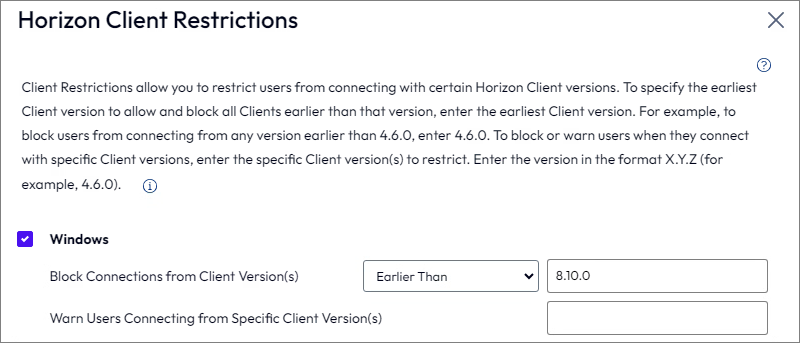
In a production environment, it is advisable to have the users upgrade their clients first. A smart approach to doing this, is to alert the users of this by using Client Restrictions. The newer Horizon Client editions are backward compatible and it is preferable to have as many as possible upgraded before upgrading the rest of the Horizon components. This can bee done by editing the Client Restrictions under Global Settings in Horizon Administrator GUI.


In my setup, I will block clients older than 8.9.0 and send warning to users on this version.
I start out by downloading the installation media from Omnissa Customer Connect
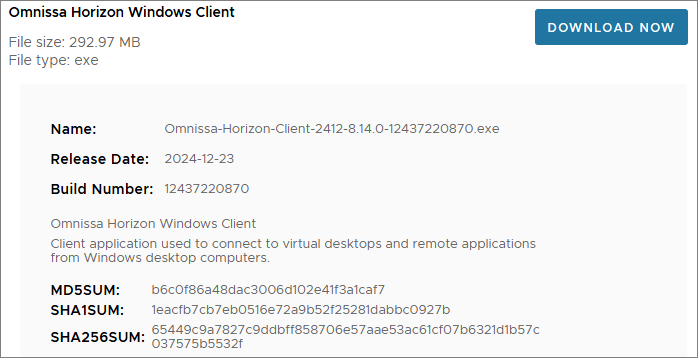
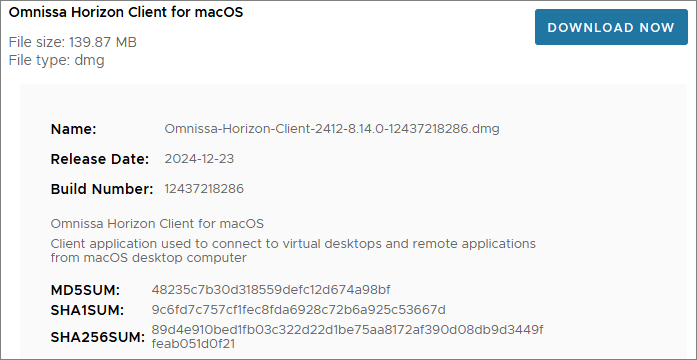
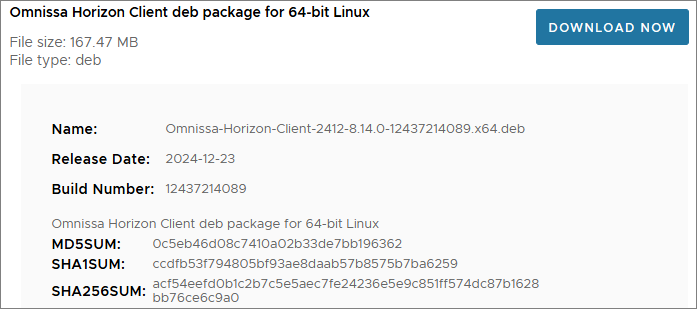
In my lab, I use the Horizon Portal to distribute clients. Previously, I have created this distribution point manually. In this session however, I will show how to do this using PowerShell.
Prequisites:
- PowerShell Administrative access to the Connection-server
- Pre-downloaded client binaires to network share
- Pre-configured portal-links-html-access.properties file
I first create the following credentials to be used in the script:
- vCenter admin-user:
New-VICredentialStoreItem -User <user> -Password <user> -Host <server> -File C:<your location.xml>- Horizon admin-user:
$credential = Get-Credential
$credential | Export-CliXml -Path '<path>hz_admin.xml'
Now that I have the credentials ready, I am good to go. (PS: I know I’m no programmer and a lot of this script have the potential for improvement, but, it gets the job done, and that’s good enough for me. If You have input to making this script even better, please leave a comment below, it will be greatly appreciated!)
Upgr_cli_rep.ps1
# --- Initialize PowerCLI Modules ---

Import-Module VMware.VimAutomation.Core
Import-Module VMware.VimAutomation.Common
Set-PowerCLIConfiguration -Scope User -ParticipateInCeip $false -Confirm:$false
Set-PowerCLIConfiguration -InvalidCertificateAction ignore -Confirm:$false
Set-PowerCLIConfiguration -DefaultVIServerMode Multiple -Confirm:$false

# --- Connect to vCenter with Get-VICredentialStoreItem ---

$viserver = "vCenter fqdn"
$viuser = Get-VICredentialStoreItem -File "<path to vCenter Credentials>.xml" -host $viserver
Connect-viserver -Server $viserver -User $viuser.user -Password $viuser.password

$cs = "fqdn connection server"

# --- Configure PSSession ---

$credential = Import-CliXml -Path "<path to horizon admin>hz_admin_${env:USERNAME}_${env:COMPUTERNAME}.xml"
$session = New-PSSession -ComputerName $cs -Credential $credential -Authentication CredSSP

# --- Define variables, create folders and copy files ---

Invoke-Command -Session $session -ScriptBlock {

# Variables
    $ClientDir = "C:\Program Files\Omnissa\Horizon\Server\broker\webapps\downloads"
    $ClientSource = "<Network Path to Horizon Clients>Latest*"
    $PortalLnksDest = "C:\ProgramData\Omnissa\Horizon\portal"
    $PortalLnksOrg = "C:\ProgramData\Omnissa\Horizon\portal\portal-links-web-client.properties"
    $PortalLnksBackup = "C:\ProgramData\Omnissa\Horizon\portal-links-web-client.properties.bak"
    $PortalLnksSource = "<Network Path>portal-links-web-client.properties"

# Creating downloads-folder, copy client installers
    New-Item -Path $ClientDir -type directory -Force
    Copy-Item -Path $ClientSource -Destination $ClientDir -Force

# Backup and replace portal-links-html-access.properties
    Copy-Item $PortalLnksOrg $PortalLnksBackup -Force
    Copy-Item $PortalLnksSource $PortalLnksDest -Force
}

Remove-PSSession $session

# --- Restart Connection Server ---
Write-Host "Restarting Connection Server" -ForegroundColor Green

Get-VM $cs | Restart-VMGuest

Start-Sleep 180

$session = New-PSSession -ComputerName $cs -Credential $credential -Authentication CredSSP

# --- Check Service-status after Connection Server reboot ---

Invoke-Command -Session $session -ScriptBlock {

    $SvcName = 'wsbroker'
    $SvcDisplayName = "Omnissa Horizon View Connection Server Service"
    $Svc = Get-Service -Name $SvcName

    # Waiting for Omnissa Horizon View Connection Server Service to start"
    Write-Host "Waiting for Omnissa Horizon View Connection Server Service to start" -ForegroundColor Green
    if ($Svc.Status -eq 'Running')
        {
        Write-Host "$SvcDisplayName is now Running" -ForegroundColor Green
        }

    if ($Svc.Status -ne 'Running')
        {
        Write-Host "Waiting for $SvcDisplayName to start" -ForegroundColor Green
        $Svc.WaitForStatus("Running")
        Write-Host "$SvcDisplayName is now running" -ForegroundColor Green
        }
}

# --- Disconnect from vCenter ---
write-host "Disconnecting from vCenter" -ForegroundColor Green
Disconnect-VIServer -Server $viserver -Confirm:$false
In the VMware Horizon portal, the users can now click “Install Omnissa Horizon Client”, which will install the Horizon Client directly from the Connection Server.

Omnissa Documentation:
- Horizon 8 2412 Release Notes
- Horizon 8 Upgrade Overview
- Product Interoperability Matrix
- Customer Connect
- Horizon 8 Docs
Horizon planning, deployment etc.
Disclaimer: Every tips/tricks/posting I have published here, is tried and tested in different it-solutions. It is not guaranteed to work everywhere, but is meant as a tip for other users out there. Remember, Google is your friend and don’t be afraid to steal with pride! Feel free to comment below as needed.
 bjosoren's IT-Tech blog