
Release date: February 14th 2025
Welcome to my Omnissa Horizon series. In this session I will describe how I upgraded my Horizon Connection Servers to v. 2412. According to the Horizon 8 2412 Release Notes, these are some of the changes to the Horizon Connection Server:
- Horizon Connection Server
- With Horizon 8 2412, administrators can now monitor the local and global schema master (FSMO) availability for Connection Servers before attempting upgrades, and ensure that upgrade tasks no longer get stuck or failed due to schema master unavailability.
- Administrators can now increase the NVIDIA Frame Rate Limiter parameter (
pciPassthru0.cfg.frl_config) value and persist it across Instant Clone VMs. This is useful when working with graphics-intensive applications.- This release enhances the Horizon Lifecycle Management APIs by implementing additional pre-checks for Horizon Connection Server installations and upgrades, ensuring your Horizon environment is ready for upgrades and new features. The Horizon Terraform provider includes these same pre-check enhancements.
- Horizon Connection Server now supports dual IDP metadata files, enabling seamless updates and uninterrupted authentication. If one file expires or becomes invalid, the system switches to the second without disruption. This enhancement ensures reliability, simplifies metadata management, and reduces downtime for continuous, secure user authentication.
- Horizon Connection Server enhances pool management performance by ensuring tasks no longer get stuck and allowing VDIs in maintenance status to resync properly. A common JMS topic is now used for agent notifications and HAControl. Frequent notifications from the agent caused misrouting, leading to missing HA messages and retry issues. This issue is now resolved, and the high transaction volume in the same topic will no longer result in POD outages due to JMS flow-control delays.
Previously I have shown how to do this with PowerShell and PowerCLI, in this session I will show how to do this manually, mainly due to the extensive changes in paths and names as describe by Omnissa here: Rebranding Changes in Omnissa Horizon Products (6000681)
Before I start, I review Omnissa’s documentation describing this topic:
As I have a Cloud Pod Architecture, I also check that replication is flowing without errors, as described by Omnissa here:
In some cases, I have seen upgrade errors caused by replication problems and has had to seize the schema master node, as described by Omnissa here:
To identify the server holding the FSMO Schema Master role, I run LDAP Browser (ldp.exe), as described by Omnissa here:
According to Omnissa’s official documentation, this should be done as step 7 in the supported update sequence.

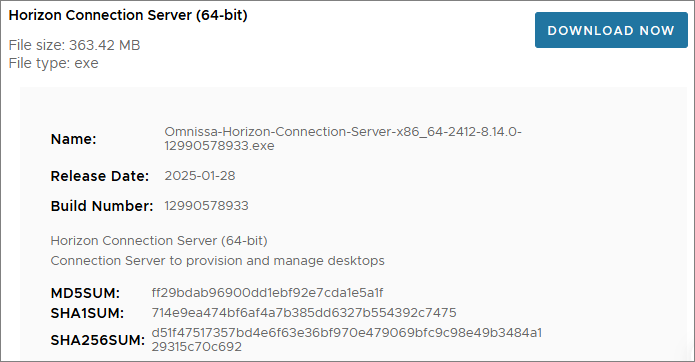
I start out by downloading the installation media from Omnissa Customer Connect
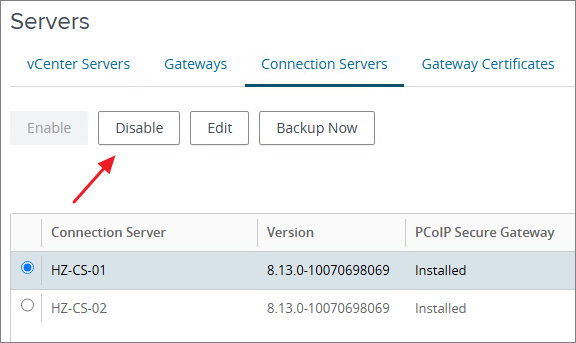
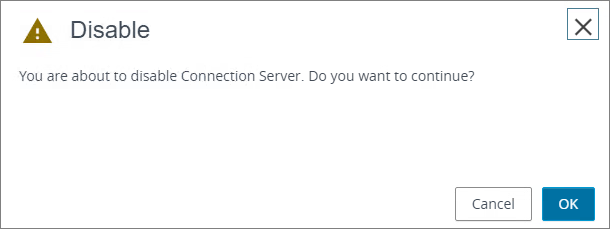
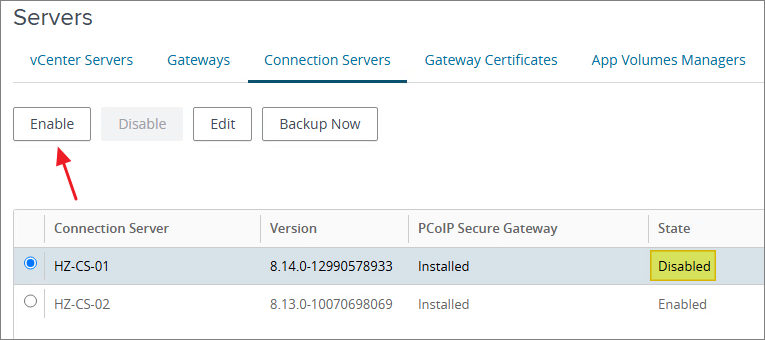
Before I start, I disable the Connection Server I’m going to upgrade
I log into the Connection Server thats not getting upgraded and transfer the SchemaMaster roles to this server. I allow replication to run and verify the status, before I continue.
vdmadmin -X seizeSchemaMaster
vdmadmin -X seizeSchemaMaster -global
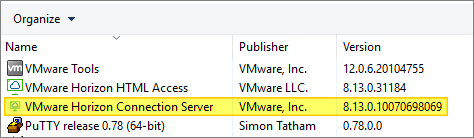
First, I verify the installed version:
I start out by launching the installer
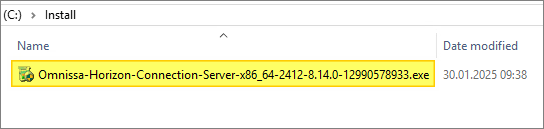
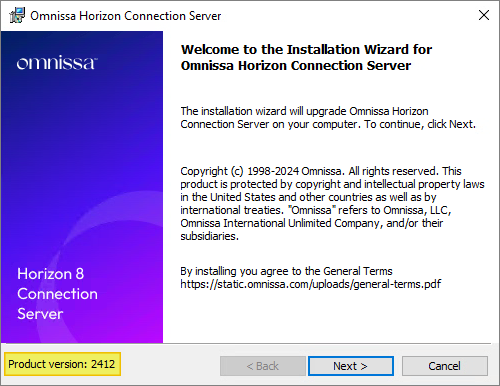
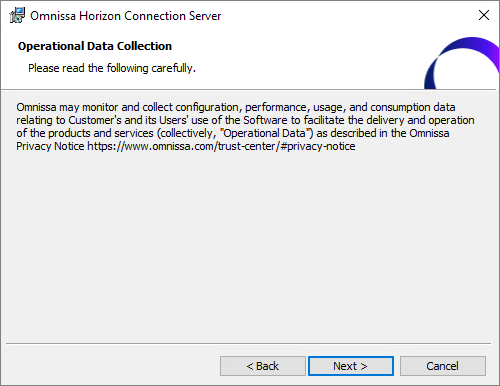
When the Installation Wizard opens and prompts to upgrade, Next, Next, Next…

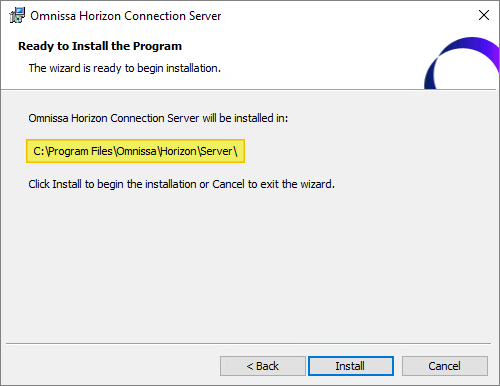
I confirm the destination folder, Next…
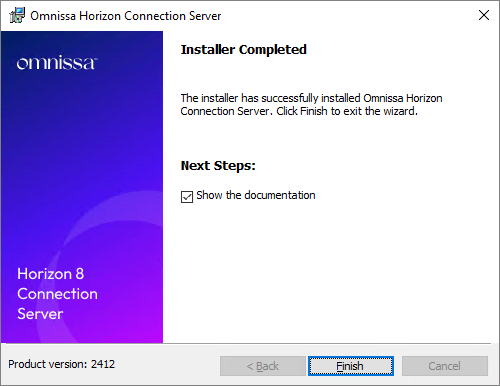
Once the installer finishes, click Finish…
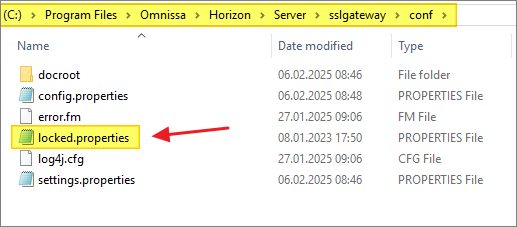
Before I restart the Connection Server, I verify the locked.properties-file, as I use UAG’s in my infrastructure
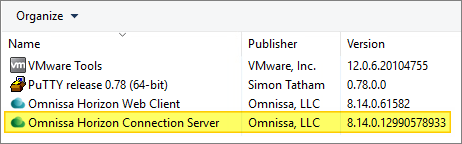
Once the installer has upgraded the Connection Server, I verify the installed version
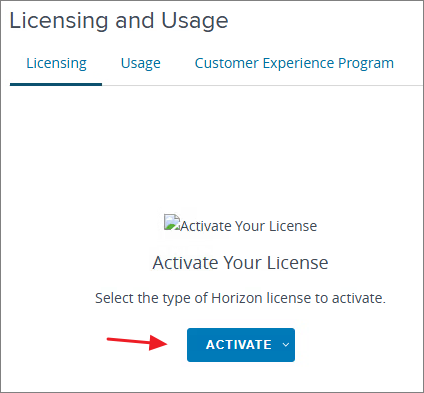
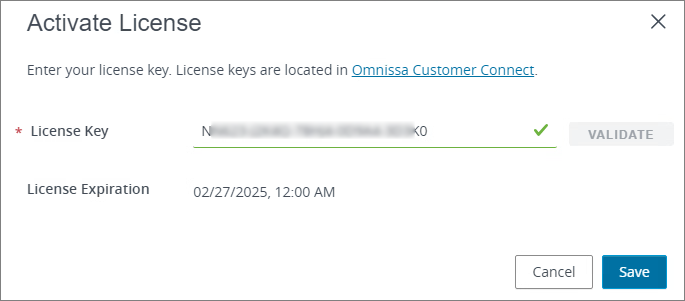
When I log into the Connection Server Console after upgrade, I reactivate with my License Key.
I can now verify that all setting are correct before I re-enable my upgraded Connection Server
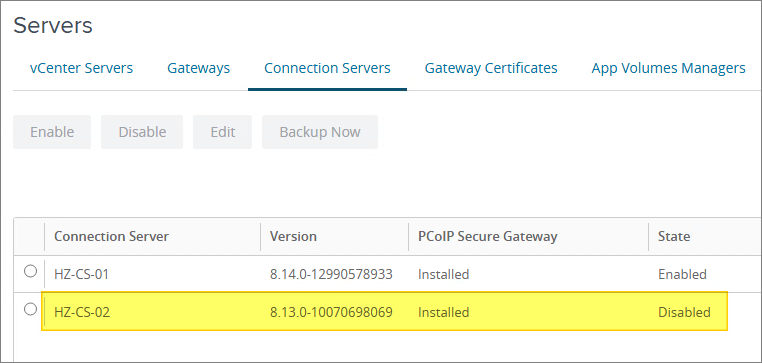
I transfer the Schema Master roles to my upgraded Connection Server, wait for replication and verify status, before I proceed with upgrading my replica server.

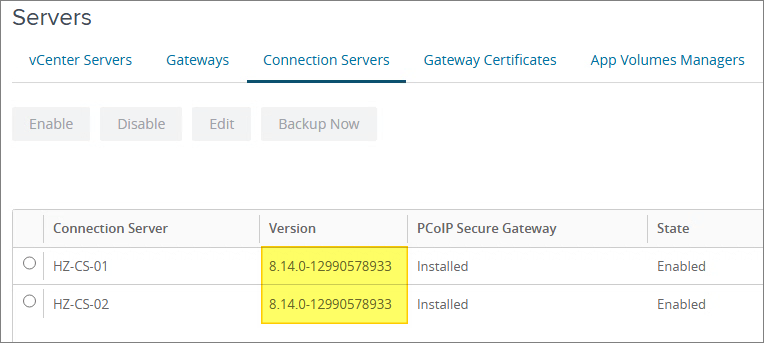
When my replica server is upgraded, I upgrade the connection server in my remote pod and verify that there are no errors after the upgrade.


With the Connection Servers upgraded, I can now proceed with upgrading the Horizon Enrollment Server, covered here: Horizon – Upgrade Enrollment Server to v. 2412
Omnissa Documentation:
- Horizon 8 2412 Release Notes
- Rebranding Changes in Omnissa Horizon Products (6000681)
- Horizon 8 Upgrade Overview
- Product Interoperability Matrix
- Horizon 8 Docs
Horizon planning, deployment etc.
Disclaimer: Every tips/tricks/posting I have published here, is tried and tested in different it-solutions. It is not guaranteed to work everywhere, but is meant as a tip for other users out there. Remember, Google is your friend and don’t be afraid to steal with pride! Feel free to comment below as needed.
 bjosoren's IT-Tech blog