
Release date: August 13th 2024
Welcome to my Omnissa Horizon series. In this session I will describe how I upgraded my Horizon Desktop Recording Server to v. 1.11.0. I start out by downloading the installation media from Omnissa Customer Connect

As always when upgrading Horizon, before I start upgrading my Desktop Recording Server, I verify that I have a valid backup and document my settings. I start the upgrade by first verifying the installed versions from Control Panel

Next, I login on the Desktop Recording Server and launch the downloaded executable to do a manual upgrade.
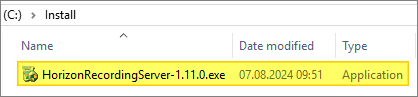
I launch the Horizon Recording server installation wizard, Next…

I confirm the installation path, Next…

I’m ready, Install…

Once the installer finishes, click Finish…

After the installation is done, I can verify in Control Panel the installed version and finish off by doing a reboot. Once rebooted I log back in and verify functionality in the VMware Horizon Desktop Recording server UI.

This concludes my session about upgrading the Horizon Desktop Recording Server to v. 1.11.0. I can now proceed with upgrading the Horizon UAG servers, covered here: Horizon – Upgrade Unified Access Gateway to v.2406
Omnissa Documentation:
- Horizon 8 2406 Release Notes
- Horizon 8 Upgrade Overview
- Product Interoperability Matrix
- Horizon 8 Docs
Horizon planning, deployment etc.
Disclaimer: Every tips/tricks/posting I have published here, is tried and tested in different it-solutions. It is not guaranteed to work everywhere, but is meant as a tip for other users out there. Remember, Google is your friend and don’t be afraid to steal with pride! Feel free to comment below as needed.
 bjosoren's IT-Tech blog