
Welcome to my Omnissa Horizon series. In this session I will describe how I upgraded the Horizon Linux Agent in my template to v. 2512. According to the Release Notes, these are some of the changes to the Horizon Linux Agent.
- Horizon Agent for Linux
- Support for NVIDIA Blackwell GPUs: The Horizon Agent for Linux now supports NVIDIA Blackwell GPUs in all Linux distributions. This means that Linux VDI workloads can use the latest GPU architecture.
- This release includes the URL redirection feature for the Linux Agent. Now, URLs opened in the Omnissa Horizon Linux agent’s browser can be redirected to open on the Omnissa Horizon client machine, based on user-configurable settings.
- Updated NVIDIA vGPU Support: Horizon Agent 2512 adds support for NVIDIA vGPU versions 16.12, 18.5, and 19.3.
According to Omnissa’s official documentation, this agent-upgrade should be done as step 11 in the supported update sequence.

Before I start the actual Horizon Agent upgrade, I will download and install Ubuntu updates using the following commands:
sudo apt update && sudo apt upgrade -y
sudo reboot
sudo apt autoremove
sudo apt autoclean
Next, once the VM is powered up, I open VMware Remote Console and log in. I start by downloading the installation media from Omnissa Customer Connect
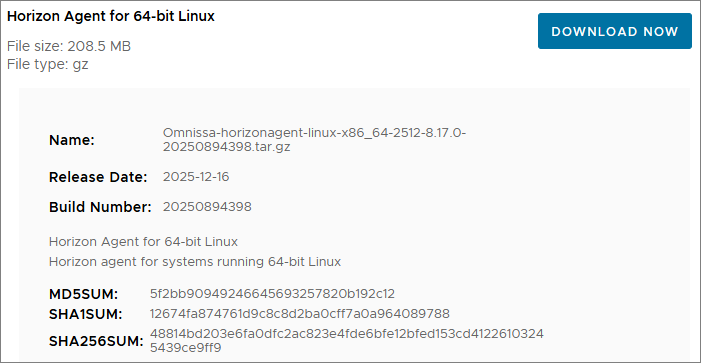
Once downloaded, I unpack it in the Downloads folder


Next, I log out from the desktop and reboot to ensure the VMwareBlastServer process isn’t running

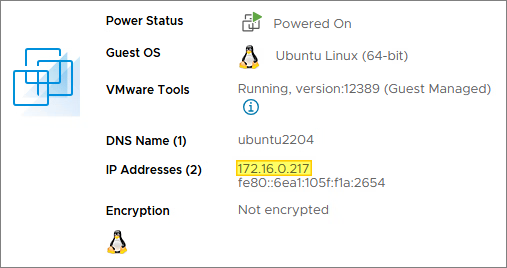
Before I can Putty into the desktop I need to know the IP address
I check the documentation to determine the correct command line options to use during upgrade here: Command-Line Options for Installing Horizon Agent for Linux
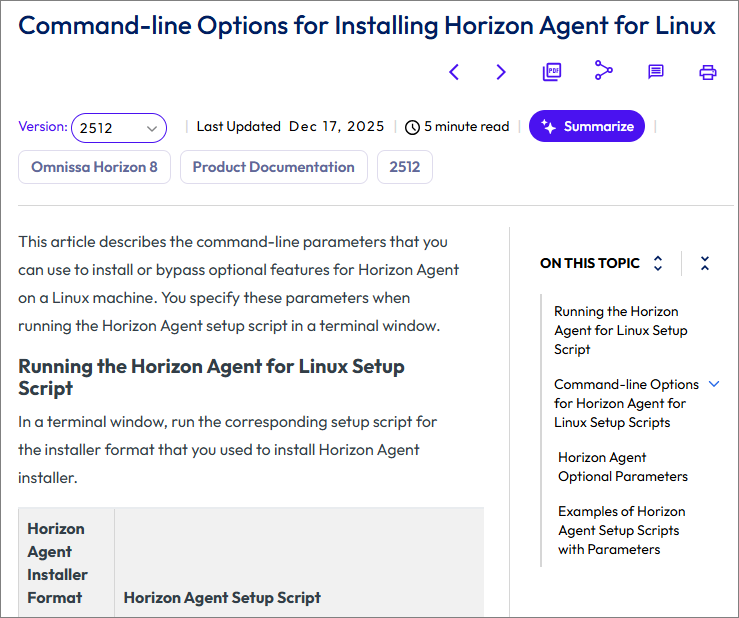
Although I could have used the Easy Setup Tool to do this installation, as described by Omnissa here: Configuration Parameters for the Easy Setup Tool, I opted to connect using Putty and run the following command to upgrade, documented here: Command-Line Options for Installing Horizon Agent for Linux
sudo ./install_viewagent.sh -A yes -M yes --multiple-session -r yes

If You, like me, get an error about missing libnss3-tools, install this first running the commands below:
sudo apt update
sudo apt-get install libnspr4 libnss3 libnss3-tools

Once the installer is finished, it automatically reboots the VM. I can now adjust some options, shown below.
Edit Configuration Files on a Linux Desktop
I will be adjusting the following parameters in the “/etc/omnissa/config” file
#Set clipboard redirection. Default is 2. 0 means disable; 1 means both directions; 2 means from client to agent only, 3 means from agent to client only.
Clipboard.Direction=1

#Set clipboard maximum size which should be specified in KBytes. Default is 1024 KBytes.
mksvchan.clipboardSize=1024

#Enable/Disable display scaling. This option only works if DPI sync feature is enabled.
Display scaling resizes the screen to auto fit the font size when the DPI is a mismatch between client and agent, the default value is FALSE.
rdeSvc.allowDisplayScaling=TRUE
I will be adjusting the following parameters in the “/etc/omnissa/viewagent-custom.conf” file
#Enable/Disable CDR. Default is TRUE
CDREnable=FALSE

#Enable/Disable USB. Default is TRUE
USBEnable=FALSE

#Enable/Disable Help Desk Tool. Default is TRUE
HelpDeskEnable=FALSE

#Instant Clone offline domain join solution, default value is 'pbis'.
#Its value could be 'pbis', 'samba' or 'none', and 'none' means disable.
#OfflineJoinDomain=none
OfflineJoinDomain=pbis
#OfflineJoinDomain=samba
Finally, I shut down the VM, take a Snapshot and deploy this to my Desktop and Application Farm. Once the Push-operation is done, I can verify the agent version in my virtual desktops
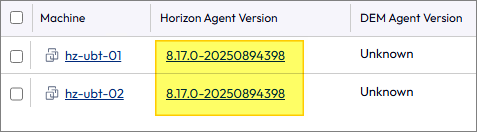
This completes the Linux Horizon Agent upgrade. I can now proceed with upgrading the Horizon GPO Bundle, posted here: Horizon – Upgrade Horizon GPO Bundle to v. 2512
Horizon 8 Documentation:
Omnissa Documentation:
- Rebranding Changes in Omnissa Horizon Products (6000681)
- Horizon 8 Upgrade Overview
- Product Interoperability Matrix
- Omnissa Product Documentation
Horizon planning, deployment etc.
Disclaimer: Every tips/tricks/posting I have published here, is tried and tested in different it-solutions. It is not guaranteed to work everywhere, but is meant as a tip for other users out there. Remember, Google is your friend and don’t be afraid to steal with pride! Feel free to comment below as needed.
 bjosoren's IT-Tech blog