
Release date: August 14th 2024
Welcome to my Omnissa Horizon series. In this session I will describe how I upgraded the Horizon Linux Agent in my template to v. 2406. According to the Horizon 8 2406 Release Notes, these are the changes to the Horizon Linux Agent:
- This release adds support for the following Linux distributions:
- Ubuntu 24.04
- Debian 11.9, 12.5
- Red Hat Enterprise Linux (RHEL) Workstation 8.10, 9.4
- Red Hat Enterprise Linux (RHEL) Server 8.10, 9.4
- Rocky Linux 8.10, 9.4
- This release removes support for the following Linux distributions:
- Debian 11.7, 12.2
- RHEL Workstation 7.9, 8.6, 8.9, 9.0, 9.1, 9.3
- RHEL Server 7.9, 8.6, 8.9, 9.0, 9.1, 9.3
- CentOS 7.9
- Rocky Linux 8.9, 9.3
According to Omnissa’s official documentation, this agent-upgrade should be done as step 11 in the supported update sequence.

Before I start the actual Horizon Agent upgrade, I will download and install Ubuntu updates using the following commands:
sudo apt update && sudo apt upgrade -y
sudo reboot
sudo apt autoremove
sudo apt autoclean
Next, once the VM is powered up, I open VMware Remote Console and log in. I start by downloading the installation media from Omnissa Customer Connect
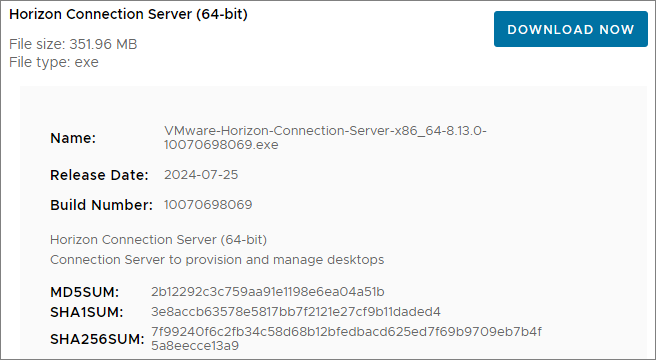
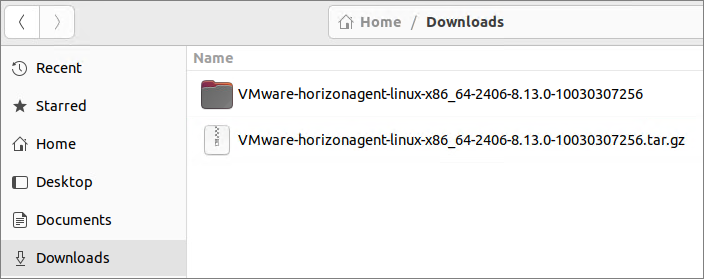
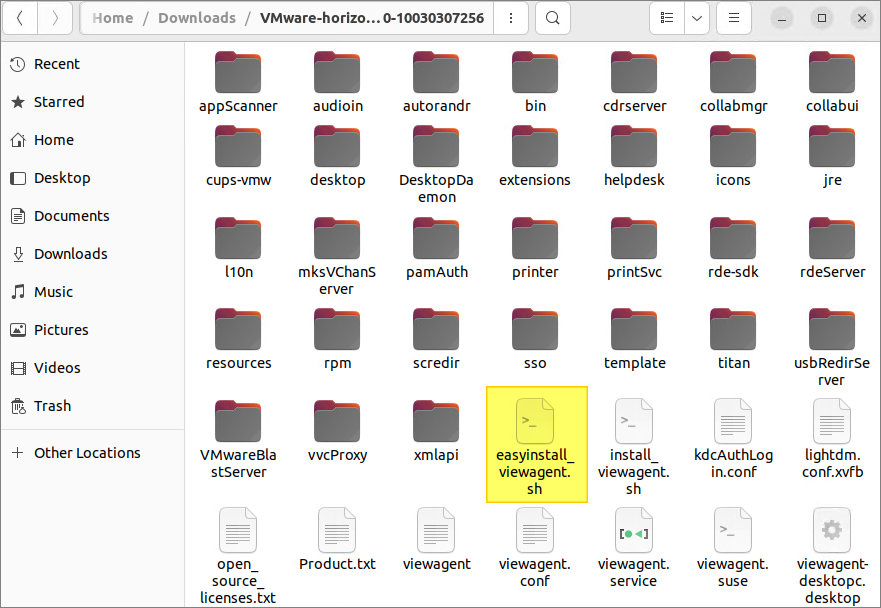
Once downloaded, I unpack it in the Downloads folder
Next, I log out from the desktop and reboot to ensure the VMwareBlastServer process isn’t running

Before I can Putty into the desktop I need to know the IP address

I check the documentation to determine the correct command line options to use during upgrade here: Command-Line Options for Installing Horizon Agent for Linux

Although I could have used the new Easy Setup Tool to do this installation, as described by VMware here: Configuration Parameters for the Easy Setup Tool, I opted to connect using Putty and run the following command to upgrade:
sudo ./install_viewagent.sh -A yes -M yes --multiple-session -r yes
Once the installer is finished, it automatically reboots the VM. I can now adjust some options, shown below.
Setting Options in Configuration Files on a Linux Desktop
I will be adjusting the following parameters in the “/etc/vmware/config” file
#Set clipboard redirection. Default is 2. 0 means disable; 1 means both directions; 2 means from client to agent only, 3 means from agent to client only.
Clipboard.Direction=1

#Set clipboard maximum size which should be specified in KBytes. Default is 1024 KBytes.
mksvchan.clipboardSize=1024

#Enable/Disable display scaling. This option only works if DPI sync feature is enabled.
Display scaling resizes the screen to auto fit the font size when the DPI is a mismatch between client and agent, the default value is FALSE.
rdeSvc.allowDisplayScaling=TRUE
I will be adjusting the following parameters in the “/etc/vmware/viewagent-custom.conf” file
#Enable/Disable CDR. Default is TRUE
CDREnable=FALSE

#Enable/Disable USB. Default is TRUE
USBEnable=FALSE

#Enable/Disable Help Desk Tool. Default is TRUE
HelpDeskEnable=FALSE

#Instant Clone offline domain join solution, default value is 'pbis'.
#Its value could be 'pbis', 'samba' or 'none', and 'none' means disable.
#OfflineJoinDomain=none
OfflineJoinDomain=pbis
#OfflineJoinDomain=samba
Finally, I shut down the VM, take a Snapshot and deploy this to my Desktop and Application Farm. Once the Push-operation is done, I can verify the agent version in my virtual desktops

This completes the Linux Horizon Agent upgrade. I can now proceed with upgrading the Horizon GPO Bundle, posted here: Horizon – Upgrade Horizon GPO Bundle to v. 2406
Omnissa Documentation:
- Horizon 8 2406 Release Notes
- Configuration Parameters for the Easy Setup Tool
- Command-Line Options for Installing Horizon Agent for Linux
- Setting Options in Configuration Files on a Linux Desktop
- Upgrade Horizon Agent on a Linux Virtual Machine
- Horizon 8 Docs
VMware Horizon planning, deployment etc.
Disclaimer: Every tips/tricks/posting I have published here, is tried and tested in different it-solutions. It is not guaranteed to work everywhere, but is meant as a tip for other users out there. Remember, Google is your friend and don’t be afraid to steal with pride! Feel free to comment below as needed.
 bjosoren's IT-Tech blog