
Release date: November 11th 2025
Welcome to my Omnissa Horizon series. In this session I will describe how I upgraded the OS Optimization Tool Plugin for MS MDT to v. 1.2.2506. According to the Release Notes below, these are the changes to OSOT:
- Pre-check: This feature runs a checklist for ensuring VM stability before executing the Generalize operation.
- A new version includes updates that fix previously reported issues. Refer to Resolved Issues for the list of those fixed in this release.
I start out by downloading the installation media from Omnissa Customer Connect
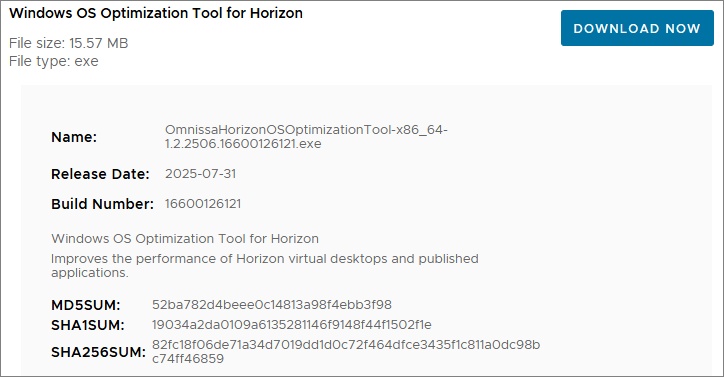
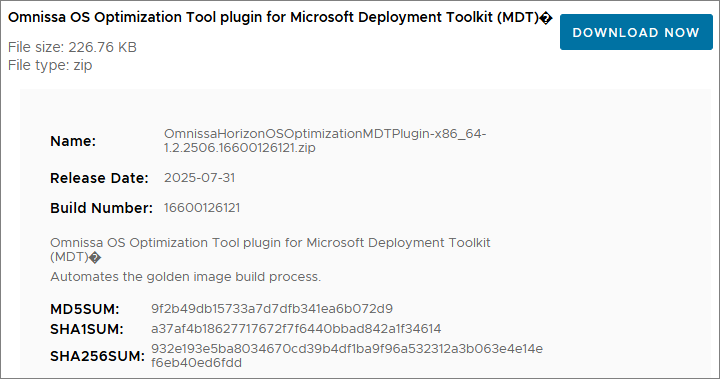
There isn’t an installer for this, so to upgrade my MDT setup with the new version of the OSOT MDT Plugin, I start out by unpacking the downloaded zip file
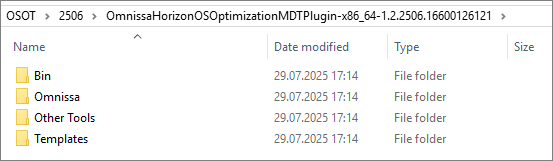
From the Bin folder, I copy and replace the existing files within: “C:\Program Files\Microsoft Deployment Toolkit\Bin”


Next, I copy and replace the osot.xml template file to: “D:\DeploymentShare\Templates”

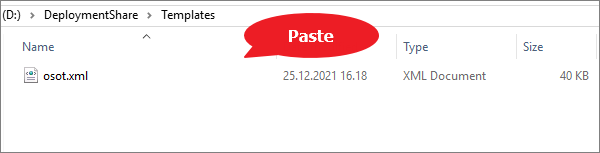
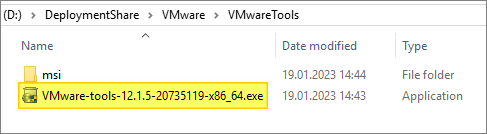
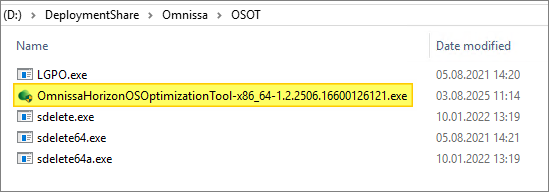
I have to edit the osot.xml to verify the ExeInstaller property vs actual filenames for VMware Tools, Horizon/DEM Agents and OSOT. The App Volumes Agent isn’t referenced with version and will work even after updating the installer in the Deployment Share.
VMware Tools:
<step type="BDD_VMWARE_TOOLS" name="VMware Tools" description="" disable="false" continueOnError="false" successCodeList="0 3010">
        <defaultVarList>
          <variable name="ExeInstaller" property="ExeInstaller">VMware-tools-12.5.1-24649672-x64.exe</variable>
          <variable name="Feature" property="Feature">CBHelper,Perfmon,ServiceDiscovery,Hgfs,VMCI,SVGA,VMXNet3,PVSCSI,EFIFW,MemCtl,Mouse,MouseUsb,VSS,Drivers,TrayIcon,VGAuth,Common,Toolbox,Plugins,Unity</variable>
        </defaultVarList>
        <action>"%DeployRoot%\Other Tools\%ExeInstaller%" /s /v"/qb-! ADDLOCAL=%Feature% REBOOT=R"</action>
      </step>
Horizon Agent:
<step type="BDD_HORIZON_AGENT" name="Horizon Agent" description="" disable="false" continueOnError="false" successCodeList="0 3010">
        <defaultVarList>
          <variable name="ExeInstaller" property="ExeInstaller">Omnissa-Horizon-Agent-x86_64-2506-8.16.0-16560454767.exe</variable>
          <variable name="IP" property="IP">IPv4</variable>
          <variable name="RDP" property="RDP">1</variable>
          <variable name="UNCPathRedirection" property="UNCPathRedirection">0</variable>
          <variable name="URLContentRedirection" property="URLContentRedirection">0</variable>
          <variable name="Feature" property="Feature">HznVidd,TSMMR,BlastUDP,Core,RTAV,NGVC,ClientDriveRedirection,HznVaudio,PrintRedir,HelpDesk,RDP</variable>
        </defaultVarList>
        <action>"%DeployRoot%\Omnissa\HorizonAgent\%ExeInstaller%" /s /v"/qb-! VDM_VC_MANAGED_AGENT=1 VDM_IP_PROTOCOL_USAGE=%IP% RDP_CHOICE=%RDP% URL_FILTERING_ENABLED=%URLContentRedirection% ENABLE_UNC_REDIRECTION=%UNCPathRedirection% ADDLOCAL=%Feature% REBOOT=R"</action>
      </step>

Dynamic Environment Agent:
<step type="BDD_HORIZON_DEM" name="Dynamic Environment Manager" description="" disable="false" continueOnError="false" successCodeList="0 3010">
        <defaultVarList>
          <variable name="Installer" property="Installer">Omnissa Dynamic Environment Manager Enterprise 2506 10.16 x64.msi</variable>
          <variable name="Feature" property="Feature">FlexEngine,FlexMigrate,FlexProfilesSelfSupport</variable>
        </defaultVarList>
        <action>msiexec /i "%DeployRoot%\Omnissa\DEM\%Installer%" /qb-! ADDLOCAL=%Feature% REBOOT=R</action>
      </step>

VMware OS Optimization Tool:
<step type="BDD_OSOT_OPTIMIZE" name="Optimize" description="" disable="false" continueOnError="false" successCodeList="0 3010">
        <defaultVarList>
          <variable name="TemplateCfg" property="TemplateCfg">Omnissa Templates\Windows 10, 11 and Server 2019, 2022</variable>
          <variable name="VisualEffectCfg" property="VisualEffectCfg">-VisualEffect balanced DisableHardwareAcceleration</variable>
          <variable name="NotificationCfg" property="NotificationCfg">-Notification Disable</variable>
          <variable name="WindowsUpdateCfg" property="WindowsUpdateCfg">-WindowsUpdate Disable</variable>
          <variable name="WindowsSearchCfg" property="WindowsSearchCfg">-WindowsSearch SearchBoxAsInputBox</variable>
          <variable name="StoreAppCfg" property="StoreAppCfg">-StoreApp remove-all --exclude WebExtension</variable>
          <variable name="BackgroundColorCfg" property="BackgroundColorCfg">-Background #0063B1 EnableCustomization</variable>
          <variable name="SecurityCfg" property="SecurityCfg">-SecurityCenter Enable -Firewall Enable -AntiVirus Enable -SmartScreen Disable -HVCI Disable -OneDrive Enable</variable>
          <variable name="OptimizeCfg" property="OptimizeCfg">-o -t Omnissa%20Templates%5CWindows%2010,%2011%20and%20Server%202019,%202022 -VisualEffect balanced DisableHardwareAcceleration -Notification Disable -WindowsUpdate Disable -WindowsSearch SearchBoxAsInputBox -StoreApp remove-all --exclude WebExtension -Background #0063B1 EnableCustomization -SecurityCenter Enable -Firewall Enable -AntiVirus Enable -SmartScreen Disable -HVCI Disable -OneDrive Enable -v</variable>
          <variable name="EnableCommonOptions" property="EnableCommonOptions">true</variable>
          <variable name="ApplyOptimization" property="ApplyOptimization"></variable>
          <variable name="OsotToolFileName" property="OsotToolFileName">OmnissaHorizonOSOptimizationTool-x86_64-1.2.2506.16600126121.exe</variable>
        </defaultVarList>
        <action>%DeployRoot%\Tools\%Architecture%\ServiceUI.exe -process:TSProgressUI.exe %SystemDrive%\OSOT\%OsotToolFileName% %OptimizeCfg%</action>
      </step>
App Volumes Agent:
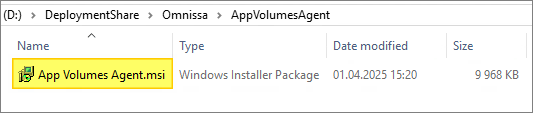
As I mentioned above, the App Volumes Agent isn’t referenced to with a version or build, so the installer properties doesn’t need any adjustments.
<step type="BDD_HORIZON_AV" name="App Volumes Agent" description="" disable="true" continueOnError="false" successCodeList="0 3010">
        <defaultVarList>
          <variable name="Installer" property="Installer">App Volumes Agent.msi</variable>
          <variable name="IP" property="IP">appvolumes.domain.com</variable>
          <variable name="PORT" property="PORT">443</variable>
          <variable name="EnforceSSLCertificateValidation" property="EnforceSSLCertificateValidation">1</variable>
        </defaultVarList>
        <action>msiexec /i "%DeployRoot%\Omnissa\AppVolumesAgent\%Installer%" /qb-! MANAGER_ADDR=%IP% MANAGER_PORT=%PORT% EnforceSSLCertificateValidation=%EnforceSSLCertificateValidation% REBOOT=R</action>
      </step>
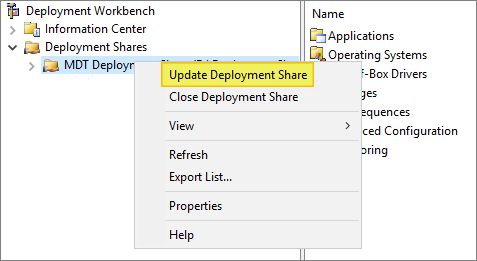
The final task I have to complete, is to Update the Deployment Share.
This completes my OSOT MDT Plugin upgrade, using this, I can now proceed with upgrading the Horizon Agent, covered here: Horizon – Upgrade Horizon Windows Agent to v. 2506
For additional info about VMware OSOT, check out this guide on Omnissa’s Digital Workspace Tech Zone: Windows OS Optimization Tool for VMware Horizon Guide
Horizon 8 Documentation:
Omnissa Documentation:
- Rebranding Changes in Omnissa Horizon Products (6000681)
- Horizon 8 Upgrade Overview
- Product Interoperability Matrix
- Omnissa Product Documentation
Horizon planning, deployment etc.
Disclaimer: Every tips/tricks/posting I have published here, is tried and tested in different it-solutions. It is not guaranteed to work everywhere, but is meant as a tip for other users out there. Remember, Google is your friend and don’t be afraid to steal with pride! Feel free to comment below as needed.
 bjosoren's IT-Tech blog