
Release date: February 15th 2025
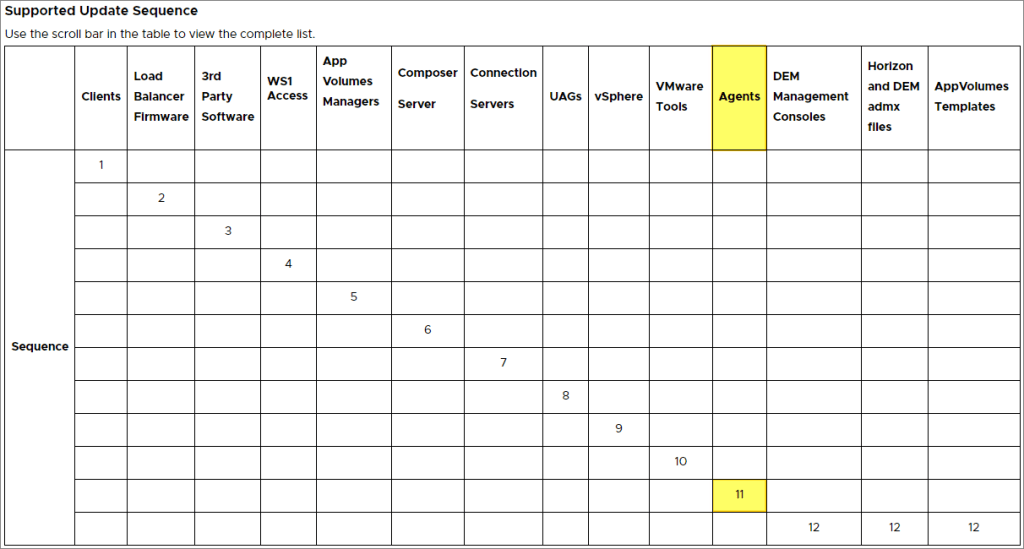
Welcome to my Omnissa Horizon series. In this session I will describe how I upgrade the Horizon Recording Agent in my template to v. 1.12.0. According to Omnissa’s official documentation, this should be done as step 11 in the supported update sequence.
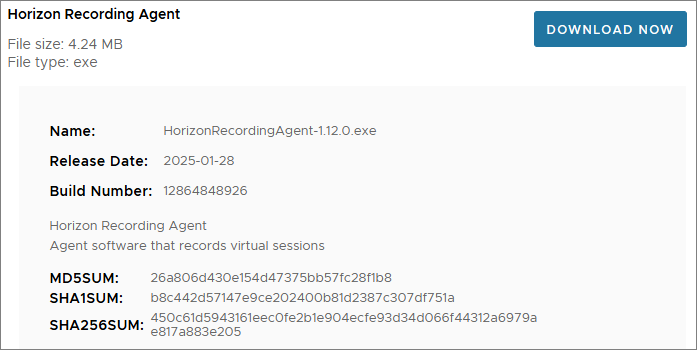
I start out by downloading the installation media from Omnissa Customer Connect
Before I show how to do the unattended upgrade using MDT, I’m going to show how to do a manual upgrade, as there are some information here that we need in the automatic upgrade. As usual, when I launch the executable the welcome screen opens, Next…

I agree to the license terms, Next…

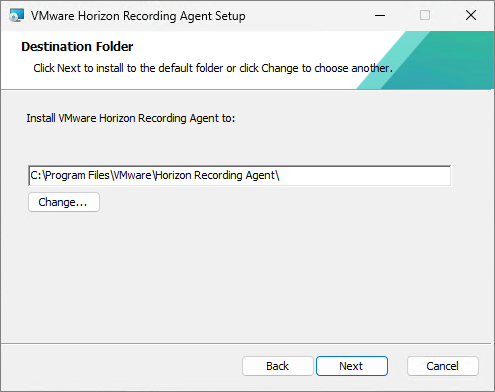
The default Destination Folder looks good, Next…
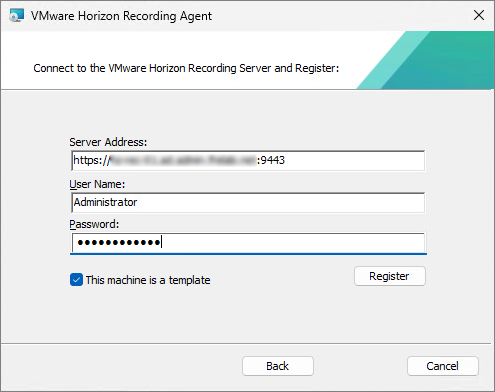
The following page is important, here we are providing the connection details and register the machine as a template with the Recording server. As described by Omnissa in the documentation: Using Horizon Recording, I will need to provide the following:
- Server Address: FQDN (or) IP of Recording server (or) Load balancer. Note: Starts with
https://and ends with port number 9443.
- User name: Admin username of recording server. I will be using the default Admin user name as described in the documentation
- Password: Password of the Admin username.

I provide the information, check “This machine is a template”, Register…
When the connection is made the wizard prompts me if I trust the Recording Server certificate thumbprint. This is the SHA1 thumbprint of the certificate as is important because this is used in the unattended installation as well. Yes…

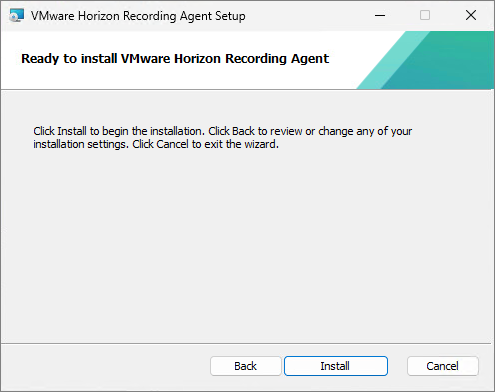
Install…
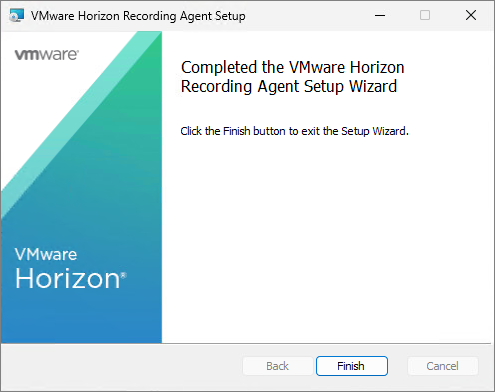
Finish…
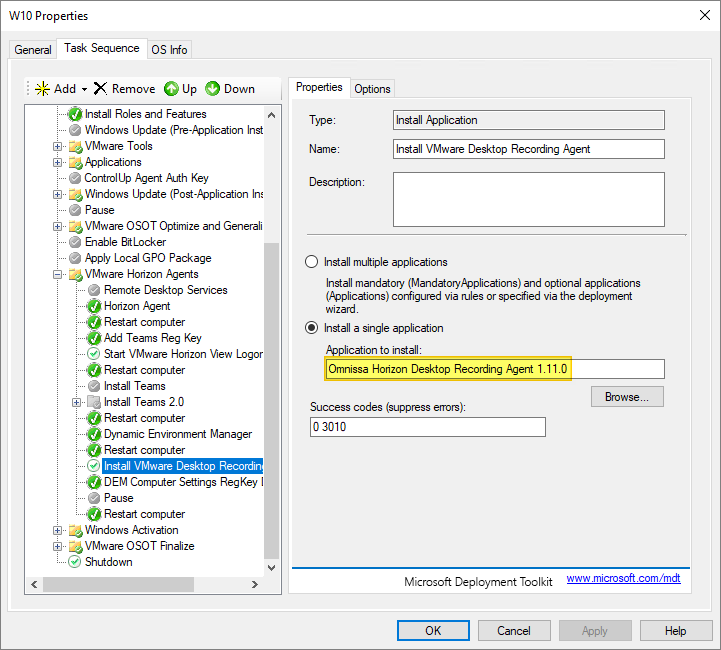
As I’ve gone over to using MDT to create Horizon templates, described here: Automating Template Creation & Maintenance, I will update the Horizon Recording Agent in the Deployment Share, and run through the task sequence, to create a new template. Before I begin, I open the task sequence and can see that it has found the 1.11.0 Agent in the Deployment Share.
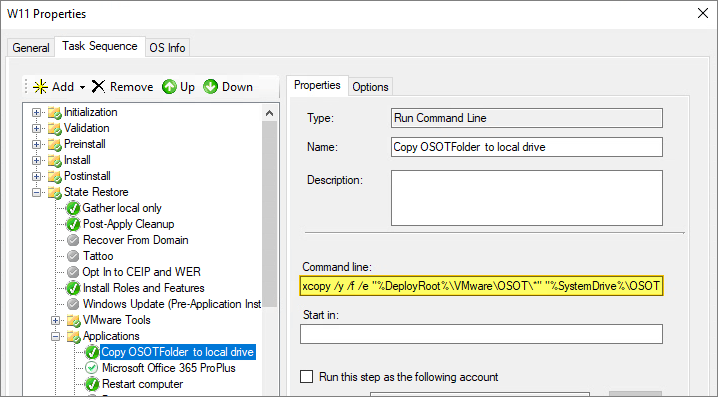
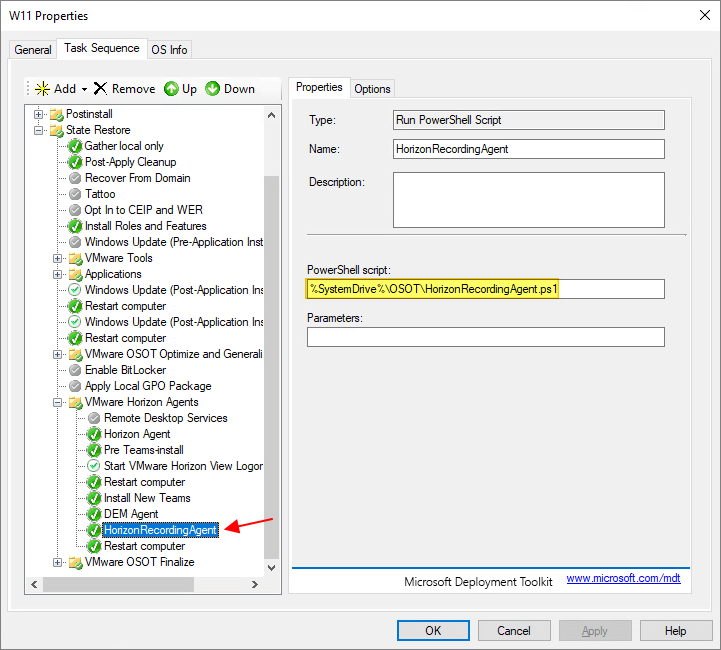
After updating the MDT Plugin, as described here: Horizon – Upgrade OSOT MDT Plugin to v. 2412, the Plugin NO longer worked, so I decided to use a Powershell script for this step in the task sequence instead. The silent install parameters are available here: Install the Horizon Recording Agent Using the Command Line. As the task-sequence copies the OSOT-folder (inside the DeploymentShare), to C:\OSOT earlier in the Task Sequence, I created the Powershell-script in the OSOT-folder and made a folder containing the install media.

The Powershell-script will unblock the exe-file and install the Horizon Agent using the silent install options I declare as arguments
$ErrorActionPreference = "Stop"
$HorizonRecordingAgentExe = "C:\OSOT\Install\HorizonRecordingAgent\HorizonRecordingAgent-1.12.0.exe /s /v/qn MACHINEISTEMPLATE=True SERVERADDRESSPROP=https://<FQDN>:9443 USER_NAME=administrator-User USER_PASSWORD=Password TRUSTEDTHUMBPRINT=5BD4387CCA10C4B549DC7BE5ED88B3F09269B7BA"

Try
{
   cmd.exe /c $HorizonRecordingAgentExe
}

Catch
{
   Write-Error "Could not install Horizon Recording Agent successfully"
   Write-Error $_.Exception
   Exit -1
}
I add the Powershell script as a step in my task sequence and run through it to update the Horizon Recording Agent.
Having finished the Recording Agent upgrade, I can now proceed with upgrading the Horizon Group Policy templates, covered here: Horizon – Upgrade Horizon GPO Bundle to v. 2412
Omnissa Documentation:
- Horizon 8 2412 Release Notes
- Install the Horizon Recording Agent Using the Command Line
- Horizon 8 Upgrade Overview
- Product Interoperability Matrix
- Horizon 8 Docs
VMware Horizon planning, deployment etc.
Disclaimer: Every tips/tricks/posting I have published here, is tried and tested in different it-solutions. It is not guaranteed to work everywhere, but is meant as a tip for other users out there. Remember, Google is your friend and don’t be afraid to steal with pride! Feel free to comment below as needed.
 bjosoren's IT-Tech blog