
Welcome to my Omnissa Horizon series. In this session I will describe how I upgraded the Omnissa Windows Agents in my template to v. 2512. This includes the Horizon Agent, the App Volumes Agent and the DEM Agent. According to the Release Notes, these are some of the changes to the Omnissa Windows Agents:
- Horizon Agent for Windows
- Passwordless installation: Unmanaged agents can now be installed on domain-joined machines without Horizon Administrator credentials, using pre-allocation. The agent installer can also discover its pre-allocated pod or cluster.
- Support for NVIDIA Blackwell GPUs: The Horizon Agent for Windows now supports NVIDIA Blackwell GPUs on Windows 10, Windows 11, and Windows Server guest operating systems. This allows high-performance graphics workloads on the latest GPU generation.
- App Volumes Agent
- App Volumes Manager now provides full Application Lifecycle Management (ALM) for physical Windows endpoints, unifying packaging, delivery, rollback, markers, and version governance across both physical and virtual environments.
- Dynamic Environment Agent
- This release provides a version update to stay aligned with the overall ecosystem, with no new features included.
App Volumes 2512 Release Notes
Dynamic Environment Manager 2512 Release Notes
According to Omnissa’s official documentation, this agent-upgrade should be done as step 11 in the supported update sequence.

I start out by downloading the installation media from Omnissa Customer Connect
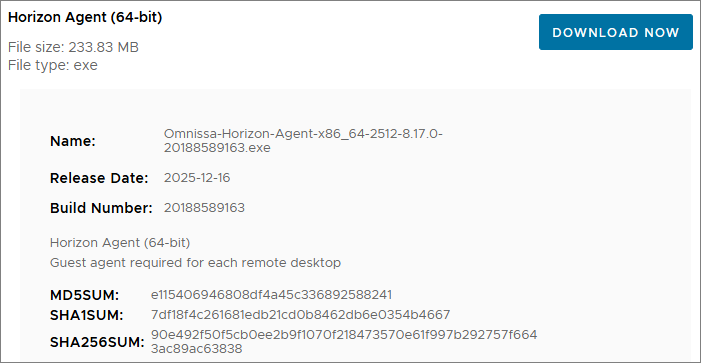


As I’ve gone over to using MDT to create Horizon templates, described here: Automating Template Creation & Maintenance, I will update the Omnissa Windows Agents in the Deployment Share, and run through the task sequence to create a new template.
After updating the MDT Plugin, as described here: Horizon – Upgrade OSOT MDT Plugin to v. 2512, the Plugin NO longer worked with the Horizon Agent, so I decided to use a Powershell script for this step in the task sequence instead. The silent install parameters are available here: Silent Installation Properties for Horizon Agent for Windows. As the task-sequence copies the OSOT-folder (inside the DeploymentShare), to C:\OSOT earlier in the Task Sequence, I created the Powershell-script in the OSOT-folder and made a folder containing the install media.
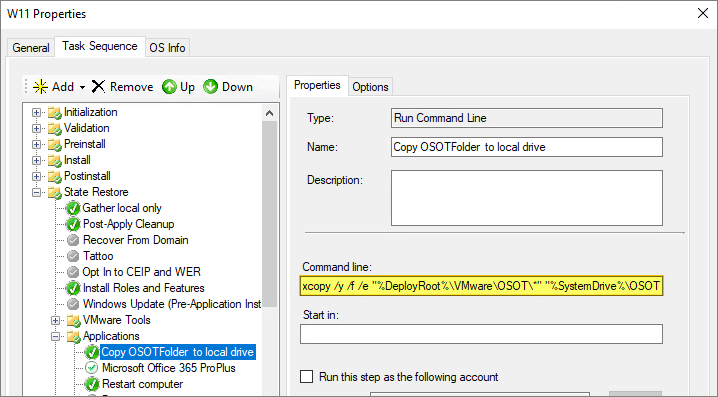

The Powershell-script will unblock the exe-file and install the Horizon Agent using the silent install options I declare as arguments
HorizonAgent.ps1:
$ErrorActionPreference = "Stop"

$HzAgentDir = "C:\OSOT\Install\HorizonAgent\"
$HzAgentExe = "Omnissa-Horizon-Agent-x86_64-2512-8.17.0-20188589163.exe"
$HzAgentArgs = "/s /v ""/qn ADDLOCAL=Core,NGVC,USB,RTAV,SmartCard,TSMMR,HelpDesk REBOOT=ReallySuppress /l*v C:\OSOT\horizon-agent-install.log"""

# Unblock Horizon Agent Installer
Write-output "======Unblock Executables....."
Unblock-File C:\OSOT\Install\HorizonAgent\$HzAgentExe -Confirm:$false -ErrorAction Stop

# Install Horizon Agent
Write-output "======Install Horizon Agent....."
Try
{
   Start-Process C:\OSOT\Install\HorizonAgent\$HzAgentExe -ArgumentList $HzAgentArgs -PassThru -Wait -ErrorAction Stop
}
Catch
{
   Write-Error "Failed to install the Horizon Agent"
   Write-Error $_.Exception
   Exit -1
}
I add the Powershell script as a step in my task sequence.
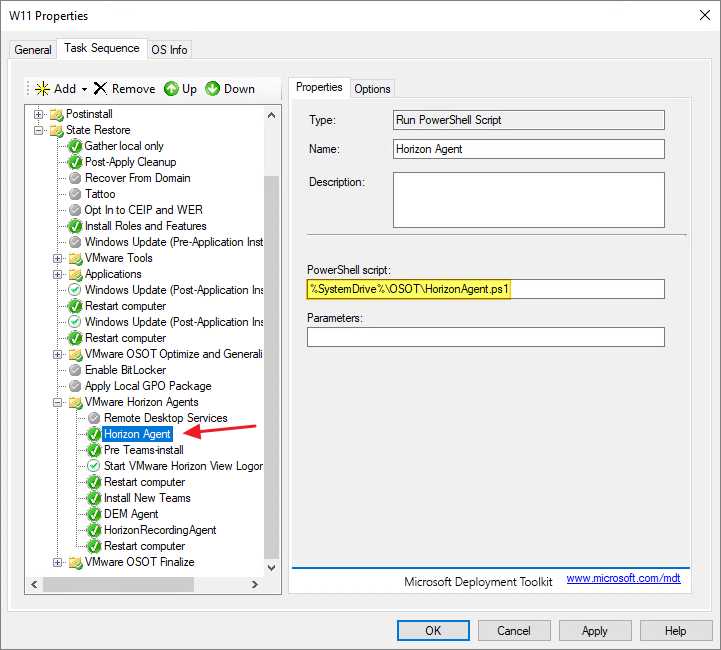
Next, I copied the DEM msi-file to the DeploymentShare and Unblocked it. This worked as it should after MDT Plugin Upgrade:

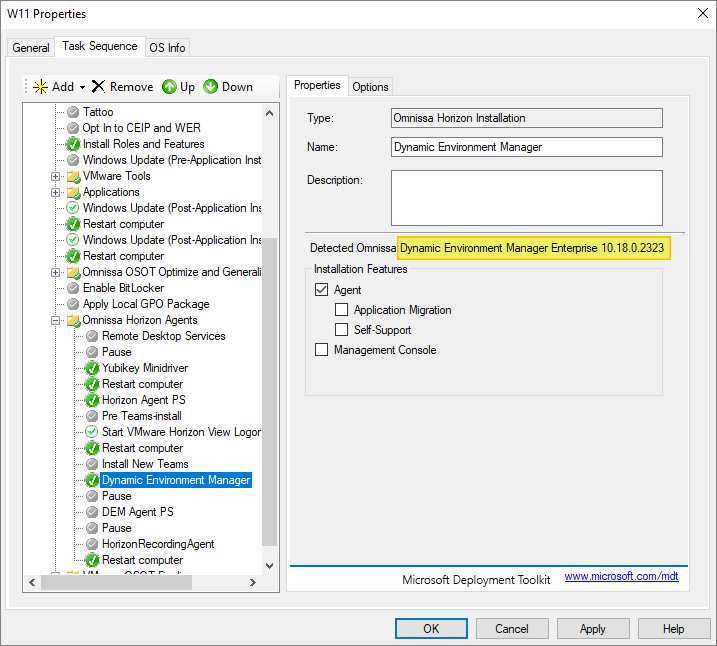
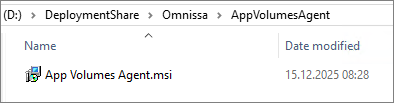
I also copied the App Volumes Agent msi-file to the DeploymentShare and Unblocked this as well. This worked as it should after MDT Plugin Upgrade:
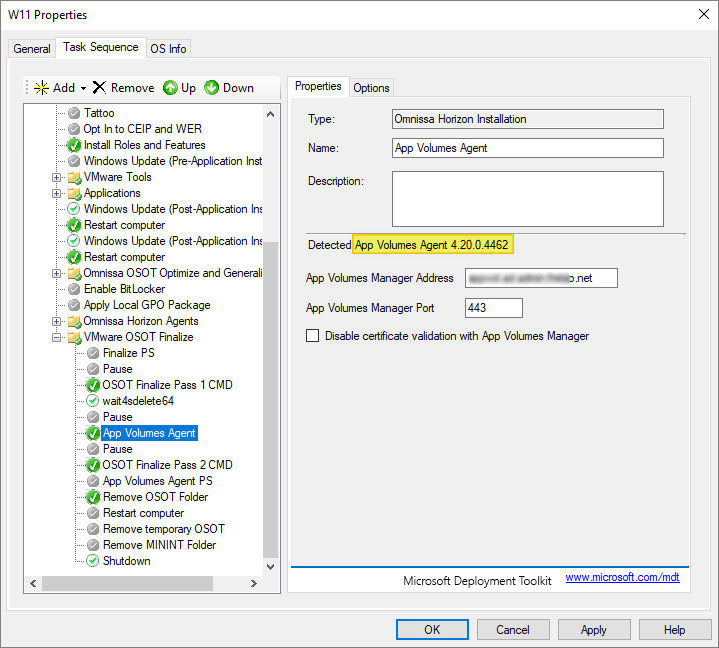
All was well so far, until I also got errors with the OS Optimization Tool in the MDT Task Sequence, so I had to do the Optimize, Generalize and Finalize steps manually.
Optimize:
cmd.exe /c "%SystemDrive%\OSOT\OmnissaHorizonOSOptimizationTool-x86_64-1.2.2512.19957824724.exe -o"
Generalize:
cmd.exe /c "%SystemDrive%\OSOT\OmnissaHorizonOSOptimizationTool-x86_64-1.2.2512.19957824724.exe -g %SystemDrive%\OSOT\w11sysprep.xml"
Finalize Pass 1:
cmd.exe /c "%SystemDrive%\OSOT\OmnissaHorizonOSOptimizationTool-x86_64-1.2.2512.19957824724.exe -f 0 1 2 3 4 5 6 9 10"
To make sure that the Task Sequence waits for sdelete64.exe to finish before continuing, I added a step that will run a little “wait-script”
cmd.exe /c "%SystemDrive%\OSOT\wait4sdelete64.cmd"
wait4sdelete64.cmd:
@echo off
pushd "%~dp0"
echo Waiting for sDelete to finish ...
start "" /wait "sdelete64.exe" -inputFile C:\osot\sdelete64.txt

timeout /t 90 /nobreak >nul 2>&1
:loop
tasklist | find /i "sdelete64.exe" >nul 2>&1
if errorlevel 1 (
    goto continue
) else (
    echo sDelete is still running ...
    timeout /t 05 /nobreak >nul 2>&1
    goto loop
)

:continue
popd
exit /b 0
Finalize Pass 2:
cmd.exe /c "%SystemDrive%\OSOT\OmnissaHorizonOSOptimizationTool-x86_64-1.2.2512.19957824724.exe -f 7"
Once done, I run through the task sequence and push the new template to my desktop pool.

Having finished the Windows Agents upgrade, I can now proceed with upgrading the agent in my Linux template, covered here: Horizon – Upgrade Linux Agent to v. 2512
Horizon planning, deployment etc.
Horizon planning, deployment etc.
Disclaimer: Every tips/tricks/posting I have published here, is tried and tested in different it-solutions. It is not guaranteed to work everywhere, but is meant as a tip for other users out there. Remember, Google is your friend and don’t be afraid to steal with pride! Feel free to comment below as needed.
 bjosoren's IT-Tech blog