
Release date: November 17th 2023
Welcome to my VMware Horizon series. The reason for creating this session is that VMware Horizon is somewhat lacking when it comes to Notifications to SMTP, Slack etc. It is possible to send logs to SYSLOG and have these analyzed and based on this, send alerts, alarms etc. via SMTP to Helpdesk for instance. But this requires that an extra SYSLOG solution, for example Splunk, to be set up. This is where VMware Horizon Reach shines. It is a very small and neat tool that can be used to send emails if for example desktop pools stops provisioning or if datastores are nearly full, and lots more. VMware Horizon Reach is a VMware Fling created by Andrew Morgan, who describes the goal for Horizon Reach as this:
The design goal of Horizon Reach is to be the “first port of call,” as Andrew calls it, when troubleshooting issues in large or complex Horizon environments. It accomplishes this by providing a web-based monitoring and alerting platform that performs health checking of multiple Horizon Pods. The Pods in question may or may not be connected via Cloud Pod Architecture. They often are in separate datacenters.
Andrew Morgan’s blog about Horizon Reach: Featured Flings for VMware Horizon
Previously, the VMware Flings were available at https://flings.vmware.com/ but, for some reason, VMware has moved/removed access to Flings. Finding this Fling wan’t easy, but after a little googling I found the VMware Horizon Reach Fling here: Files for Horizon Reach
I wont go into details about the capabilities and features of Horizon Reach, as this is comprehensibly discussed in the above mentioned blog by Matt Frey. Instead, I will do the actual installation of Horizon Reach and the describe following configurations:
- Windows firewall port openings
- Replace self-signed certificate with domain ca signed certificate
- Initial Horizon configuration
- UAG configuration
- LDAPS setup
- Notifications setup towards smtp and slack
Installation
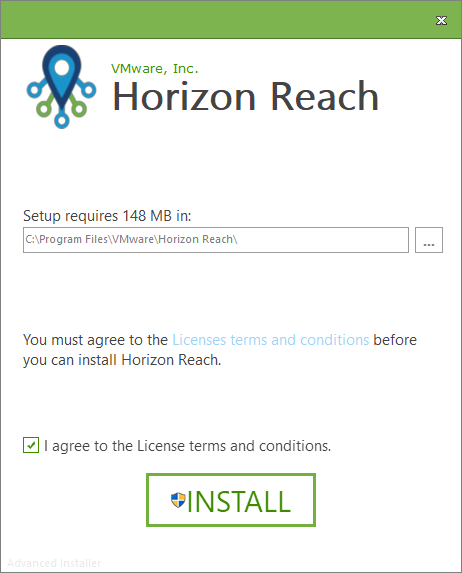
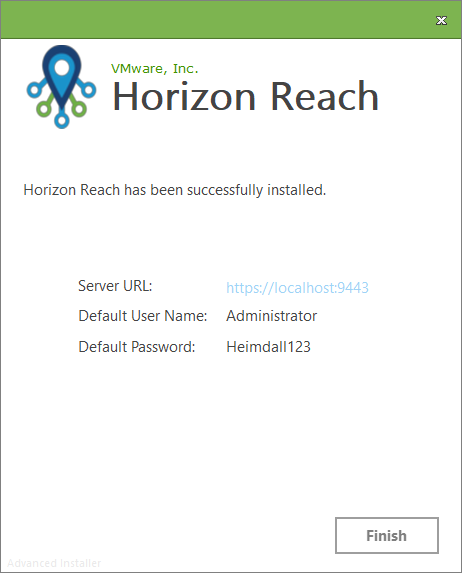
Once I have downloaded the executable, running through the installation is quick and simple, show below.

Configurations:
Windows Firewall
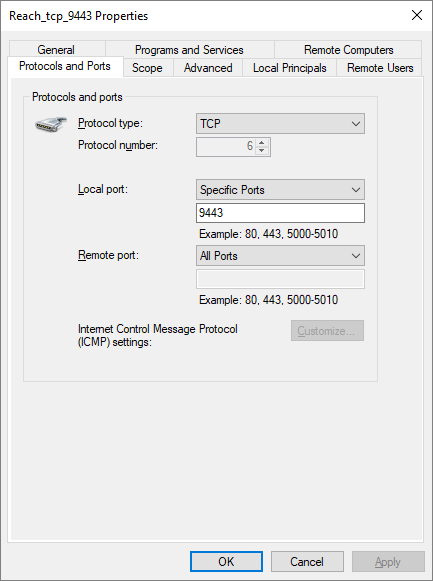
The first thing I need to do, is to create a rule in the Windows Firewall to allow TCP 9443 traffic.
Replace Self-signed certificate
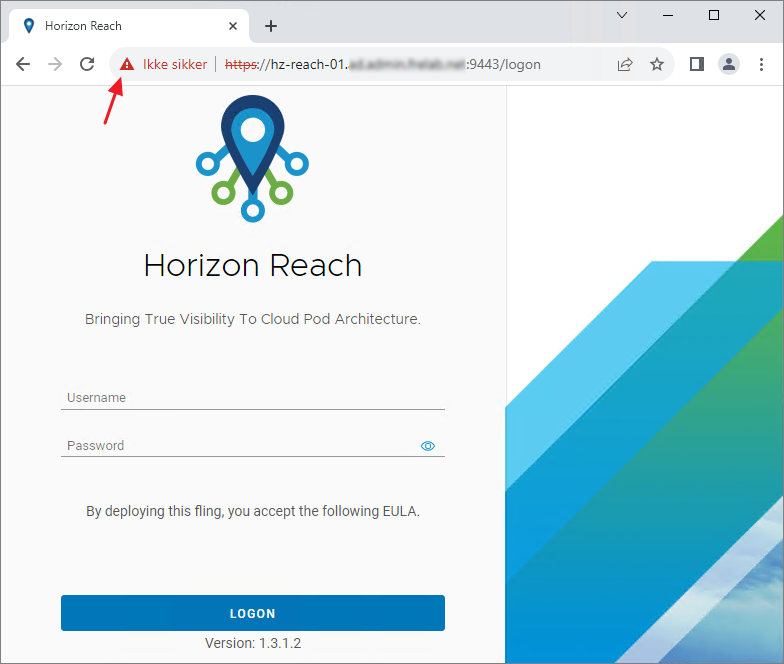
Horizon Reach comes default with a self-signed certificate. As this isn’t trusted I will be replacing this with my domain CA signed certificate.
Before I continue I stop the HorizonReach service

Next I run certlm.msc and change the Friendly Name of the self-signed certificate


I can now request a new certificate from my Domain CA. Before I do this, I make sure that the computer account of the server I’m requesting from, has enroll permissions on the certificate template I will be using. Request New Certificate…

Next…

I use the Active Directory Enrollment Policy, Next…

I click the link to configure the settings

I provide my server’s fqdn as both Common name and DNS. From the General tab I set the Friendly Name to “HorizonReach“, OK…


I click Enroll and Finish once completed.

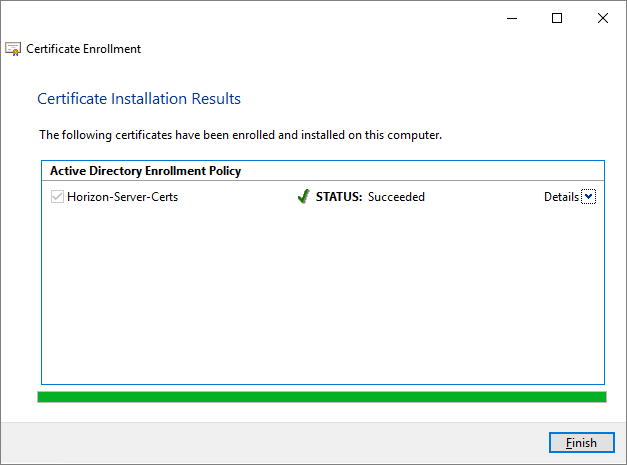
The new certificate is now present with the correct Friendly Name. I can now start the HorizonReach service


The certificate warning is now gone and I can login and continue the setup.

NOTE: Replacing the self-signed certificate could also have been done using Powershell, as I previously have posted here: VMware Horizon – Replace self-signed vdm certificate with Domain CA signed certificate using PowerShell
Horizon Reach Setup
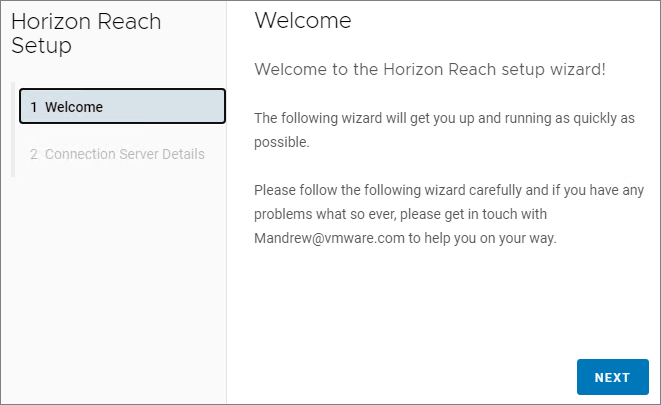
The first time I log in to Horizon Reach, the Setup wizard launches. Next…
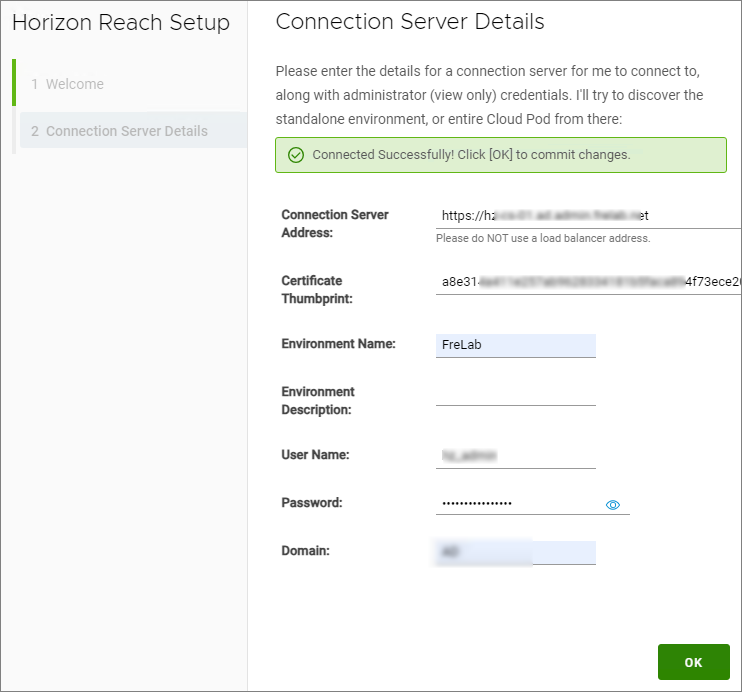
I provide my Connection Server details, Validate and OK…

The Dashboard and the rest of the GUI is fairly self-explaining…

Configure UAG Connections
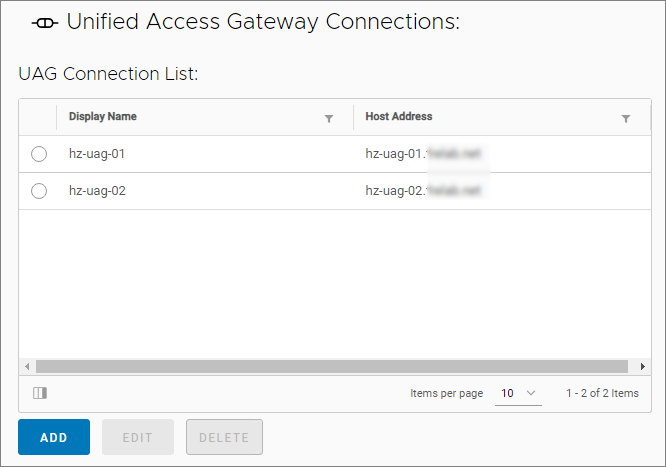
Next, I will configure my UAG Connections, which is done from the settings menu

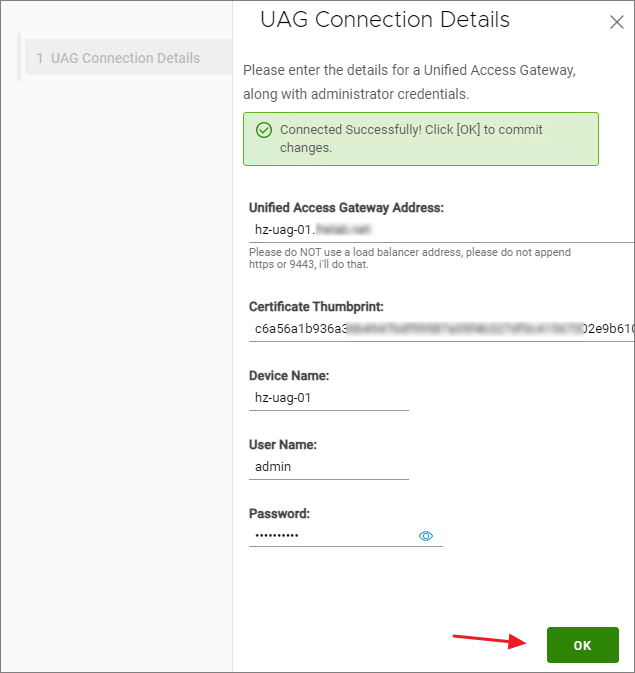
I click ADD and provide the UAG Connection details in the next window, VALIDATE and OK…


Configure LDAPS Integration
Before I can log into Horizon Reach with a Domain User, I need to configure LDAPS, LDAP is NOT supported. From the settings menu I click Web Service Settings…

From Authentication Settings, I Enable LDAP Integration and provide the necessary information.

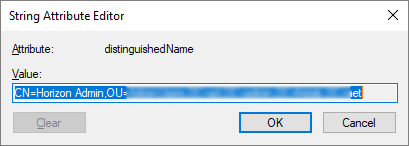
I find the BIND User DN (=distinguishedName) from the Attribute Editor in ADUC.

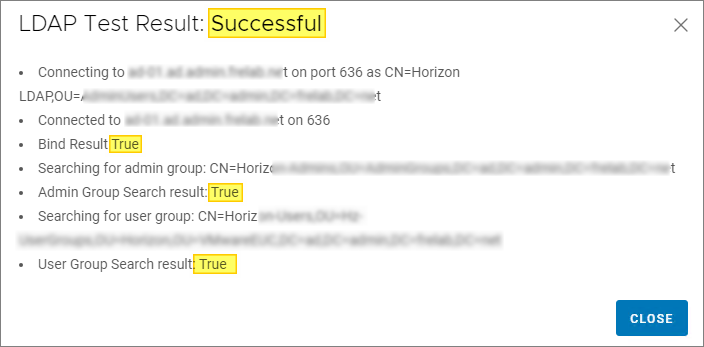
Once everything is configured, I test the connection and hit CLOSE…
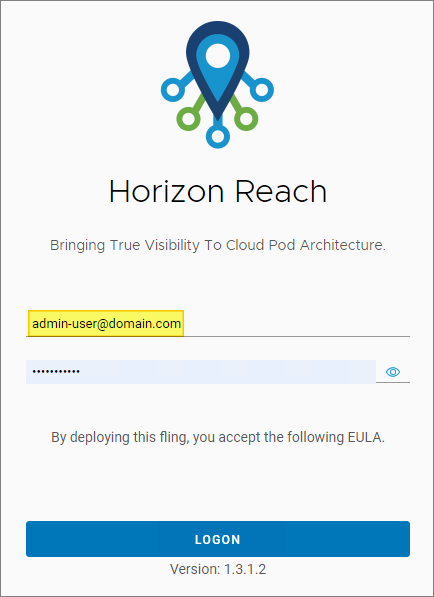
Finally, I test the LDAPS configuration by logging in with a user from AD
Configure Notifications to SMTP/Slack etc.
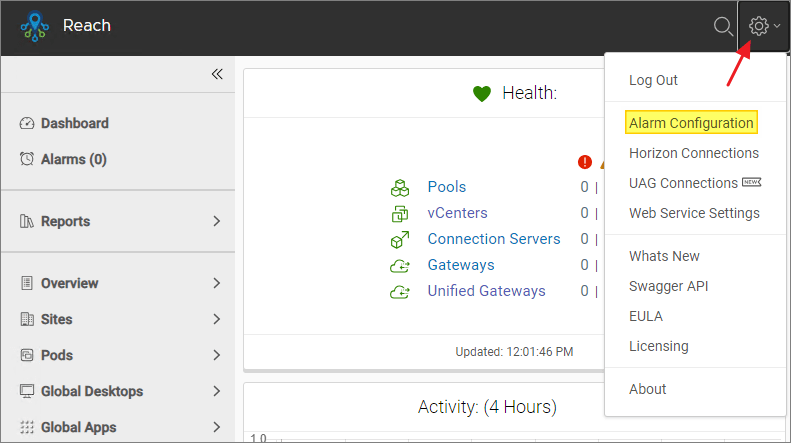
To configure Notifications to SMTP/SLACK, I select Alarm Configuration from the settings menu.
CONFIGURE NOTIFICATIONS…

To configure SMTP or Slack, I first enable the feature…

I provide the necessary information for the SMTP Settings, Next…

I personally don’t use Slack for this, but I guess I would have to configure the Web Hook URL, TEST CONFIGURATION, Next…

Having done this basic configuration, I now have a solution that notifies me of alerts/alarms from my VMware Horizon Connection Servers. A very nice little Fling from VMware, and best of all, license-free….
Download here: Files for Horizon Reach
Documentation:
VMware Horizon planning, deployment etc.
Official VMware Horizon 8 Documentation
Disclaimer: Every tips/tricks/posting I have published here, is tried and tested in different it-solutions. It is not guaranteed to work everywhere, but is meant as a tip for other users out there. Remember, Google is your friend and don’t be afraid to steal with pride! Feel free to comment below as needed.
 bjosoren's IT-Tech blog