
Release date: September 25th 2023
Welcome to my VMware Horizon series. In this session I will describe how I upgraded my VMware Horizon Connection Servers to v. 2306. According to the VMware Horizon 8 2306 Release Notes, these are the changes to the Horizon Connection Server:
- Horizon Connection Server
- Horizon 8 no longer supports Microsoft Systems Center Operations Manager for monitoring Connection Server.
- When using Cloud Pod Architecture, administrators can now configure Global Entitlements to distribute session load across available resources based on their current utilization. For more information, see Cloud Pod Architecture in Horizon 8.
- A Horizon administrator can configure a timeout after which Single Sign-On (SSO) credentials will be discarded. This can be configured to affect internal and/or external connections. When SSO credentials are discarded after the timeout, Desktop and Application sessions will remain open and connected. Launching a new Desktop or a new application from a different RDS Farm will require authentication directly to the Windows Guest Operating System. See Horizon Administration for details.
- You can set the Connection Server enforcement state from clients with the same or a higher certificate checking mode. Horizon Clients 2306 and higher support this setting.
- Security configuration setting balancedHost can now accept a list for those with more than one load balancer. The syntax is exactly the same as portalHost.
Previously I have shown how to do this manually, in this session I will show how to do this with PowerShell and PowerCLI, remotely from a management server. Before I start, I review VMware’s documentation describing this topic:
According to VMware’s official documentation, this should be done as step 7 in the supported update sequence.

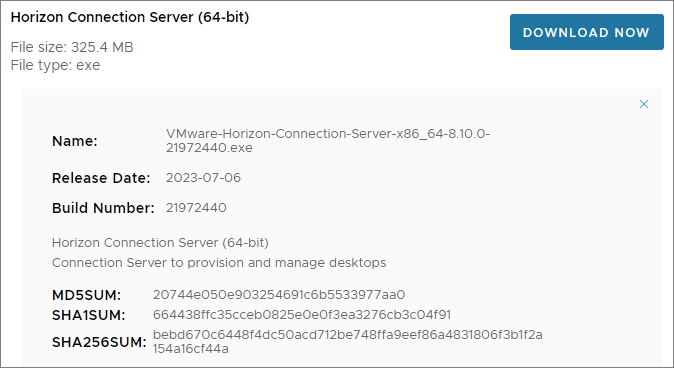
I start out by downloading the installation media from VMware Customer Connect
First, I verify the installed version:
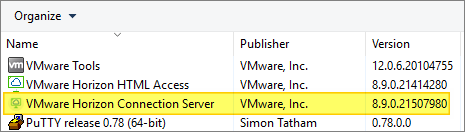
Before I start I make myself a little workflow as show below.

Prerequisites:
- PowerShell Administrative access to the Connection-server
I first created the following credentials to be used in the script:
- vCenter admin-user:
New-VICredentialStoreItem -User <user> -Password <user> -Host <server> -File C:<your location.xml>- Horizon admin-user:
$credential = Get-Credential
$credential | Export-CliXml -Path '<path>hz_admin.xml'
Now that I had the credentials created, I was good to go. (PS: I know I’m no programmer and a lot of this script have the potential for improvement, but, it gets the job done, and that’s good enough for me. If You have input to making this script even better, please leave a comment below, it will be very much appreciated!)
UpgradeCS.ps1
# --- Initialize PowerCLI Modules ---

Import-Module VMware.VimAutomation.Core
Import-Module VMware.VimAutomation.Common
Set-PowerCLIConfiguration -Scope User -ParticipateInCeip $false -Confirm:$false
Set-PowerCLIConfiguration -InvalidCertificateAction ignore -Confirm:$false
Set-PowerCLIConfiguration -DefaultVIServerMode Multiple -Confirm:$false

# --- Connect to vCenter with Get-VICredentialStoreItem ---

$viserver = "vCenter fqdn"
$viuser = Get-VICredentialStoreItem -File "<path to vCenter Credentials>.xml" -host $viserver
Connect-viserver -Server $viserver -User $viuser.user -Password $viuser.password

$cs = "cs fqdn"

# Check for Snapshots and remove any
Get-Snapshot $cs | Remove-Snapshot -confirm:$false

# --- Shut Down VM ---

Try{
   $vm = Get-VM -Name $cs -ErrorAction Stop
   switch($vm.PowerState){
   'poweredon' {
  Shutdown-VMGuest -VM $vm -Confirm:$false
   while($vm.PowerState -eq 'PoweredOn'){
  sleep 5
   $vm = Get-VM -Name $cs
   }
   }
   Default {
   Write-Host "VM '$($cs)' is not powered on!"
   }
   }
   Write-Host "$($cs) has shutdown. It should be ready for configuration."
}
Catch{
   Write-Host "VM '$($cs)' not found!"
}

# --- Take Snapshot ---

$SnapshotName = "Pre-Upgrade"
Get-VM $cs | New-Snapshot -Name $SnapshotName

# --- Power On VM ---

Start-VM -VM $cs
# Wait 5 minutes - SLOW LAB :)
Start-Sleep 300

# --- Configure PSSession ---

$credential = Import-CliXml -Path "<path to horizon admin>hz_admin_${env:USERNAME}_${env:COMPUTERNAME}.xml"
$session = New-PSSession -ComputerName $cs -Credential $credential -Authentication CredSSP

# --- Define, Copy and Run Installer ---

Invoke-Command -Session $session -ScriptBlock {

# Variables
    $InstallDir = "C:Install"
    $ExeName = "VMware-Horizon-Connection-Server*"
    $ExeFile = "<Network-Path>Latest$ExeName"
    $Vendor = "VMware"
    $Product = "Horizon Connection Server"

# Creating temp-folder, copy installer
    New-Item -Path $InstallDir -type directory -Force
    Copy-Item -Path $ExeFile -Destination $InstallDir -Force

# VMware Connection Server MSI Switches
    $MsiArgs = @(
        "/qn"
        "VDM_SERVER_INSTANCE_TYPE=1" # Connection Server
        "VDM_INITIAL_ADMIN_SID=S-1-5-32-544"
    )

# Upgrade Connection Server
    Write-Host "Upgrading $Vendor $Product" -ForegroundColor Green
    $Exe = (Get-ChildItem -Path $InstallDir | Where-Object {$_.name -like $ExeName}).Fullname
    $Install = (Start-Process -Filepath $Exe -Wait -ArgumentList "/s /v""$MsiArgs" -PassThru)
    $Install.ExitCode
    if ($Install.ExitCode -ne '0')
        {
        Write-Host "The upgrade failed, revert to snapshot, remediate error and try again" -ForegroundColor Red
        #exit
        [System.Environment]::Exit(0)
        }

# Copy locked.properties to .sslgatewayconf folder - Just in case....
    $LockedPropertiesFile = "<Network Path>locked.properties"
    $SslGatewayDir = "C:Program FilesVMwareVMware ViewServersslgatewayconf"
    Copy-Item -Path $LockedPropertiesFile -Destination $SslGatewayDir -Force
    Remove-Item –path $installDir –Recurse -Force
}
Remove-PSSession $session

Get-VM $cs | Restart-VMGuest

# Wait 3 minutes - SLOW LAB :)
Start-Sleep 180

# --- Remove Temp folder and install media ---
Write-Verbose "Remove temp folder and snapshot" -Verbose
$session = New-PSSession -ComputerName $cs -Credential $credential -Authentication CredSSP

Invoke-Command -Session $session -ScriptBlock {

# Waiting for VMware Horizon View Connection Server Service to start"
    $SvcName = 'wsbroker'
    $SvcDisplayName = "VMware Horizon View Connection Server Service"
    $Svc = Get-Service -Name $SvcName
    Write-Host "Waiting for VMware Horizon View Connection Server Service to start" -ForegroundColor Green
    if ($Svc.Status -eq 'Running')
        {
        Write-Host "$SvcDisplayName is Running" -ForegroundColor Green
        }

    if ($Svc.Status -ne 'Running')
        {
        Write-Host "Waiting for $SvcDisplayName to start" -ForegroundColor Green
        $Svc.WaitForStatus("Running")
        Write-Host "$SvcDisplayName is now running" -ForegroundColor Green
        }

# Tidying up
    $installDir = "C:Install"
    Remove-Item –path $installDir –Recurse -Force
}
Remove-PSSession $session

# Remove Snapshot
Read-Host "Press Any Key to remove Snapshot"
Get-VM $cs | Get-snapshot -Name $SnapshotName | Remove-Snapshot  -Confirm:$false

# Disconnect from vCenter
write-host "Disconnecting from vCenter" -ForegroundColor Green
Disconnect-VIServer -Server $viserver -Confirm:$false
Once the script finishes, I can now verify the new version.
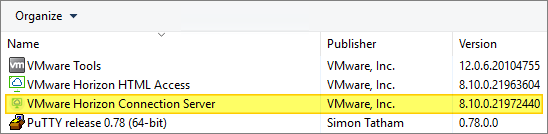
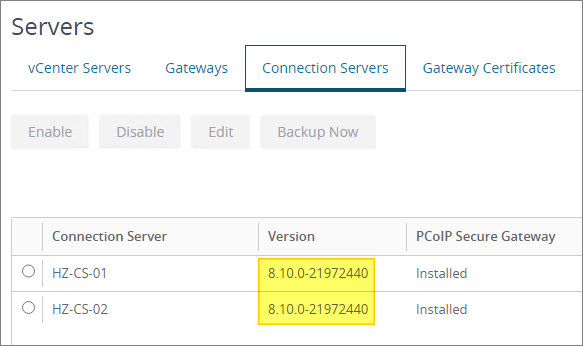
With the Connection Server upgraded, I can now proceed with upgrading the Horizon Enrollment Server, covered here: VMware Horizon – Upgrade Horizon Enrollment Server to v.2306
VMware Official Documentation:
VMware Horizon planning, deployment etc.
Disclaimer: Every tips/tricks/posting I have published here, is tried and tested in different it-solutions. It is not guaranteed to work everywhere, but is meant as a tip for other users out there. Remember, Google is your friend and don’t be afraid to steal with pride! Feel free to comment below as needed.
 bjosoren's IT-Tech blog