
Release date: January 4th 2019
Welcome to my VMware Horizon series. In this session I will describe how I did the installation of the connection server. This is based on VMware Horizon 7.6. I have, after I created this session, upgraded the Connection servers and the rest of my Horizon environment, covered here: VMware Horizon – Upgrades
Prior to installing the connection server, we need to review the pre-requisites layed out by VMware here:
I will use my word-template which I filled in during preparations, when doing this task.

I deploy my new virtual machine with the OS of my choice, VMware Horizon 7.6 Connection server can be setup on:
I will be using Microsoft Windows Server 2016 in this Lab.
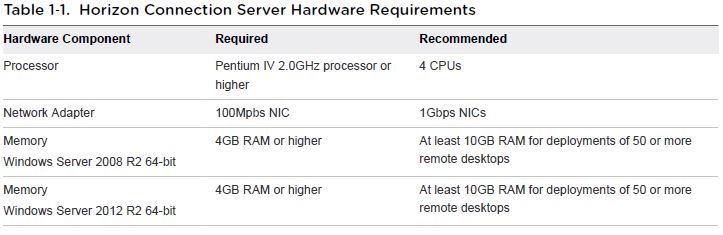
I customize the hardware accordingly to VMware’s Hardware requirements:
I give the server a meaningful computername, in this Lab it will be view-conn01, and join it to the domain. After reboot, I login in and add these pre-required Windows Server features as follows:
- Group Policy Managment
- Telnet Client (I already have this in my server template)
- AD DS Snap-Ins and Command-Line Tools
Start Server Manager, choose “Add roles and Features”, select “Role-based or feature-based installation, Next

I select my connection-server, Next
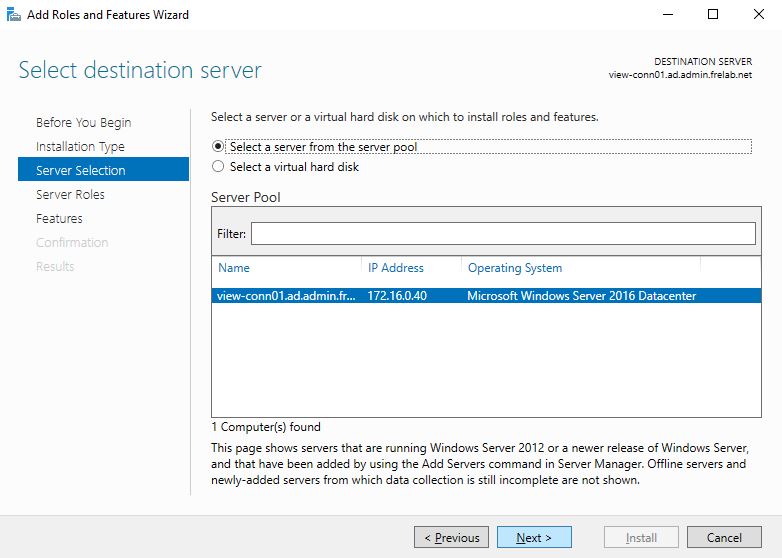
Next

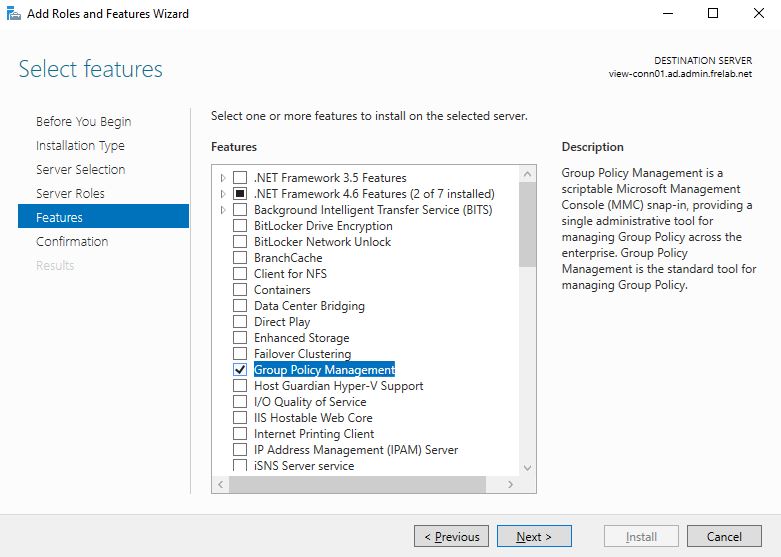
Select “Group Policy Managment”…
Select “AD DS Snap-Ins and Command-Line Tools”…

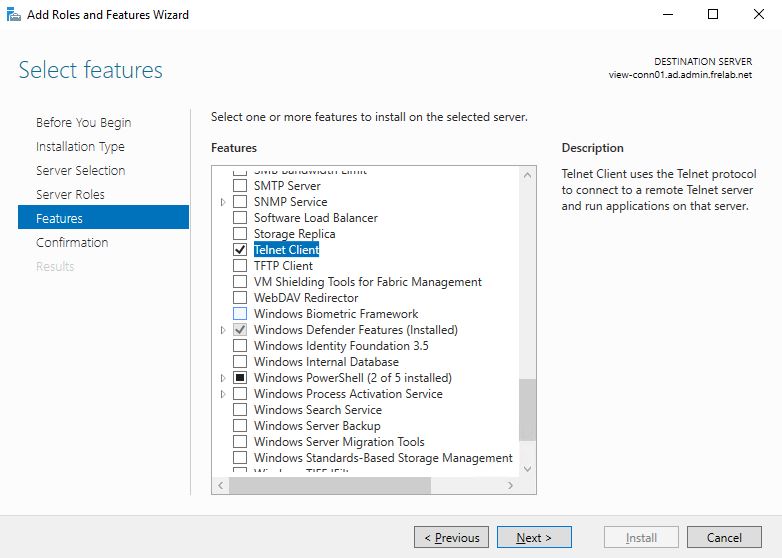
Select “Telnet Client”…
Install…

Now we come to the actual Connection Server setup
Download Vmware Horizon 7.6.0 Connection Server
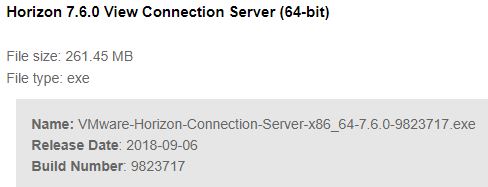
Start the “VMware-Horizon-Connection-Server-x86_64-7.6.0-9823717.exe”
Run through the installation as follows:

Accept the terms, Next…

Default destination folder is a good a location as any, Next…

This Connection server will be setup as Standard Server, will cover setting up Replica, Security & Enrollment Server in later posts, Next…

Enter the recovery password of choice and password reminder, Next…

I like to let the firewall, in this Lab I use Windows Defender firewall, be enabled on my Windows Servers, and select “Configure Windows Firewall Automatically”, Next…

Here I enter the usergroup I created earlier when I prepared the Active directory, covered in my post about VMware Horizon View Preparing Active Directory, Next…

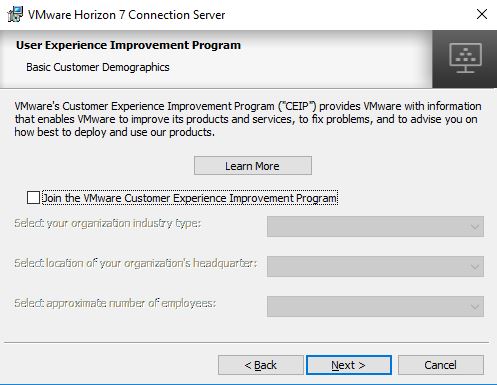
I deselect CEIP, Next…
Install…

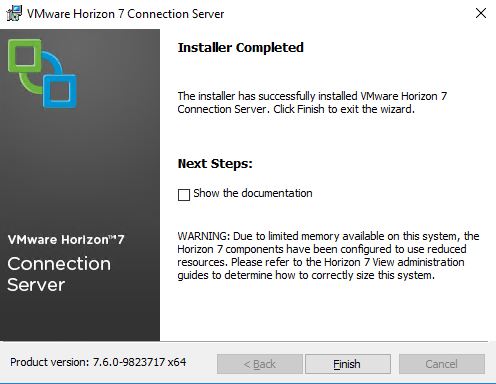
Finish…
Next step now is to configure the Vmware Horizon View Connction Server Events Database, this is covered in my post: VMware Horizon – Setup an events-database for the Connection Server
VMware Horizon planning, deployment etc.
Disclaimer: Every tips/tricks/posting I have published here, is tried and tested in different it-solutions. It is not guaranteed to work everywhere, but is meant as a tip for other users out there. Remember, Google is your friend and don’t be afraid to steal with pride! Feel free to comment below as needed.
 bjosoren's IT-Tech blog