
Welcome to my Omnissa App Volumes series. In this post I upgrade my App Volumes Managers from 2606 to 2609, using my own web-based maintenance platform instead of doing it by hand. The platform runs the upgrade one manager at a time, takes a snapshot first, checks the result and waits for my OK before it moves on to the next manager.
Below you’ll find what is new in 2609, where App Volumes fits in the overall upgrade sequence, and a step-by-step walkthrough of the upgrade itself.
AI-assisted development
This upgrade automation was developed with assistance from Claude by Anthropic, particularly for some of the Ansible- and PowerShell-related tasks. While I am not above using AI to reduce the amount of manual work involved, every part of the solution has been implemented, tested, and proven to work in my lab environment before being included in this write-up.
Release notes
App Volumes 2609 was released on October 22nd 2026. The release notes list the build as 4.23.0.171, while the App Volumes Manager itself reports 4.23.0.4435 after the upgrade, so don’t be surprised if the numbers differ. The full list of new features, resolved issues and known issues is in the Omnissa App Volumes 2609 Release Notes. These are the new features in this release:
What’s New
- Pre-Delivery Validation for Local Copy
- Before a package is delivered in local copy mode or to a physical endpoint, App Volumes now runs pre-flight checks of disk space and network bandwidth/reliability. Administrators set the thresholds that can block delivery, and users get remediation guidance and throughput metrics.
- Multiple Markers
- You can now define markers beyond CURRENT, assign several markers to the same application and set marker priority. Entitlements can come from markers alone or be combined with inherited package entitlements.
- Package Report Editor
- The Package Report Viewer is extended so captured package content can be edited before deployment: add or remove files, folders and registry entries, and change package metadata and collateral.
- Targeted Package Resync
- A single package can be resynced instead of resyncing packages across all storage locations, which speeds up recovery in distributed environments.
- Command-Line View of Attached Apps
- A new agent command lists the application status on an endpoint (Entitled, In Progress, Attached, Failed), with output as text or JSON.
Before you upgrade
Checklist & known issues
- A Windows bug can crash Windows Explorer at logon (black screen) for users with a UIA+Profile or Profile-only Writable Volume on Windows 11 24H2/25H2 builds released between late August and early October 2026. Microsoft fixed it in the October 2026 monthly update, so make sure your golden images are patched. See KB 6001783.
- Known issue AVM-48568: after adding a 2609 manager that uses a self-signed certificate, the certificate push to Horizon can fail. The workaround is to run Push Certificate manually.
- Omnissa’s Upgrade App Volumes Manager guide asks for a maintenance window, a database backup, a snapshot or backup of each manager and at least 1 GB free on the installation drive. My platform covers the backup, snapshot and free-space check automatically.
Upgrade sequence
At what point in an upgrade procedure should the App Volumes components be upgraded? According to Omnissa’s official documentation, App Volumes Managers are upgraded early in the infrastructure part of the sequence, and the App Volumes Agent later, together with the other agents in the golden images.

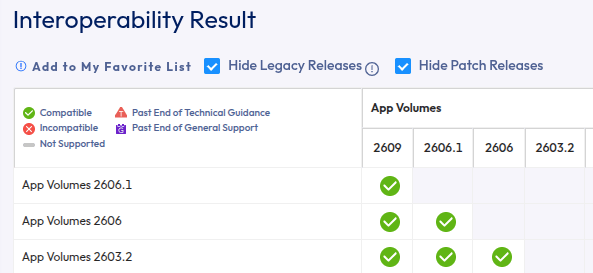
Before beginning the upgrade, I also verify that the upgrade path is supported in the Product Interoperability Matrix. It shows that 2609 is supported as an upgrade from 2606.1, 2606 and 2603.2, so the upgrade from 2606 is a supported path.
The procedure
- HAProxy Load Balancer: upgraded first if needed, since the managers sit behind it.
- App Volumes Managers: one at a time, automated from my maintenance platform (this post).
- App Volumes Agent: upgraded in the golden images after all managers are on 2609. See my Windows 11 and Windows Server 2025 RDSH template builds.
- Capture VMs: the agent is upgraded and a new clean snapshot is taken by the same run, after the last manager.
- Templates: uploaded manually in App Volumes Manager (Configuration › Storage › Upload Templates).
Walkthrough – upgrading with my maintenance platform
My Omnissa Maintenance Platform runs the upgrade as Ansible jobs and stops for my OK between each manager. The walkthrough is split into four phases. Click a screenshot to view it full size.
Phase 1 – Prepare
1. Dashboard
The dashboard gives a status of the environment. Under Infrastructure Upgrades, the platform compares the installed version with the installers on the share: App Volumes Managers are on 2606 (4.22.0.4007), and 4.23.0 (2609) is available, so Upgrade is offered.
2. Infrastructure upgrade sequence
Infrastructure › Overview shows the full upgrade sequence in two phases: the connectivity layer (clients, load balancer, App Volumes Managers, Connection Servers, UAG) and virtualisation plus golden images (vSphere, VMware Tools, agents, DEM, ADMX, App Volumes templates). The banner shows the next step, App Volumes Managers 4.22.0 → 4.23.0 on 2 managers, with Connection Servers and agents/golden images to follow.

3. App Volumes – General
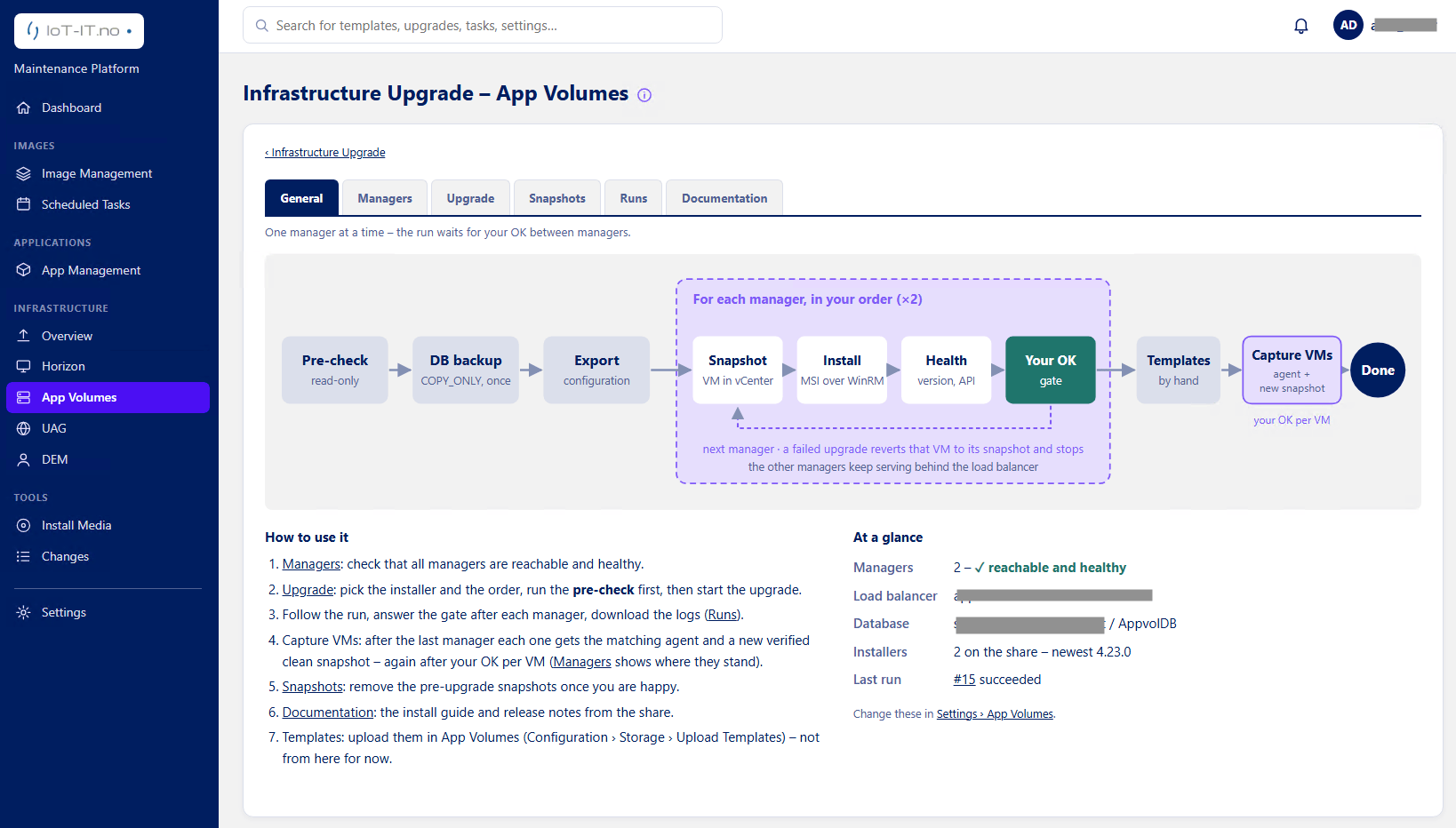
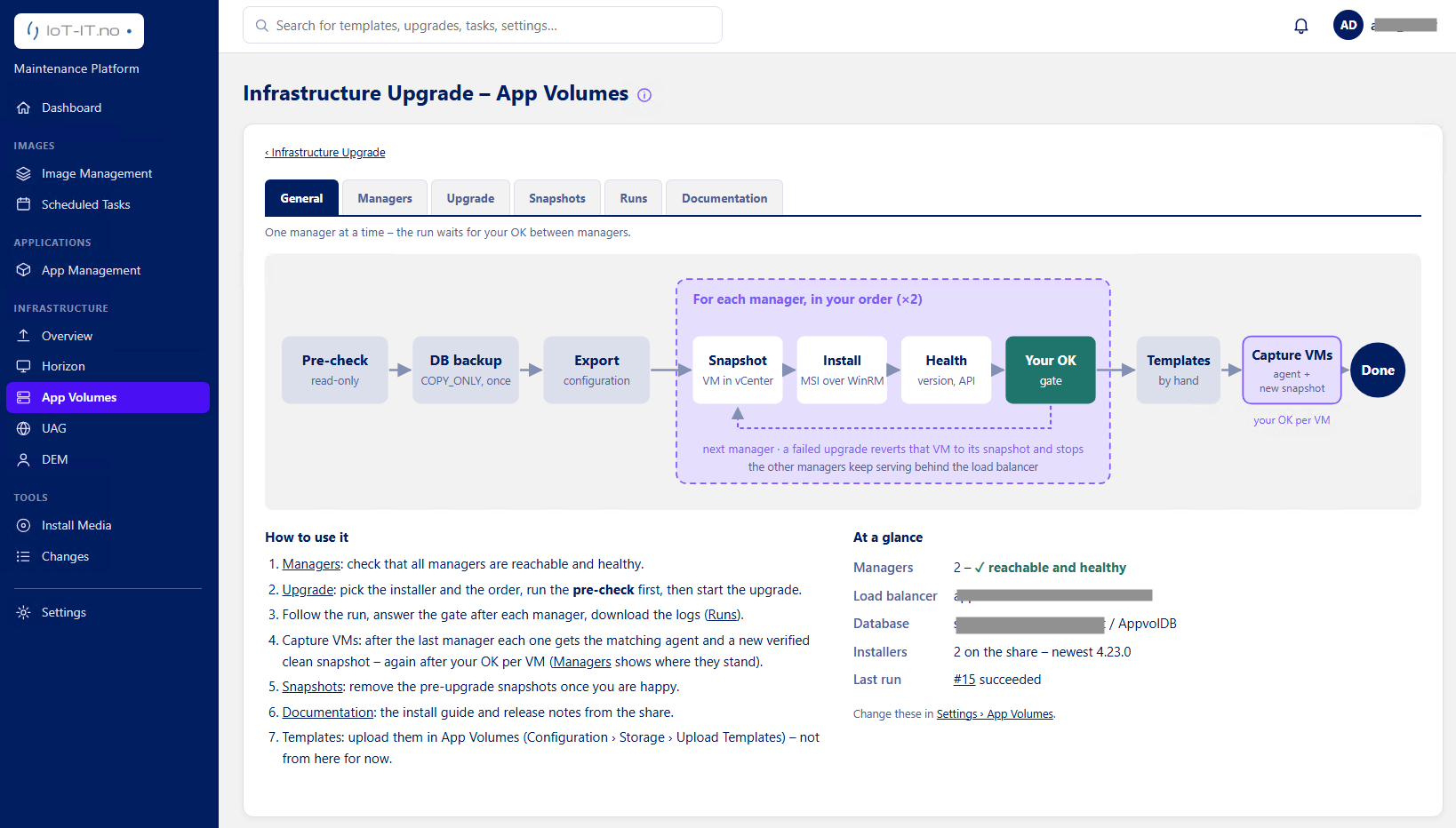
The General tab shows the flow: a read-only pre-check, a COPY_ONLY database backup and configuration export once, then for each manager in order: snapshot in vCenter, MSI install over WinRM, health check (version and API) and a gate where I give my OK. A failed upgrade reverts that VM to its snapshot and stops, while the other manager keeps serving behind the load balancer. Finally the capture VMs are updated. At a glance confirms 2 healthy managers, the load balancer, the database and that 4.23.0 is the newest installer on the share.
4. Managers – before the upgrade
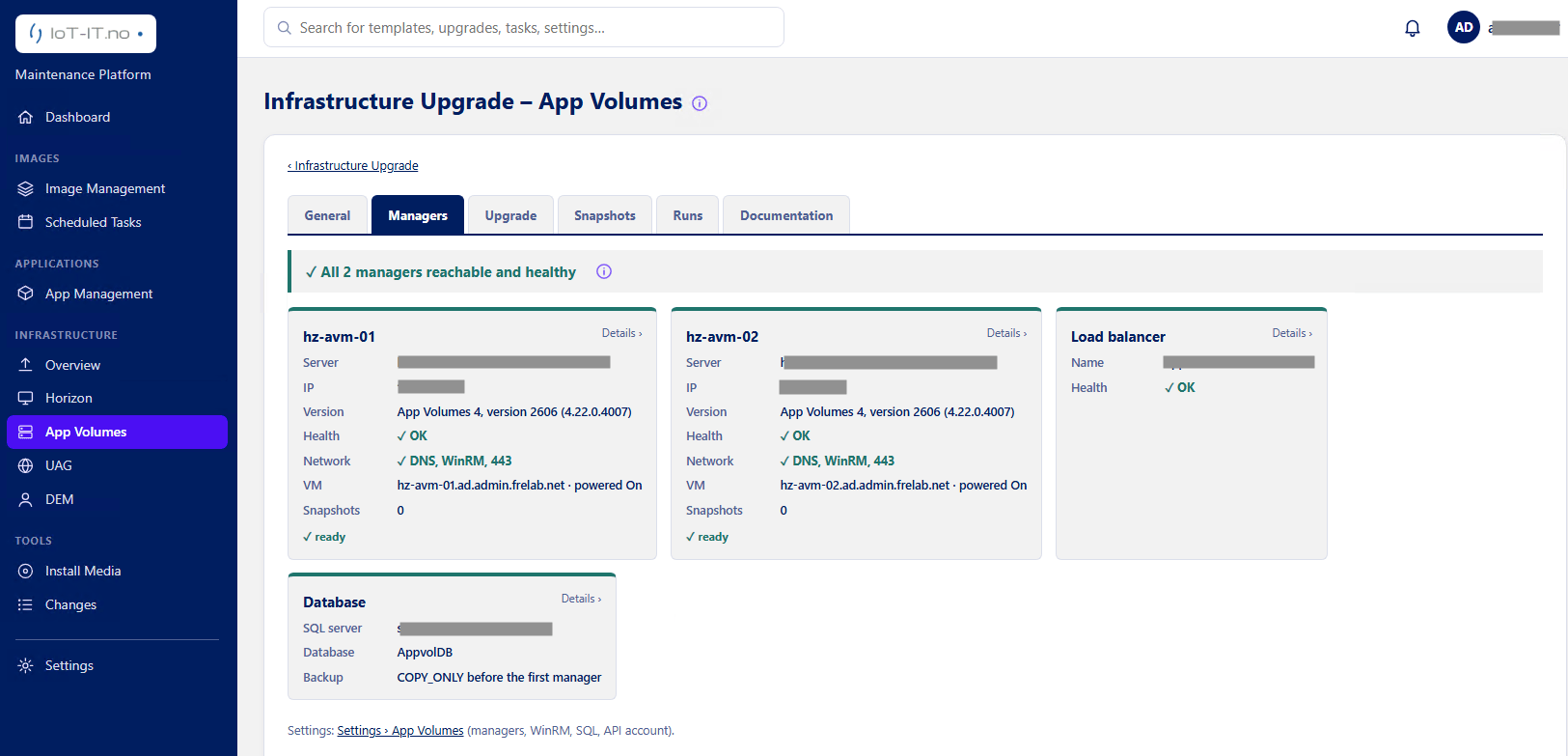
The Managers tab checks that both managers are reachable over DNS, WinRM and 443, are healthy, and run App Volumes 4 version 2606 (4.22.0.4007) with no snapshots. The load balancer and the SQL database are checked as well.
Phase 2 – Options & pre-check
5. Upgrade options
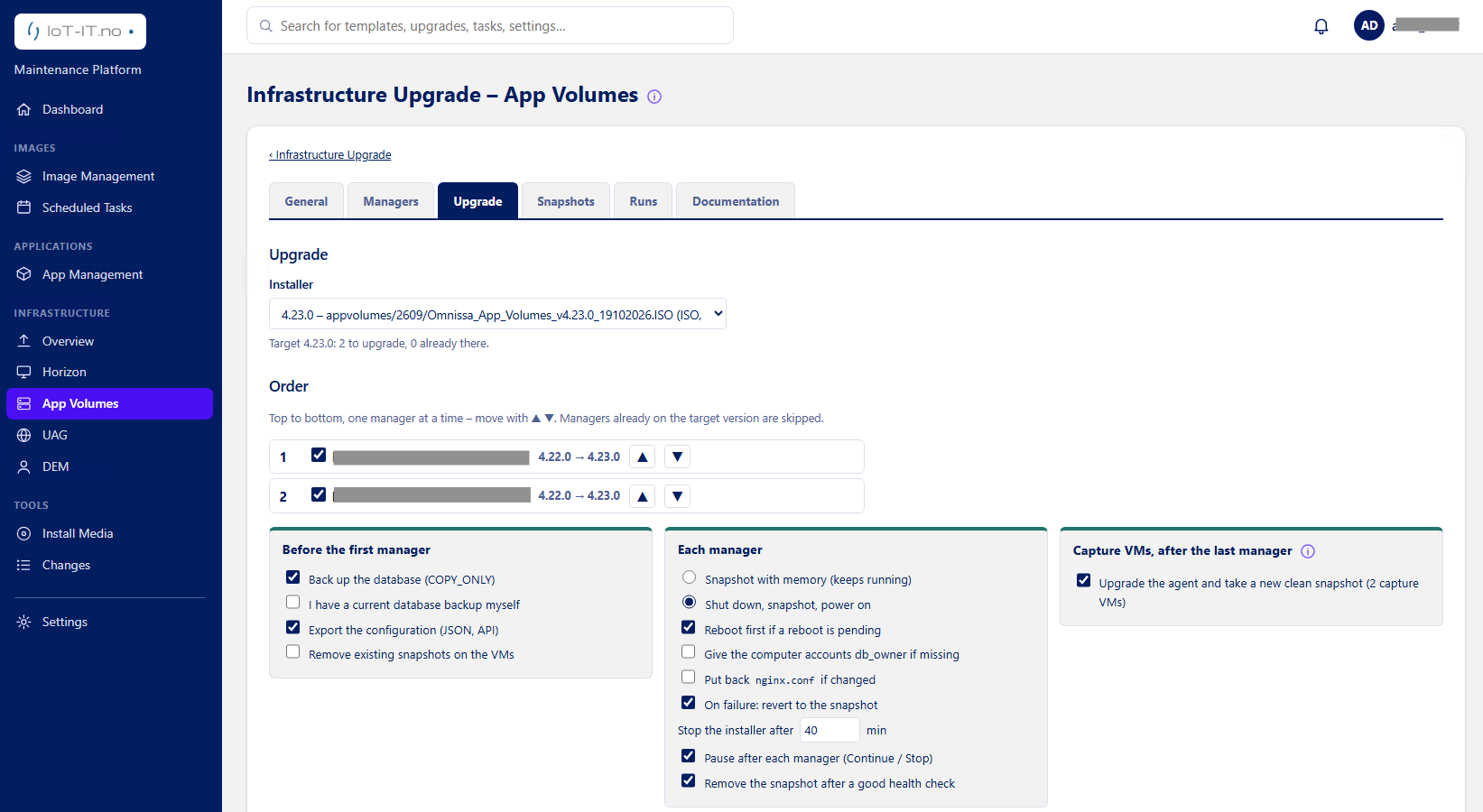
On the Upgrade tab I select the 4.23.0 installer (ISO) from the share and the order of the managers. Managers already on the target version are skipped. Before the first manager, the database is backed up (COPY_ONLY) and the configuration exported (JSON, API). For each manager I chose shut down, snapshot and power on, reboot first if a reboot is pending, revert to the snapshot on failure, a 40-minute installer timeout, a pause after each manager and removal of the snapshot after a good health check. After the last manager, the agent on the capture VMs is upgraded and a new clean snapshot is taken.
6. Per-manager steps and pre-check
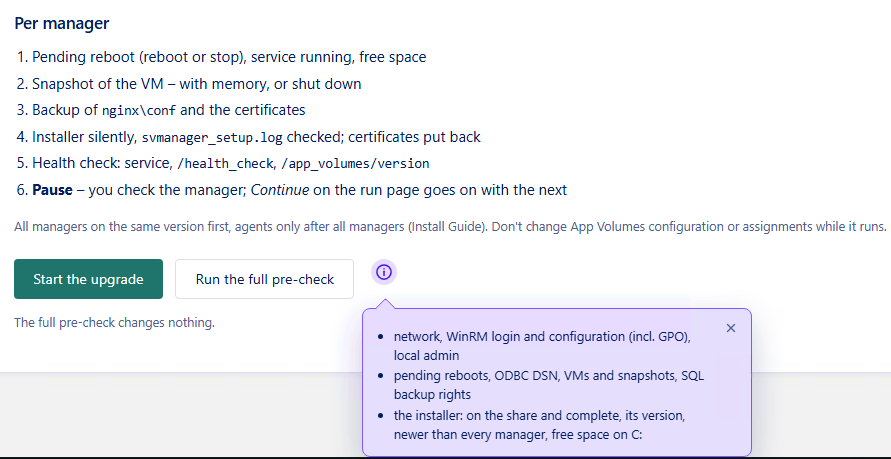
The summary lists what happens per manager: pending reboot, service and free space check, VM snapshot, backup of nginx\conf and the certificates, silent install with svmanager_setup.log checked and certificates put back, health check of the service, /health_check and /app_volumes/version, and then a pause. The info box shows what the full pre-check verifies: network, WinRM login and configuration (incl. GPO), local admin, pending reboots, ODBC DSN, VMs and snapshots, SQL backup rights, and that the installer is complete, newer than every manager and that there is free space on C:.
7. Pre-check result
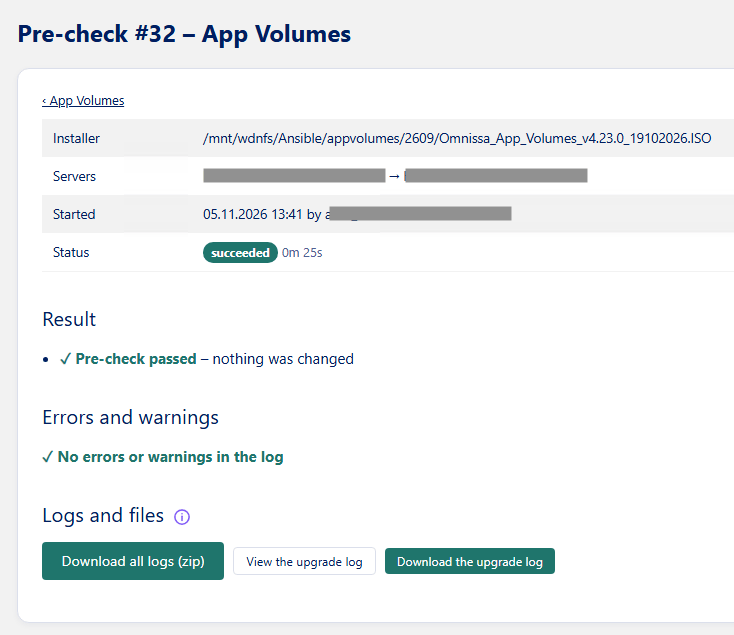
I always run the full pre-check first. It changes nothing and took 25 seconds here: pre-check passed for both managers, with no errors or warnings in the log. All logs can be downloaded as a zip. With the pre-check passed, I go back and click Start the upgrade (shown in step 6). All managers are upgraded to the same version first, and agents only after all managers. Don’t change the App Volumes configuration or assignments while the run is in progress.
Phase 3 – Run
8. Waiting for my OK
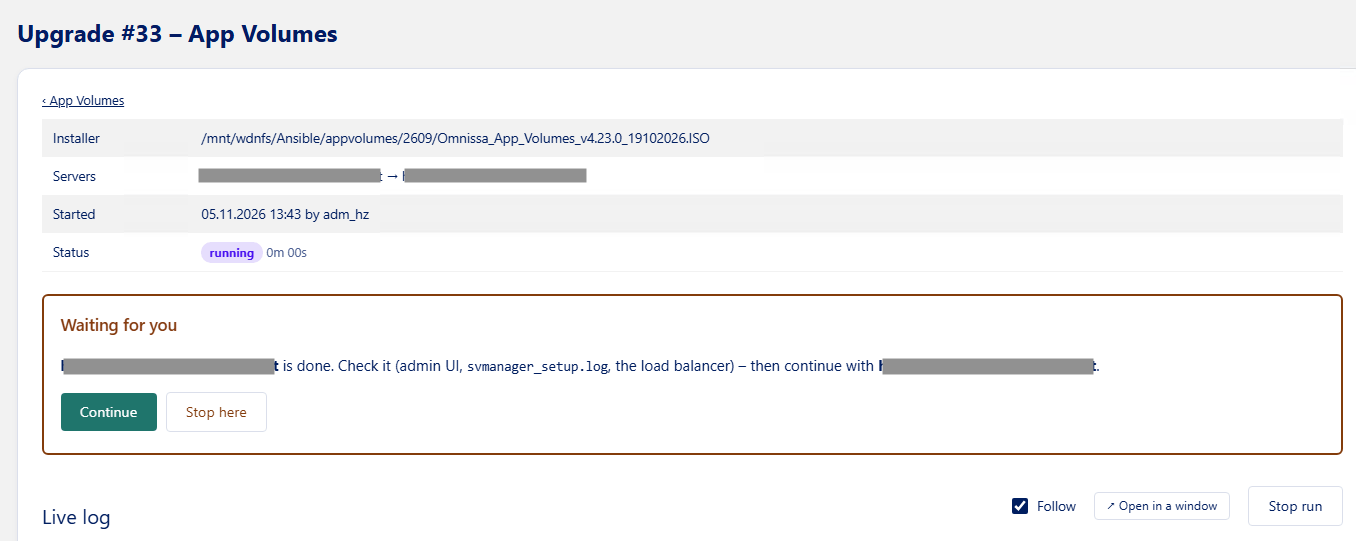
After the first manager is upgraded, the run stops and waits. Before I click Continue, I verify it in the admin UI, check svmanager_setup.log and confirm the manager is back in the load balancer. The run then continues with the second manager. Stop here ends the run with the second manager untouched.
Phase 4 – Verify & clean up
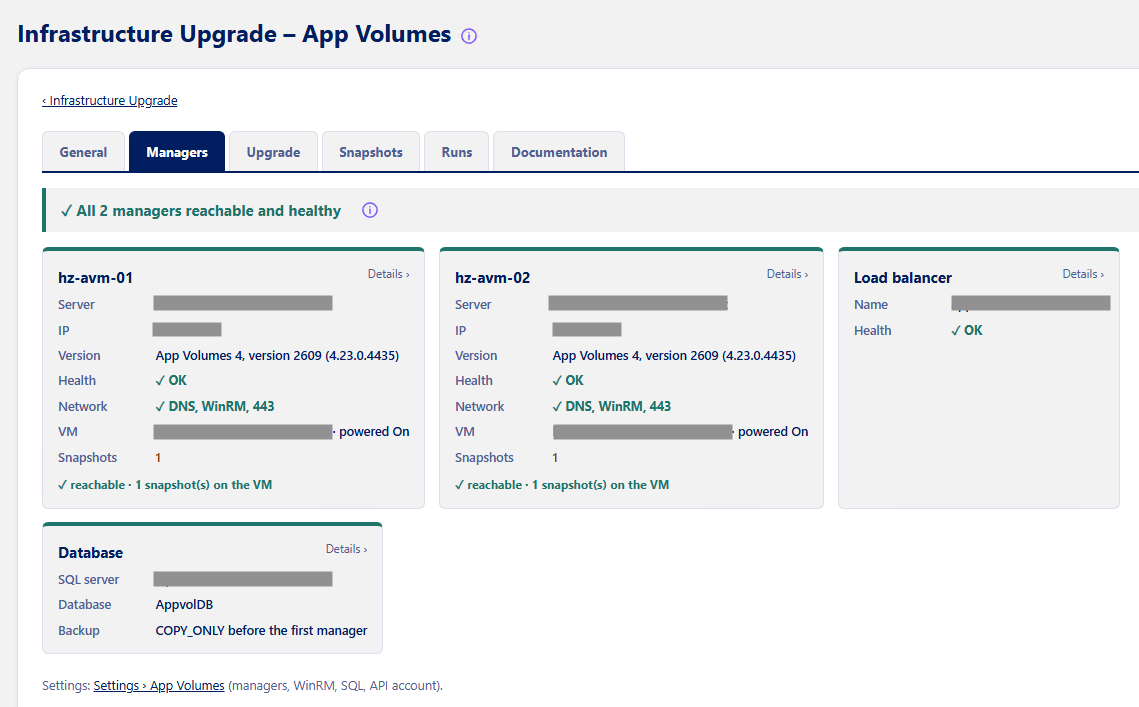
9. Managers – after the upgrade
After the run, both managers report App Volumes 4 version 2609 (4.23.0.4435) and are healthy, and the load balancer is OK. Each VM keeps 1 snapshot until the cleanup in step 11.
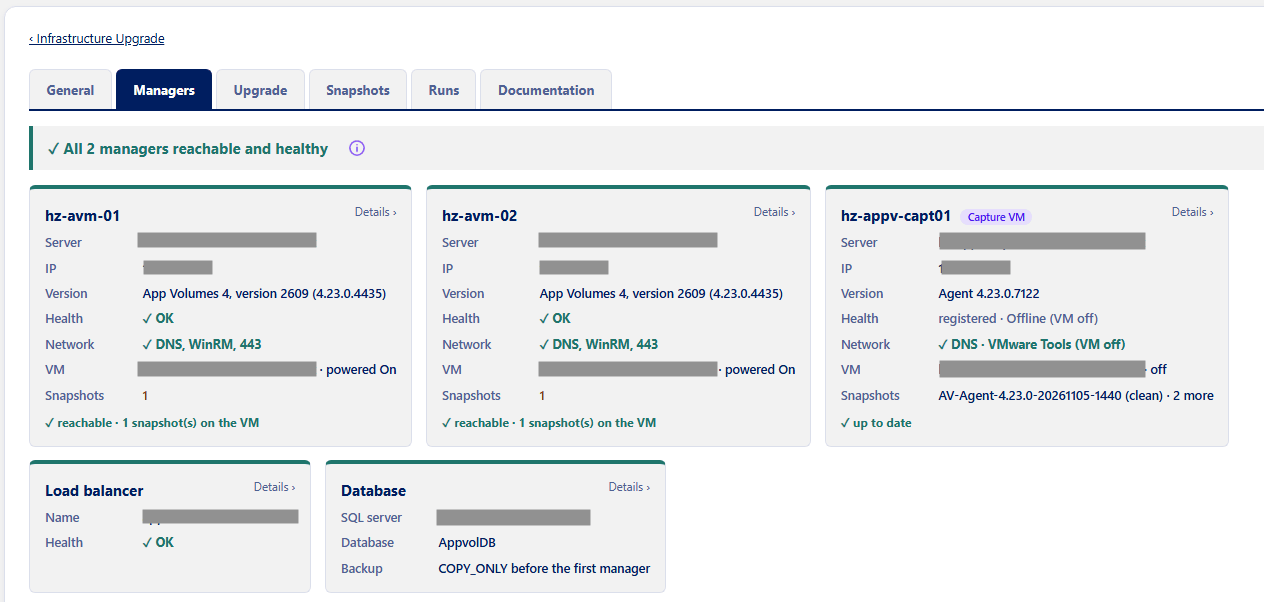
10. Capture VM – after the upgrade
The last step of the run updates the capture VM. The Managers tab now also shows hz-appv-capt01 (marked Capture VM). It runs App Volumes Agent 4.23.0.7122, is registered with the managers and is marked up to date. The VM is powered off, which is why it shows as offline. The run took a new clean snapshot, AV-Agent-4.23.0-20261105-1440, which is the starting point for the next application capture. The VM has 2 older snapshots in addition.
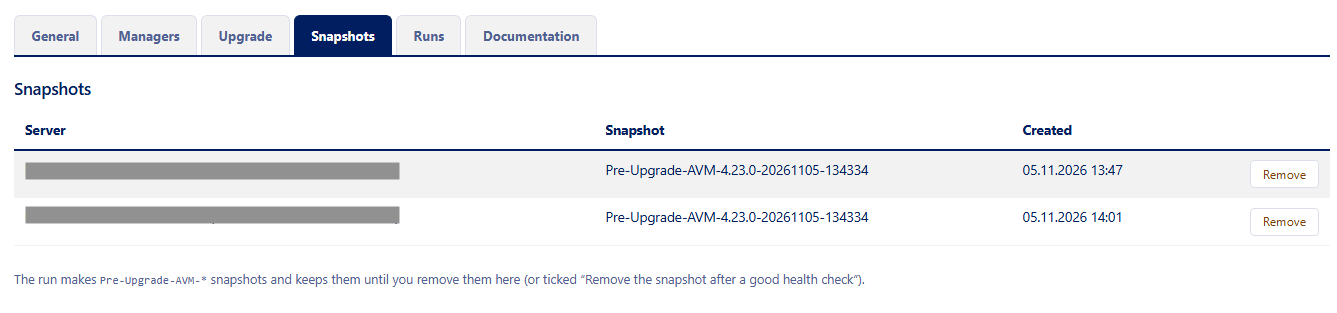
11. Snapshot cleanup
After a short trial period without errors, I remove the temporary pre-upgrade snapshots of the managers on the Snapshots tab. Until then they are my rollback point (see Troubleshooting & rollback below).
Troubleshooting & rollback
- Pre-check fails: nothing has been changed. Open the run on the Runs tab, fix what the log reports (WinRM, ODBC DSN, free space, SQL backup rights, installer on the share) and run the pre-check again.
- Logs: every run has View/Download the upgrade log and Download all logs (zip). On the manager itself, the installer writes svmanager_setup.log, which the run checks after the install.
- A manager fails during the upgrade: with On failure: revert to the snapshot enabled, that VM is reverted to its pre-upgrade snapshot and the run stops. The other manager keeps serving behind the load balancer.
- Stopping halfway: Stop here at the gate leaves the remaining managers on the old version. Omnissa expects all managers on the same version, so finish the run soon.
- Rolling back after the run: the first upgraded manager also upgrades the database, so reverting a manager snapshot alone is not enough. Revert all managers and restore the COPY_ONLY database backup taken before the first manager, and do it before the snapshots are removed.
- Horizon certificate push fails (AVM-48568): run Push Certificate manually.
Next steps
With the managers on 2609, the next step is the App Volumes Agent in the golden images, followed by the App Volumes templates. The agent is updated as part of my automated template builds for Windows 11 and Windows Server 2025 RDSH.
Documentation & sources
- App Volumes 2609 Release Notes
- App Volumes 2609 Installation Guide – Upgrade App Volumes Manager
- Update sequence for Horizon 7, Horizon 8, and compatible Omnissa products (78445)
- KB 6001783 – Windows Explorer crash with Writable Volumes
- Rebranding Changes in Omnissa Horizon Products (6000681)
- Product Interoperability Matrix
- Omnissa Product Documentation
App Volumes planning, deployment etc.
Disclaimer: Every tips/tricks/posting I have published here, is tried and tested in different it-solutions. It is not guaranteed to work everywhere, but is meant as a tip for other users out there. Remember, Google is your friend and don’t be afraid to steal with pride! Feel free to comment below as needed.