
Release date: November 10th 2025
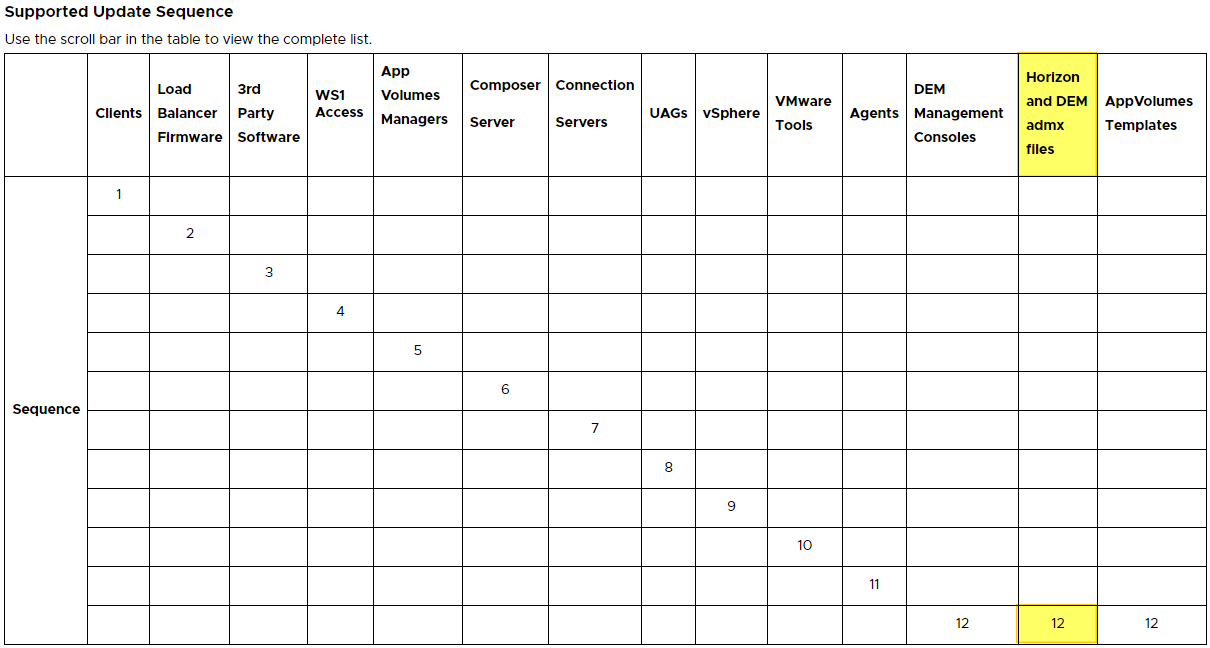
Welcome to my Omnissa Dynamic Environment Manager series. In this session I will describe how I upgraded the Dynamic Environment Manager GPO templates to v. 2506. According to Omnissa’s official documentation, this should be done as step 12 in the supported update sequence.
I start out by downloading the installation media from Omnissa Customer Connect

Previously I’ve done this manually, but this time I will be doing the admx-upgrade from my management server, using the PowerShell script below. The workflow of the script is as follows:

Prerequisites:
- PowerShell Administrative access to the server running the DEM Management Console
- Permissions to write to SYSVOL PolicyDefinitions folder
- Run script in Administrative Powershell session
dem-copyAdmx.ps1
# Dynamic Environment Manager Admx Upgrade script

$installDir = "C:Install"
New-Item -Path $installDir -type directory -Force

$demZip = "<network-path>Omnissa-DEM-Enterprise*.zip*.zip"
Expand-Archive -Path $demZip -DestinationPath $installDir

$admxSource = Get-Item $installDir*ADMX*

$admxDestination = '<network-path>PolicyDefinitions'

Copy-Item -Path $admxSource* -Destination $admxDestination -Recurse -Force

Remove-Item –path $installDir –Recurse -Force
This concludes my session about upgrading the Dynamic Environment Manager Management GPO Templates to v. 2506. I can now proceed with upgrading the Application Profiler, posted here: Dynamic Environment Manager – Upgrade Application Profiler to v. 2506 (No upgrade Available)
DEM Documentation:
Omnissa Documentation:
- Rebranding Changes in Omnissa Horizon Products (6000681)
- Horizon 8 Upgrade Overview
- Product Interoperability Matrix
- Omnissa Product Documentation
Dynamic Environment Manager – Upgrades
Disclaimer: Every tips/tricks/posting I have published here, is tried and tested in different it-solutions. It is not guaranteed to work everywhere, but is meant as a tip for other users out there. Remember, Google is your friend and don’t be afraid to steal with pride! Feel free to comment below as needed.
 bjosoren's IT-Tech blog