
Release date: February 4th 2025
Welcome to my Omnissa Unified Access Gateway series. The new version of Unified Access Gateway, 2412, was GA January 28th 2025. In this section I will describe how I upgraded my UAG’s to v. 2412. According to Omnissa’s official documentation, this should be done as step 8 in the supported update sequence.

To check out all the new features and changes with Unified Access Gateway 2412, read the release notes from Omnissa posted here: Unified Access Gateway Release Notes. Below are some of the most important changes.
What’s New
Unified Access Gateway 2412 provides the following new features and enhancements:
- Transition Update
- The transition from Broadcom to Omnissa is now complete. The Unified Access Gateway Admin user interface, configuration strings, and file paths have been updated to reflect the new Omnissa brand.
- As HTML Access is renamed to Web Client, the related keys and Admin UI settings on Unified Access Gateway are also renamed.
- Operating System Update
- Following the transition from Broadcom to Omnissa, the Unified Access Gateway now uses the AlmaLinux operating system. AlmaLinux is an open-source, community-driven Linux operating system. Unified Access Gateway 2412 uses AlmaLinux 9.2.
- Compatibility between ALMA 9.2 and ESXi (vSphere/vCenter)
- Unified Access Gateway 2412 supports vSphere 7.x and later only. See Omnissa Interoperability Matrix.
- Users can now configure Unified Access Gateway to perform OpenID Connect (OIDC) authentication. See OpenID Connect (OIDC).
- Administrators can now configure Gateway Specification that will allow only the required services for that specification type to run on the appliance. See Gateway Specification in Deploying to vSphere using the OVF Template Wizard.
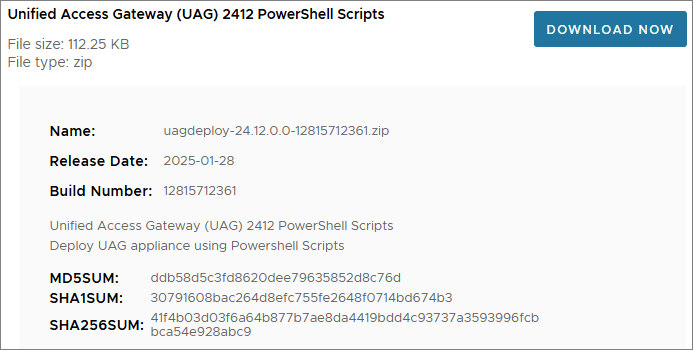
First, I download the necessary installation media and Powershell scripts from Omnissa Customer Connect to my deployment server.

Next, I login to the Admin-GUI and export the settings before I start upgrading.


I copy the new OVA-file and the updated uagdeploy Powershell files to my working directory

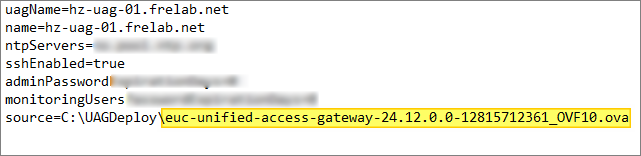
Next, I edit the ini-files with new ova filename
In my previous upgrades, I have reconfigured the SSL Certificates after deployment. This time, I will use the ini-file to configure the SSL Certificate. I first export the certificates from the HAProxy server as described here: HAProxy Export certificates. Next, I need to encrypt my key with RSA, running the command documented by Omnissa here: Convert Certificate Files to One-Line PEM Format.
openssl rsa -in c:\cert\desktop\privkey.pem -check -out c:\cert\desktop\privkey_rsa.pem
I copy the “privkey_rsa.pem”-file to my working folder and adjust the SSLCert section in the ini-file

Finally, I deploy the UAG’s with the new ova-file using the existing ini-files. As we can see from the screenshot below, the script automatically shuts down the existing UAG’s and deletes them, before deploying the new UAG’s using the settings I defined in the ini-files. NOTE: When executing the uagdeploy.ps1 script, I previously used PASSWORD PASSWORD false false no as parameters, but these no longer works. I replaced PASSWORD with the passwords I wanted to use instead, which works flawlessly. For details see: Using PowerShell to Deploy Omnissa Unified Access Gateway

It is also important to check out the new demands due to the “Re-Write Origin Header” property, as documented by Omnissa here: Configure Horizon Settings

Reference: Cross-Origin Resource Sharing (CORS) with Horizon 8 and loadbalanced HTML5 access. (85801)
I adjust my locked.properties file as shown below and restart my Connection Servers

When the upgrade is complete, I log in and check that all my settings are correct,

I also login to Horizon Administrator, where I can see that the Gateways are up and running the new version

This completes the UAG upgrade, and I do a test by logging in through the HAProxy and UAG’s. With this done, I can now proceed with upgrading the MDT OSOT components prior to upgrading agents within the Horizon Desktops, covered here: Horizon – Upgrade OSOT MDT Plugin to v. 1.2.2406
Omnissa Documentation:
- Unified Access Gateway Release Notes
- Configure Horizon Settings
- Cross-Origin Resource Sharing (CORS) with Horizon 8 and loadbalanced HTML5 access. (85801)
- Using PowerShell to Deploy Omnissa Unified Access Gateway
- Convert Certificate Files to One-Line PEM Format.
- Horizon 8 2412 Release Notes
- Horizon 8 Upgrade Overview
- Product Interoperability Matrix
- Horizon 8 Docs
Unified Access Gateway – Upgrades
Unified Access Gateway planning, deployment etc.
Disclaimer: Every tips/tricks/posting I have published here, is tried and tested in different it-solutions. It is not guaranteed to work everywhere, but is meant as a tip for other users out there. Remember, Google is your friend and don’t be afraid to steal with pride! Feel free to comment below as needed.
 bjosoren's IT-Tech blog