
On this page
› Prerequisites
› Repository
› Platform
› The control node
› Installer share (NFS)
› Credentials
› Folder skeleton
› Inventory and vault
› Pulling from GitHub
› Self-contained projects
› Naming convention
› Verifying the platform
› Placement and publishing
› New image checklist
› Before the first build
› Nightly backup
› Production checklist
› Documented separately
› Software versions
Welcome to my Omnissa Horizon session on setting up an automation platform for Horizon image maintenance. I maintain several different Omnissa Horizon golden images, including Windows 11 24H2, Windows Server 2025 RDSH, Ubuntu 24.04 LTS, and eventually Rocky Linux. All of them are built using the same automation platform, against the same vCenter environment and Active Directory domain. This page focuses on the automation platform itself, while each image type will have its own dedicated write-up covering the operating system-specific requirements and configuration.
This automation-platform is also planned used for upgrading other Omnissa Components in the future as Connection Server, App Volumes Manager, DEM Console, UAG etc, and will be covered separately, see the chapter “Documented separately” for more info.
AI-assisted development
This platform was built with assistance from Claude by Anthropic, particularly for some of the Linux-related tasks etc. While I am not above using AI to reduce the amount of manual work involved, every part of the solution has been implemented, tested, and proven to work in my lab environment before being included in this write-up.
Prerequisites
- A vCenter Server and at least one ESXi host, reachable from the control node on TCP 443, plus a dedicated vCenter service account with a custom role (see Credentials the platform needs)
- A Linux VM for the control node: Ubuntu Server 24.04 LTS with a static IP, working DNS and internet access for setup — github.com, pypi.org, galaxy.ansible.com, releases.hashicorp.com and the apt mirrors (see Setting up the control node)
- An NFS file server exporting the installer share, mounted at /mnt/wdnfs. ISOs and installers live there, never in git (see Installer share (NFS)). Optionally a Windows Server share connected using Samba, not covered in this guide
- An Active Directory domain, a dedicated domain-join service account with delegated rights on the target OU only, and clocks within 5 minutes of the domain controllers, since Kerberos fails on more clock skew (see Credentials the platform needs)
- A build network: a vSphere port group, a reserved IP and a DNS A record for every build VM, and the firewall flows between control node, vCenter/ESXi, build VMs, domain controllers and the NFS server (see Firewall openings)
- For the Windows images: network reachability from the build VM to Windows Update or a WSUS server
- ansible-vault set up for secrets — a vault password file at ~/.vault_pass and one vault.yml for every project (see One inventory, one vault)
- The install media for the images you build — Windows 11 24H2, Windows Server 2025 and/or Ubuntu 24.04 LTS ISO, plus the Omnissa Horizon Agent, DEM, App Volumes and OSOT installers — staged on the NFS share or a datastore, as each image’s own post describes
- Optional, for publishing: a Horizon Connection Server with a REST API account (see Choosing where a build lands, and where it publishes)
Note: what each OS-specific image additionally needs — ISO file names, vGPU hosts, agent installers and so on — is listed in that image’s own post, see “Documented separately“.
Repository
Everything on this page lives under: operations/template-automation/automation-platform/ in the: bjosoren/omnissa repository — ansible.cfg, inventory/, and scripts/ there map directly to the same paths on the control node. Each OS-specific golden image gets its own sibling folder under: operations/template-automation/ (rdsh_2025_tpl, ubt_2404_tpl, and so on), each covered in its own post — see “Documented separately” at the end of this page. The control node’s working copy isn’t itself a git checkout, so GitHub can lag a commit or two behind what’s actually running there — treat this page’s prose as current, and the repo as catching up shortly after.
Platform
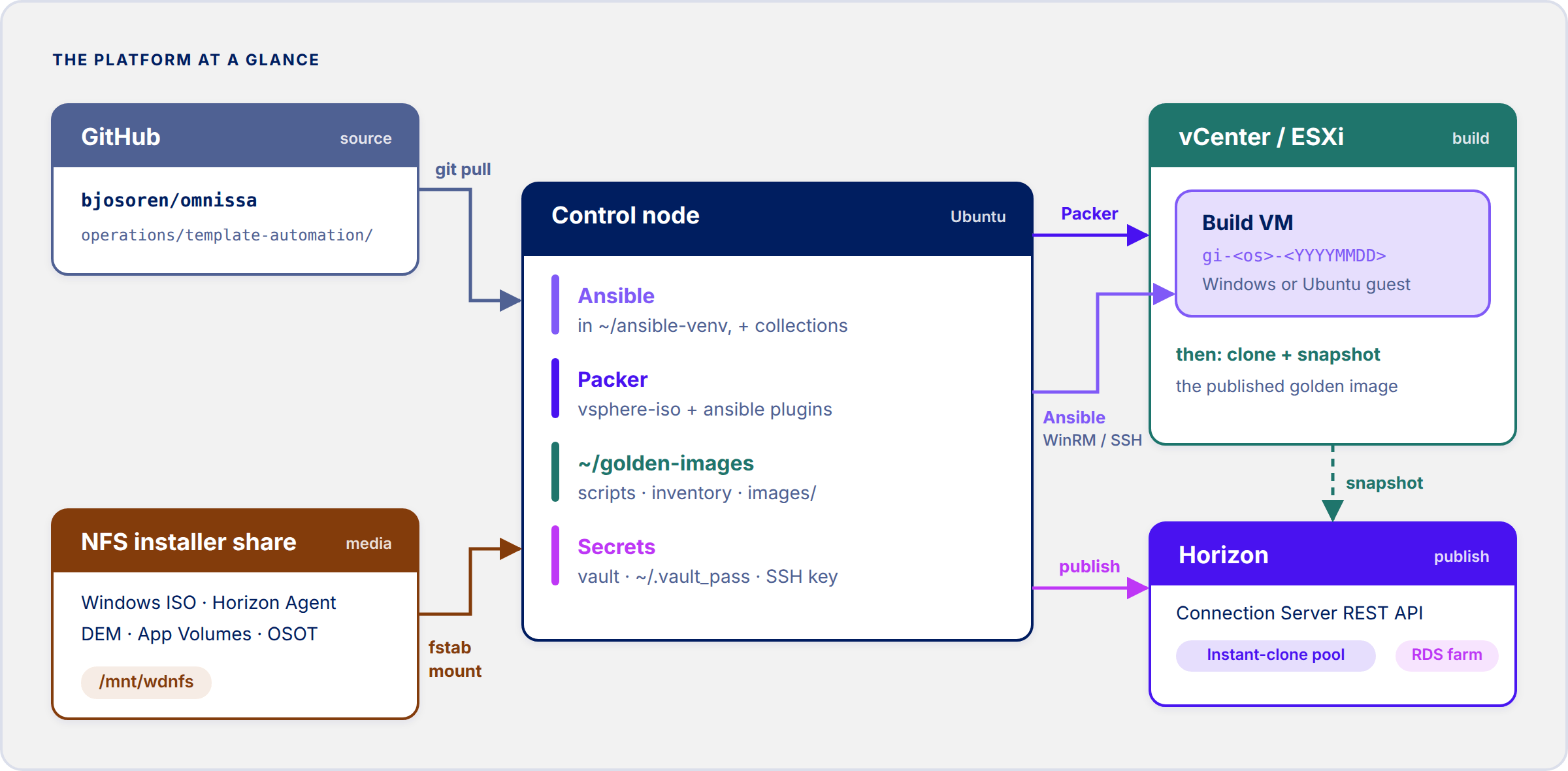
Every golden image on this platform is built on one dedicated control node — a small Linux VM (I call mine ubt-ans-wrkr-01), that has network access to vCenter and to whatever port groups the golden-image VMs get built on. Two tools do the actual work:
- Packer, to create the VM and drive the operating system’s own unattended install — Ubuntu’s autoinstall, or Windows’ autounattend.xml on a virtual floppy (with Audit Mode entered during setup). Packer boots the ISO, feeds it answers, and hands off to Ansible once the OS is up.
- Ansible, for everything after that: all the in-guest configuration on every image regardless of OS (over SSH for Linux, WinRM for Windows), plus the vCenter-side housekeeping around a build — pre-flight checks, the post-build snapshot, cleaning up the build VM.
What ties the projects together isn’t a shared build mechanism — Packer-driven and Ansible-native VM creation are both legitimate, and forcing every OS into the same shape would fight both of them for no benefit. What’s shared is the infrastructure: one control node, one set of credentials, one inventory, one vault, one naming convention.
Setting up the control node
A plain Ubuntu Server VM works fine, already joined to DNS with a static IP so vCenter and other hosts on the network can reach it reliably. Base packages first:
sudo apt updatesudo apt install -y python3-venv python3-pip git openssh-client
Then a dedicated Python virtual environment for Ansible, rather than a system-wide install — it keeps this platform’s collection versions from fighting anything else that ends up on the box:
python3 -m venv ~/ansible-venvsource ~/ansible-venv/bin/activatepip install ansible
That source line only activates the venv for the current shell — it doesn’t persist. Any new session (a fresh SSH login tomorrow, a second terminal tab, etc.) needs it run again before ansible, ansible-vault, ansible-galaxy, or ansible-playbook will work. If any of those come back “command not found,” that’s the fix — not a missing install. Ubuntu’s own suggestion (sudo apt install ansible-core) is misleading here: it installs a second, system-wide Ansible next to the one in the venv. To have the venv activated automatically at every login instead:
grep -q ansible-venv ~/.bashrc || echo 'source ~/ansible-venv/bin/activate' >> ~/.bashrc
Every project on this platform draws from the same pool of Ansible collections and Python dependencies, installed once rather than per-project:
ansible-galaxy collection install ansible.posix community.vmware ansible.windows community.windowspip install pyvmomi requests
community.vmware is what lets Ansible talk to vCenter directly — creating VMs, checking power state, taking snapshots — without going through a separate CLI tool. pyvmomi is the underlying vSphere SOAP API library that collection depends on; requests is needed too, for the modules (like vmware_about_info) that talk to vCenter’s REST API instead. ansible.windows / community.windows are only needed once a Windows-based project is in the mix.
If a project connects over WinRM using NTLM transport rather than Basic auth — necessary, for instance, when an in-pipeline Windows Update step needs the token Basic auth doesn’t provide — the control node also needs requests_ntlm, which pip install ansible doesn’t pull in on its own:
pip install requests_ntlm
Packer is unrelated tooling and doesn’t come with any of the above — install it separately:
wget -O- https://apt.releases.hashicorp.com/gpg | sudo gpg --dearmor -o /usr/share/keyrings/hashicorp-archive-keyring.gpgecho "deb [signed-by=/usr/share/keyrings/hashicorp-archive-keyring.gpg] https://apt.releases.hashicorp.com $(lsb_release -cs) main" | sudo tee /etc/apt/sources.list.d/hashicorp.listsudo apt update && sudo apt install packer
Packer’s own plugins (vsphere-iso, ansible, etc.) don’t need preinstalling — each project declares what it needs in a required_plugins block, and packer init downloads them the first time that project runs. The one thing worth checking ahead of time is network reach: during an unattended OS install, the booting VM fetches its install answers from a small HTTP server Packer opens locally on the control node, so the control node needs a real network path to whatever port group the VM boots on, not just to vCenter’s API.
Last piece for this section: an SSH keypair, since it’s the control node’s own credential rather than any one project’s. Every VM this platform builds or configures gets connected to over SSH using this key — no passwords stored anywhere for this purpose:
ssh-keygen -t ed25519 -C "ubt-ans-wrkr-01 golden-image automation" -f ~/.ssh/golden_image_ed25519 -N ""
The private key stays on the control node. The public key (~/.ssh/golden_image_ed25519.pub) needs to land on every VM this platform touches — each OS-specific project’s own docs cover exactly how (for Ubuntu, that’s an ssh_authorized_keys entry in the autoinstall identity/user-data block; other OSes will differ).
Installer share (NFS)
ISOs and installers (the Windows ISO, Horizon Agent, DEM, App Volumes and so on) don’t belong in git, so they live on an NFS share that every control node mounts at the same path. The image group_vars point there, e.g. win_iso_url: /mnt/wdnfs/Ansible/windows/<iso>; Packer reads the ISO from that path and uploads it once to the datastore’s packer_cache folder. If you pick a different mount point, change those paths to match. Two steps: allow the new control node on the file server, then mount the share on the node.
1. On the file server (a plain Ubuntu box in my case) — the export is limited to named client IPs rather than a whole subnet, so the new control node has to be added before it can mount anything. Find its address first (hostname -I on the node), then add it to the export’s entry in /etc/exports with the same options as the existing clients. One client per line, every line except the last ending in a backslash; the new one can go anywhere in the list. Save, then reload and check:
sudo nano /etc/exports/export/ansible 192.0.2.10(rw,sync,no_subtree_check,no_root_squash) \ 192.0.2.11(rw,sync,no_subtree_check,no_root_squash) # new control nodesudo exportfs -rasudo exportfs -v | grep -A1 /export/ansible
exportfs -ra re-reads the file without disturbing clients that already have the share mounted, and complains if the syntax is off (a missing backslash, typically). The -v output should list the new IP next to the existing ones. no_root_squash lets root on a listed client act as root on the share; drop it (the default is root_squash) if nothing on the control node writes there as root. On a NAS appliance the same change is an allowed-host entry in the share’s NFS settings in its web UI.
2. On the new control node — install the NFS client, confirm the file server now lists the node, add the share to /etc/fstab and mount it:
sudo apt install -y nfs-commonshowmount -e nfs01.domain.local # the node's IP should be listedsudo mkdir -p /mnt/wdnfsgrep -q ' /mnt/wdnfs ' /etc/fstab || echo 'nfs01.domain.local:/export/ansible /mnt/wdnfs nfs defaults,_netdev,nofail 0 0' | sudo tee -a /etc/fstabsudo systemctl daemon-reloadsudo mount -afindmnt /mnt/wdnfsls /mnt/wdnfs/Ansible/windows
The grep -q … || guard only appends the fstab line if it isn’t there yet, so the block is safe to run twice (without it, a second run leaves a duplicate entry that systemd tries to mount twice at every boot). mount -a mounts whatever in fstab isn’t mounted yet, which also proves the entry will work at boot. _netdev makes the boot wait for the network; nofail keeps the node booting if the file server is down (a build then fails at the installer check instead). findmnt should show fstype nfs4 with clientaddr= set to the node’s own IP, and ls should list the ISO. access denied by server while mounting means the file-server step didn’t take: compare hostname -I on the node with the IPs in /etc/exports, and check that exportfs -ra was run.
Credentials the platform needs
Four separate credentials, each scoped as narrowly as reasonably possible, since a compromised build pipeline with domain admin rights is a much worse day than a compromised one that can only touch what it’s supposed to.
1. The vCenter service account
Create a dedicated account (I use svc-packer@domain.local) and give it a custom vSphere role rather than reusing an existing admin account. A practical starting point — trim or expand based on your own hardening policy, but this is roughly what Packer and community.vmware actually touch:
- Datastore: Allocate space, Browse datastore, Low level file operations, Update virtual machine files
- Folder: Create folder (skip if the target folder already exists)
- Network: Assign network
- Resource: Assign virtual machine to resource pool
- Virtual machine > Configuration: Add new disk, Add or remove device, Advanced configuration, Change CPU count, Change memory, Modify device settings, Settings
- Virtual machine > Interaction: Power off, Power on, Reset (add Console interaction only if a project needs keystroke injection, e.g. clearing a boot-menu prompt)
- Virtual machine > Inventory: Create new, Create from existing, Move, Remove
- Virtual machine > Provisioning: Clone virtual machine, Create template from virtual machine, Customize, Deploy template, Mark as template, Read customization specifications
- Virtual machine > Snapshot management: Create snapshot, Remove snapshot, Revert to snapshot, Rename snapshot
Assign that role to the service account at the level that covers every cluster/datastore/folder a golden image might ever be built in — usually the Datacenter object, with propagation enabled.
Note the password you set for this account somewhere durable while you’re creating it — it becomes vault_vcenter_password once the vault exists, covered under “One inventory, one vault” below.
2. The AD domain-join service account
A second, separate account (svc-linuxjoin@domain.local, svc-winjoin@domain.local, however you want to split it) whose only job is joining computer objects to the domain. Rather than granting it broad rights, delegate control on just the target OU using the Delegation of Control Wizard in Active Directory Users and Computers:
- Right-click the target OU (e.g. OU=LinuxDesktops,OU=Computers) → Delegate Control
- Add the service account
- Choose Create a custom task to delegate, scoped to Computer objects
- Grant Create selected objects in this folder and Delete selected objects in this folder (deleting matters for rebuilds — a golden image gets destroyed and recreated under the same name more often than you’d think)
If your AD environment uses a tiering model or other hardening beyond the default, treat the above as a floor, not a complete answer — check it against your own delegation policy before trusting it blind.
Note this account’s password too — it becomes vault_linux_domain_join_password or vault_windows_domain_join_password in the vault, depending which OS you’re joining.
3. The SSH keypair
Covered above, under the control node itself — it’s a platform-level credential, not tied to any one project.
4. The vault password
The one credential that protects every other one. You don’t invent this password and nothing prompts you for one: the first command below generates a long random string, the second locks the file down so only the control node’s own user can read it. That file is what lets scripts/build.sh run unattended instead of stopping to ask a human for the vault password on every single build:
openssl rand -base64 32 > ~/.vault_passchmod 600 ~/.vault_pass
Both commands are silent: nothing asks you to type or confirm a password, and nothing will later either — the random string in ~/.vault_pass is the vault password, and every ansible-vault / build command below reads it from that file via –vault-password-file ~/.vault_pass. Print it once with cat ~/.vault_pass and keep a copy somewhere durable outside the control node — a password manager entry is fine — since losing it means losing access to every secret in the vault with no way back in.
Prefer your own password? Fine — it still has to live in ~/.vault_pass, since the builds read it from there rather than prompting (–ask-vault-pass works for manual ansible-vault commands, but would break the unattended build). Use this instead of the openssl line; read -s keeps it off the screen and out of your shell history. A hand-picked password is usually weaker than 32 random bytes, and the file sits next to the vault anyway, so this mainly helps if you ever need to type it somewhere by hand:
read -rs -p "Vault password: " p; echoprintf '%s' "$p" > ~/.vault_pass; unset pchmod 600 ~/.vault_pass
If the vault already exists, don’t just overwrite ~/.vault_pass — the vault is still encrypted with the old password and you’d lock yourself out. Re-encrypt it with rekey first, then swap the file:
read -rs -p "New vault password: " p; echoprintf '%s' "$p" > ~/.vault_pass.new; unset p; chmod 600 ~/.vault_pass.newansible-vault rekey inventory/group_vars/all/vault.yml \ --vault-password-file ~/.vault_pass --new-vault-password-file ~/.vault_pass.newmv ~/.vault_pass.new ~/.vault_pass
That’s all four credentials collected: the vCenter service account’s password, the AD domain-join account’s password, the SSH keypair, and this vault password file. The first two don’t get used directly — they get typed into the vault once it exists, which is the next thing this page builds, under “One inventory, one vault” below.
The folder skeleton
Everything in the previous two sections lives in the control node’s own home directory, outside any one project. Everything from here on lives inside one root folder, created once and shared by every project:
mkdir -p ~/golden-images/inventory/group_varscd ~/golden-images
Before filling it in, worth being explicit about which parts of the tree below you type into existence yourself, which get generated by a command, and which get pulled from the repository:
- You create by hand: the root folder itself, ansible.cfg, inventory/hosts.ini, and inventory/group_vars/all.yml — all covered under “One inventory, one vault” below.
- Generated by a command, not typed: inventory/group_vars/all/vault.yml, created encrypted by ansible-vault create in the next section — you never hand-write this file, only edit it through the vault command. The SSH keypair and vault password file from “Credentials the platform needs” above are generated the same way, and deliberately live outside this folder entirely (~/.ssh/ and ~ respectively) so neither risks ending up committed to a project’s own git repo by accident.
- Pulled from the repository: the shared scripts/, the per-image group_vars files, and each images/<name>/ subfolder — Packer templates, Ansible roles, unattend/autoinstall files — all copied from operations/template-automation/ with rsync, covered under “Pulling the platform files from GitHub” below. What each image actually does is explained in that OS’s own post; see “Each project stays self-contained” below.
The commands from here on open files with $EDITOR, and ansible-vault create/edit use it too. A fresh Ubuntu Server doesn’t set it, so $EDITOR ansible.cfg expands to just ansible.cfg and fails with “command not found” (and ansible-vault silently falls back to vi). Set it once, for this shell and every future login — swap nano for vim if you prefer. To set it for every user on the box instead, add the line EDITOR=nano to /etc/environment (takes effect at the next login):
grep -q 'EDITOR=' ~/.bashrc || echo 'export EDITOR=nano' >> ~/.bashrcexport EDITOR=nano
$EDITOR ansible.cfg
ansible.cfg is the one file here with no secrets and nothing project-specific — the same few lines work for every project on the platform, and every project’s ansible-playbook/Packer run needs to resolve to this file rather than a project-local one, so group_vars/all.yml and group_vars/all/vault.yml load consistently everywhere:
[defaults]inventory = inventory/hosts.inihost_key_checking = Falseretry_files_enabled = Falseinterpreter_python = auto_silent[ssh_connection]pipelining = True
One inventory, one vault
Every project gets its own Ansible host group rather than a generic name, so its variables stay scoped to it, while genuinely shared values — the vCenter service account, the AD domain — live in one place both projects can see:
golden-images/├── ansible.cfg├── scripts/ # build.sh, select_placement.py, publish_to_pool.sh, ...├── inventory/│ ├── hosts.ini│ └── group_vars/│ ├── all.yml # shared, non-secret: vCenter, AD domain│ ├── all/vault.yml # every project's secrets, one file│ ├── ubt_2404_tpl.yml # + optional <name>_agents / _osot / .local.yml│ ├── w11_24h2_tpl.yml│ └── rdsh_2025_tpl.yml└── images/ ├── ubt_2404_tpl/ # Packer + Ansible, self-contained ├── w11_24h2_tpl/ # Packer + Ansible, self-contained ├── rdsh_2025_tpl/ # Packer + Ansible, self-contained └── rocky9_tpl/
$EDITOR inventory/hosts.ini
hosts.ini holds one group per project:
[ubt_2404_tpl]ubt_2404_tpl ansible_host=x.x.x.x[w11_24h2_tpl]w11_24h2_tpl ansible_host=x.x.x.x[rdsh_2025_tpl]rdsh_2025_tpl ansible_host=x.x.x.x
The hostname on each line (ubt_2404_tpl, w11_24h2_tpl, …) is a stable Ansible inventory alias — simply the group name again — not the live VM’s actual name in vCenter for whatever build happens to be current. That live name follows the dated gi-<os-tag>-<YYYYMMDD> convention covered under “Naming convention” below, and changes with every rebuild — rewriting hosts.ini to match on every rebuild isn’t worth the churn, so this alias doesn’t. What actually connects Ansible to the right machine is ansible_host: reserve that IP once per project (next paragraph) and it stays the same across rebuilds even as the underlying VM’s own vCenter name changes each time. (Reusing the group name as the host alias is also why ansible-inventory warns “Found both group and host with same name” — harmless.)
Each of those ansible_host values needs a real, stable IP before it goes in here — reserve one (DHCP reservation or static config in the OS installer) and create a matching DNS A record for it ahead of time, the same way as the control node itself back in “Setting up the control node.” Do this before kicking off a build, not after: Ansible needs a fixed address to connect to once the OS install finishes, and chasing down whatever IP DHCP handed out that particular run is a worse time to figure it out.
A DHCP reservation needs a MAC address, and a VM that doesn’t exist yet doesn’t have one — vCenter normally generates one automatically the moment the VM is created. To reserve ahead of time anyway, pick one yourself from VMware’s manually-assigned range, 00:50:56:00:00:00–00:50:56:3F:FF:FF (staying under 3F in the third octet avoids colliding with vCenter’s own auto-generated addresses), create the DHCP reservation against it, then set that same address explicitly on the VM’s network adapter when it’s built — Packer’s vsphere-iso builder takes it as mac_address inside its network_adapters block, Ansible’s vmware_guest module as mac_address under networks. Skip that last step and the VM gets a random MAC at creation time, the reservation goes unclaimed, and it falls back to whatever the DHCP pool hands out.
With the credentials above in hand, create the shared vars for real. Start with the plain, non-secret file:
mkdir -p inventory/group_vars/all$EDITOR inventory/group_vars/all.yml
vcenter_server: vcenter.domain.localvcenter_username: "{{ vault_vcenter_username }}"vcenter_password: "{{ vault_vcenter_password }}"vcenter_datacenter: Datacenterdomain_fqdn: domain.localdomain_realm: DOMAIN.LOCALssh_private_key_file: ~/.ssh/golden_image_ed25519
Then create the vault itself — note this uses the password file from the previous section, so it never prompts. ansible-vault comes from the venv, so it has to be active in this shell (your prompt starts with (ansible-venv)); if you’ve logged in again since setting up the control node, you’ll get Command ‘ansible-vault’ not found otherwise:
source ~/ansible-venv/bin/activate # only if your prompt doesn't start with (ansible-venv)ansible-vault create inventory/group_vars/all/vault.yml --vault-password-file ~/.vault_pass
That opens your $EDITOR on a blank encrypted file. Fill in the credentials from above, prefixed by project so nothing collides once there’s more than one. Two more belong here once you build Windows images or publish to Horizon: vault_win_admin_password (the local Administrator password the Windows build and WinRM use) and vault_horizon_api_password (the Horizon REST API account’s password):
vault_vcenter_username: "svc-packer@domain.local"vault_vcenter_password: "..."vault_linux_domain_join_password: "..."vault_windows_domain_join_password: "..."vault_local_admin_password: "..."vault_win_admin_password: "..." # Windows images: build/WinRM Administratorvault_horizon_api_password: "..." # publishing to a Horizon pool/farm
Save and exit, and the file on disk is encrypted from that point on. One vault means one password to manage and one place to look for any credential, instead of hunting across projects — and a vCenter credential rotation becomes a one-line vault edit instead of several. To view or change it later (venv active, same password file, so again no prompt):
ansible-vault view inventory/group_vars/all/vault.yml --vault-password-file ~/.vault_passansible-vault edit inventory/group_vars/all/vault.yml --vault-password-file ~/.vault_pass
If ansible-vault create says the file already exists ([ERROR]: inventory/group_vars/all/vault.yml exists, please use ‘edit’ instead), the vault was created earlier: by a previous run, or because you copied inventory/ from the repository, where all/vault.yml is encrypted with my vault password, not yours. For your own vault, open it with edit instead. For the repository’s copy, delete it and run create again, since your ~/.vault_pass can’t decrypt it:
ansible-vault edit inventory/group_vars/all/vault.yml --vault-password-file ~/.vault_pass# repository copy only - replace it with your own:rm inventory/group_vars/all/vault.ymlansible-vault create inventory/group_vars/all/vault.yml --vault-password-file ~/.vault_pass
Pulling the platform files from GitHub
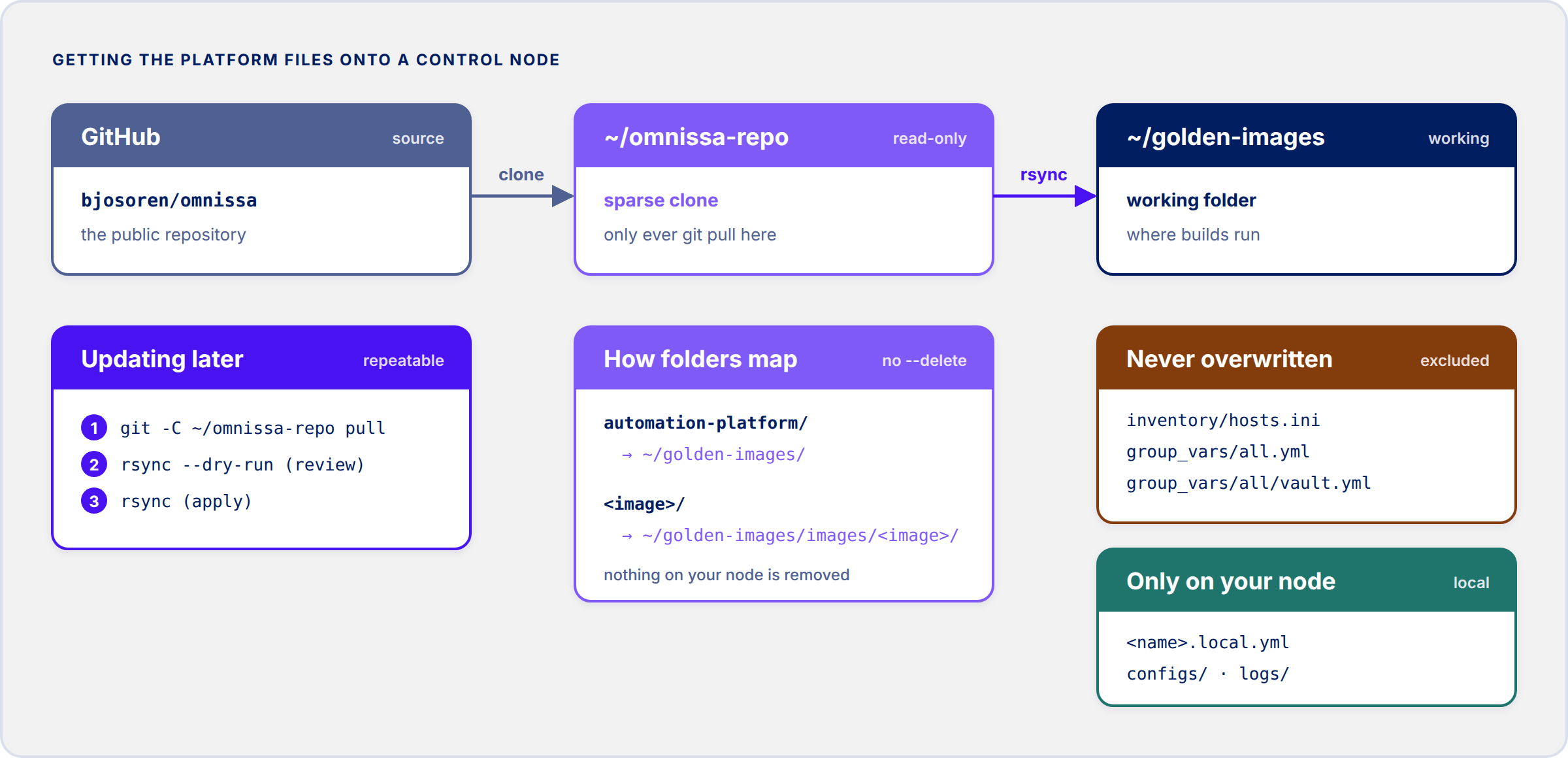
The skeleton, ansible.cfg, hosts.ini, all.yml and the vault above are yours. Everything else — the shared scripts (build.sh, select_placement.py, publish_to_pool.sh, …), each image’s group_vars and the image projects themselves — comes from the repository. Rather than turning ~/golden-images into a git checkout, keep a read-only clone next to it and copy from that with rsync: the clone stays clean and git pull-able, and the working folder keeps its local-only files (*.local.yml, saved configs, logs, the vault) without git ever seeing them.
1. Sparse clone — only operations/template-automation, not the rest of the repository:
cd ~git clone --filter=blob:none --sparse https://github.com/bjosoren/omnissa.git omnissa-repogit -C omnissa-repo sparse-checkout set operations/template-automationls ~/omnissa-repo/operations/template-automation
2. Dry run — the repository’s automation-platform/ maps onto the root of ~/golden-images, and every sibling folder (one per image) onto images/<name>/. -i lists each file that would be created or changed; nothing is written yet:
which rsync || sudo apt install -y rsyncREPO=~/omnissa-repo/operations/template-automationGI=~/golden-imagesmkdir -p "$GI/images"rsync -ai --dry-run \ --exclude '/inventory/hosts.ini' \ --exclude '/inventory/group_vars/all.yml' \ --exclude '/inventory/group_vars/all/' \ "$REPO/automation-platform/" "$GI/"for d in "$REPO"/*/; do key=$(basename "$d"); [ "$key" = automation-platform ] && continue rsync -ai --dry-run "$d" "$GI/images/$key/"done
The three excludes are the files you made yourself: the repository’s hosts.ini and all.yml hold placeholders, and its vault is encrypted with my password, so none of them may overwrite yours. There’s deliberately no –delete, so anything that only exists on your node stays put. ansible.cfg does get replaced by the repository’s copy, which has the same settings as the one above.
3. Apply — the same commands without –dry-run. The two placeholder files are only copied in if you don’t have your own yet (fill them in afterwards, as described above):
rsync -a \ --exclude '/inventory/hosts.ini' \ --exclude '/inventory/group_vars/all.yml' \ --exclude '/inventory/group_vars/all/' \ "$REPO/automation-platform/" "$GI/"for d in "$REPO"/*/; do key=$(basename "$d"); [ "$key" = automation-platform ] && continue rsync -a "$d" "$GI/images/$key/"done# placeholders - only if you don't have your own yet[ -e "$GI/inventory/hosts.ini" ] || cp "$REPO/automation-platform/inventory/hosts.ini" "$GI/inventory/"[ -e "$GI/inventory/group_vars/all.yml" ] || cp "$REPO/automation-platform/inventory/group_vars/all.yml" "$GI/inventory/group_vars/"
4. Verify — the scripts parse, the inventory has a group per image, and the vault opens with your password file (cut shows only the key names, not the values):
cd ~/golden-imagessource ~/ansible-venv/bin/activate # only if your prompt doesn't start with (ansible-venv)ls; ls imagesbash -n scripts/*.sh && python3 -m py_compile scripts/*.py && echo "scripts OK"ansible-inventory --graphansible-vault view inventory/group_vars/all/vault.yml --vault-password-file ~/.vault_pass | cut -d: -f1
Expect scripts OK, one @<name> group per image under @all, and your vault’s key names (vault_vcenter_username, vault_vcenter_password and so on). ansible-inventory also prints a [WARNING]: Found both group and host with same name line per image — that’s because each group’s single host uses the same alias as the group, and it’s harmless.
Updating later is the same thing again: pull the clone, dry run to see what changes, then apply. Your own files are never touched, so it’s safe to repeat whenever the repository moves on:
git -C ~/omnissa-repo pull# then run the step 2 block again (dry run), and the step 3 block to apply
Each project stays self-contained
Anything specific to building a particular OS — Packer templates, Ansible roles, unattend/autoinstall files — lives entirely inside that project’s own folder under images/ and doesn’t reach into another project’s files. The only things pulled in from outside are the shared inventory and vault above. A project run through Packer loads them explicitly (Packer’s ansible provisioner generates its own temporary inventory for the VM it just built, so it has to be told where the real group_vars live); a project run as plain Ansible against an existing VM gets them automatically, just by pointing –inventory at the shared hosts.ini.
Naming convention
Two separate conventions, for two separate things. For the VM name and its snapshot name — which change with every rebuild — gi-<os-tag>-<YYYYMMDD>. Predictable across the whole catalog, without having to check each project’s own docs to figure out what it calls things. (My original Ubuntu project, built before this convention existed, kept its own fixed VM/snapshot names rather than being converted retroactively — instead I stood up a fresh replacement project, ubt_2404_tpl, that follows the dated convention fully, and I’ll remove the old one once the new one’s proven out. Not every legacy project is worth a rebuild just for naming, but this was a good opportunity to also close a naming inconsistency the old project had — more on that below.)
For the project itself — which is chosen once and never changes — one name reused verbatim for the images/<name>/ folder, the group_vars/<name>.yml file, and the hosts.ini group header: <os>_<version>_tpl, lowercase, underscores rather than hyphens. Underscores aren’t just a style choice here — Ansible’s group-name-to-group_vars-filename matching needs them to be identical strings, and some Jinja contexts expose group names as variables where a hyphen would break dot-notation access. ubt_2404_tpl, w11_24h2_tpl, rdsh_2025_tpl and rocky9_tpl are the four in play so far (the Rocky one predates the convention and drops the underscore between OS and version).
Verifying the platform before building anything
Worth checking every piece works in isolation before pointing a real OS-specific project at it — much easier to debug a failed credential here than in the middle of a 45-minute VM build:
- Ansible + collections: ansible –version and ansible-galaxy collection list — confirm community.vmware and ansible.posix show up.
- Packer: packer version.
- Vault: ansible-vault view inventory/group_vars/all/vault.yml –vault-password-file ~/.vault_pass should print the decrypted contents with no prompt. If it asks for a password, the password file path or permissions are wrong.
- vCenter service account: log into the vSphere Client with it directly and confirm it can see (and only see) what its role grants. A quick Ansible-side check once vars are loaded:
A successful response confirms the account authenticates and the control node can actually reach the vCenter API.ansible localhost -m community.vmware.vmware_about_info -a "hostname={{ vcenter_server }} username={{ vcenter_username }} password={{ vcenter_password }} validate_certs=false" -e @inventory/group_vars/all.yml -e @inventory/group_vars/all/vault.yml --vault-password-file ~/.vault_pass - AD domain-join account and OU delegation: this one’s hard to fully fake outside a real build, since it needs an actual computer object to test against — but it’s the first thing to suspect if a build fails with an access-denied during domain join. Worth a mental note rather than a standalone test.
- SSH key: confirmed automatically the first time any project’s build reaches its Ansible phase — if the connection fails outright, double check the public key actually landed on the VM (see each project’s own docs for how).
Firewall openings
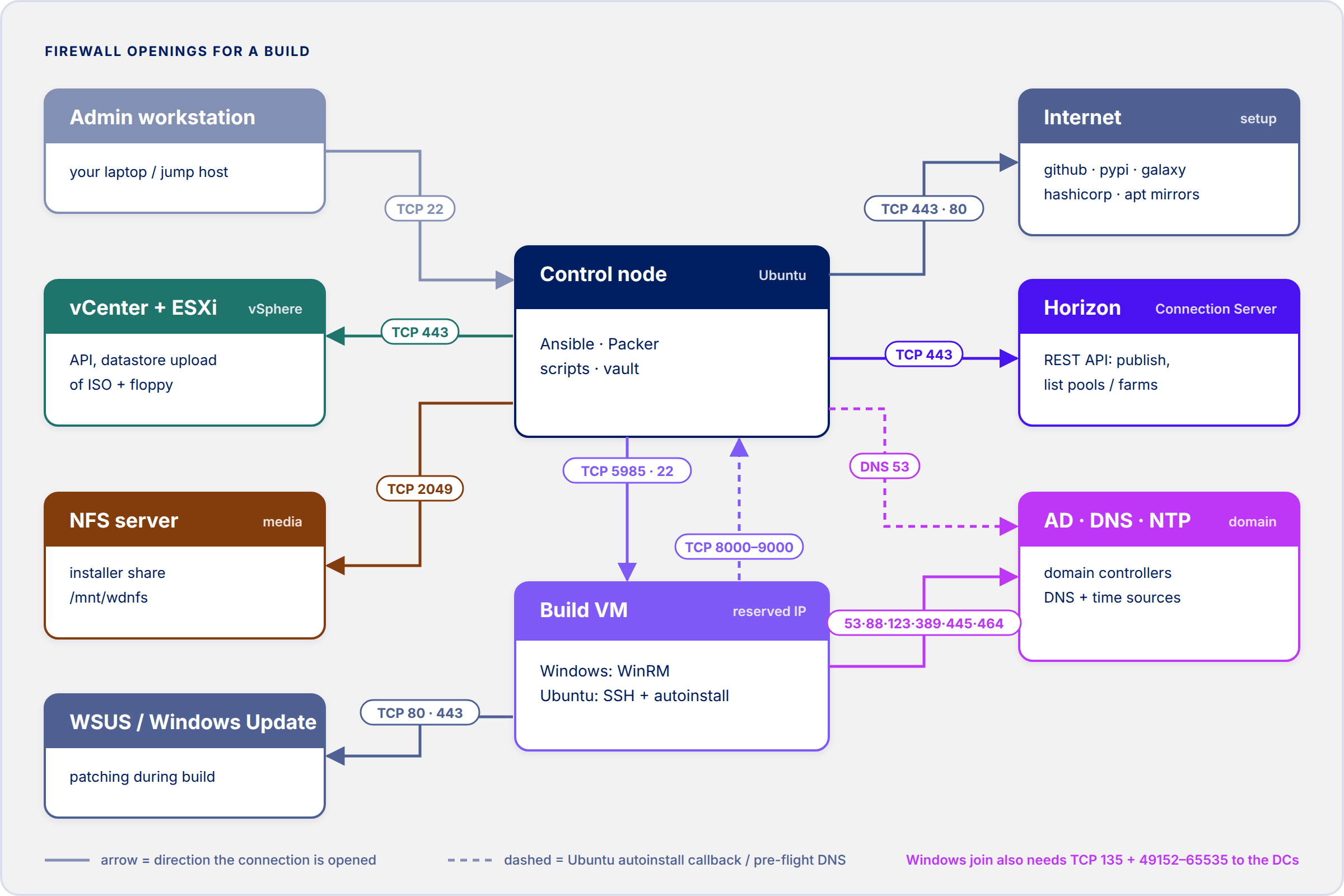
If the control node, the build network and the rest of the infrastructure sit in different zones, these are the flows a build needs. “Build VM” means the reserved IP each image builds on (the ansible_host / guest_ip_cidr address), so the rules can be scoped to those few addresses rather than a whole subnet:
| Source | Destination | TCP/UDP | Port number | Description |
|---|---|---|---|---|
| Admin workstation | Control node | TCP | 22 | SSH to the control node |
| Control node | vCenter Server | TCP | 443 | vSphere API: Packer (vsphere-iso), Ansible community.vmware, the pyvmomi scripts |
| Control node | ESXi hosts | TCP | 443 | Packer uploads the ISO and floppy to the datastore (packer_cache) through the host |
| Control node | Build VM (Windows) | TCP | 5985 | WinRM over HTTP (NTLM): Packer communicator and Ansible |
| Control node | Build VM (Ubuntu) | TCP | 22 | SSH: Packer communicator and Ansible |
| Build VM (Ubuntu) | Control node | TCP | 8000–9000 | Packer’s built-in HTTP server hands out the autoinstall user-data (Packer’s default port range) |
| Control node | NFS server | TCP | 2049 | NFSv4 installer share mounted at /mnt/wdnfs |
| Control node | NFS server | TCP/UDP | 111 | rpcbind, only needed for showmount -e (optional) |
| Control node | Horizon Connection Server | TCP | 443 | Horizon REST API: publish to pool/farm, the placement picker’s pool/farm list |
| Control node | DNS servers | TCP/UDP | 53 | Pre-flight check that the build VM’s name resolves to its reserved IP |
| Build VM | DNS servers / DCs | TCP/UDP | 53 | Name resolution and locating domain controllers |
| Build VM | Domain controllers | TCP/UDP | 88 | Kerberos (domain join) |
| Build VM | Domain controllers | TCP/UDP | 389 | LDAP (domain join, OU lookup) |
| Build VM | Domain controllers | TCP | 445 | SMB (domain join) |
| Build VM | Domain controllers | TCP/UDP | 464 | Kerberos password change for the machine account |
| Build VM (Windows) | Domain controllers | TCP | 135, 49152–65535 | RPC endpoint mapper and dynamic RPC (Windows domain join) |
| Build VM | NTP servers / DCs | UDP | 123 | Time sync, since Kerberos fails with more than 5 minutes clock skew |
| Build VM (Windows) | Windows Update / WSUS | TCP | 80, 443 (WSUS: 8530/8531) | Windows Update during the build (enable_windows_update) |
| Control node | Internet: github.com, pypi.org, galaxy.ansible.com, releases.hashicorp.com, apt mirrors | TCP | 443 (apt: 80) | Setup and updates: git pull, pip, Ansible collections, Packer plugins |
| Ubuntu desktops | NFS home server | TCP | 2049 | Runtime rather than build: NFS home directories (ubt_2404_tpl) |
The Windows domain-join rows follow Microsoft’s standard AD port list; the Linux join (Samba net ads join) only needs 53, 88, 389, 445 and 464. Horizon Agent, DEM and App Volumes traffic from the finished desktops to the Connection Server and App Volumes Manager is ordinary Horizon runtime traffic and isn’t part of the build, so it’s left out here.
Choosing where a build lands, and where it publishes
scripts/build.sh is the shared entry point every project uses to actually run a build. At the start of every single run — cluster/host/datastore/folder decisions included — it now connects live to vCenter (and, once you reach the publish step, to Horizon too) and walks you through a short interactive picker, rather than making you hand-edit an image’s own group_vars for placement every time. This replaces an earlier default where build.sh just built onto whatever placement group_vars already had, silently, unless you went and changed it by hand.

- Cluster
- ESXi host — optional; “Any (let DRS decide)” is the default
- Datastore
- Portgroup / network
- VM folder — enumerated from vCenter, with an “Other (Provide)” free-text option for anything not indexed yet
- Collect install logs? — yes/no
- Publish to Desktop-pool / Farm? — a three-way choice: Farm, Desktop Pool, or skip publishing for this run entirely
- Whichever type you picked gets enumerated live from Horizon’s REST API — again with a free-text override — rather than being pinned to whatever that image’s own group_vars happens to have configured for horizon_pool_name/horizon_farm_name
- Delete the build VM after cloning? — yes/no
The placement answers (cluster/host/datastore/network/folder) flow into the same pipeline every other group_vars value already does: a short-lived YAML file, layered in last — highest precedence — over that image’s own group_vars, which Packer’s vsphere-iso source block then picks up as ordinary variables. Two things worth knowing before relying on this: a declined or failed publish always leaves the build VM in place for retry, regardless of what you answered to the delete-question up front; and the picker needs the same pyvmomi / requests / PyYAML already covered above, plus a live network path to both vCenter and, if you’re publishing, the Connection Server.
Files used:
- scripts/build.sh — the entry point and orchestrator
- scripts/select_placement.py — the interactive vCenter/Horizon picker described above (just added — give it a moment to show up in the repo if the link 404s)
- scripts/publish_to_pool.sh — pushes the picked target live via the Horizon REST API
Checklist for adding a new golden-image project
- Create images/<name>/ and build it however fits that OS best — Packer + unattended install if the installer supports it cleanly, Ansible-native VM creation if it doesn’t.
- Add a host group for it to the shared hosts.ini.
- Add its non-secret vars to group_vars/<name>_tpl.yml.
- Add any new secrets to the existing group_vars/all/vault.yml with ansible-vault edit –vault-password-file ~/.vault_pass, prefixed by project, rather than creating a second vault file.
- Write it up as its own post, linking back here for the platform prerequisites.
Before the first build: what to adjust, and how to check it
The sync gives you working code, but every value in it that describes my environment is a placeholder: CHANGEME-* / REPLACE-ME strings, TEST-NET addresses (198.51.100.x, 203.0.113.x) and example.com. All of your real values go into files the sync never overwrites — so don’t edit the committed <name>.yml files themselves, since the next sync would silently put the placeholders back.
Shared by every image — already done above, just double-check:
- inventory/group_vars/all.yml — vcenter_server, vcenter_datacenter, domain_fqdn, domain_realm.
- inventory/group_vars/all/vault.yml — your own vault, with the keys from “One inventory, one vault”.
- inventory/hosts.ini — one group per image you intend to build, the group name as the alias, and ansible_host set to the IP you reserved for that image’s build VM (with its DNS A record). build.sh stops early if an image has no group here.
Per image — one gitignored override file each, inventory/group_vars/<name>.local.yml, loaded after all of that image’s committed files so its values always win. Start from the .local.yml.example where the repository has one:
cd ~/golden-images/inventory/group_varsfor k in w11_24h2_tpl rdsh_2025_tpl ubt_2404_tpl; do [ -e "$k.local.yml" ] && continue if [ -e "$k.local.yml.example" ]; then cp "$k.local.yml.example" "$k.local.yml" else printf '# %s site-specific overrides (gitignored)\n' "$k" > "$k.local.yml"; fidonels *.local.yml
Then fill in, per image:
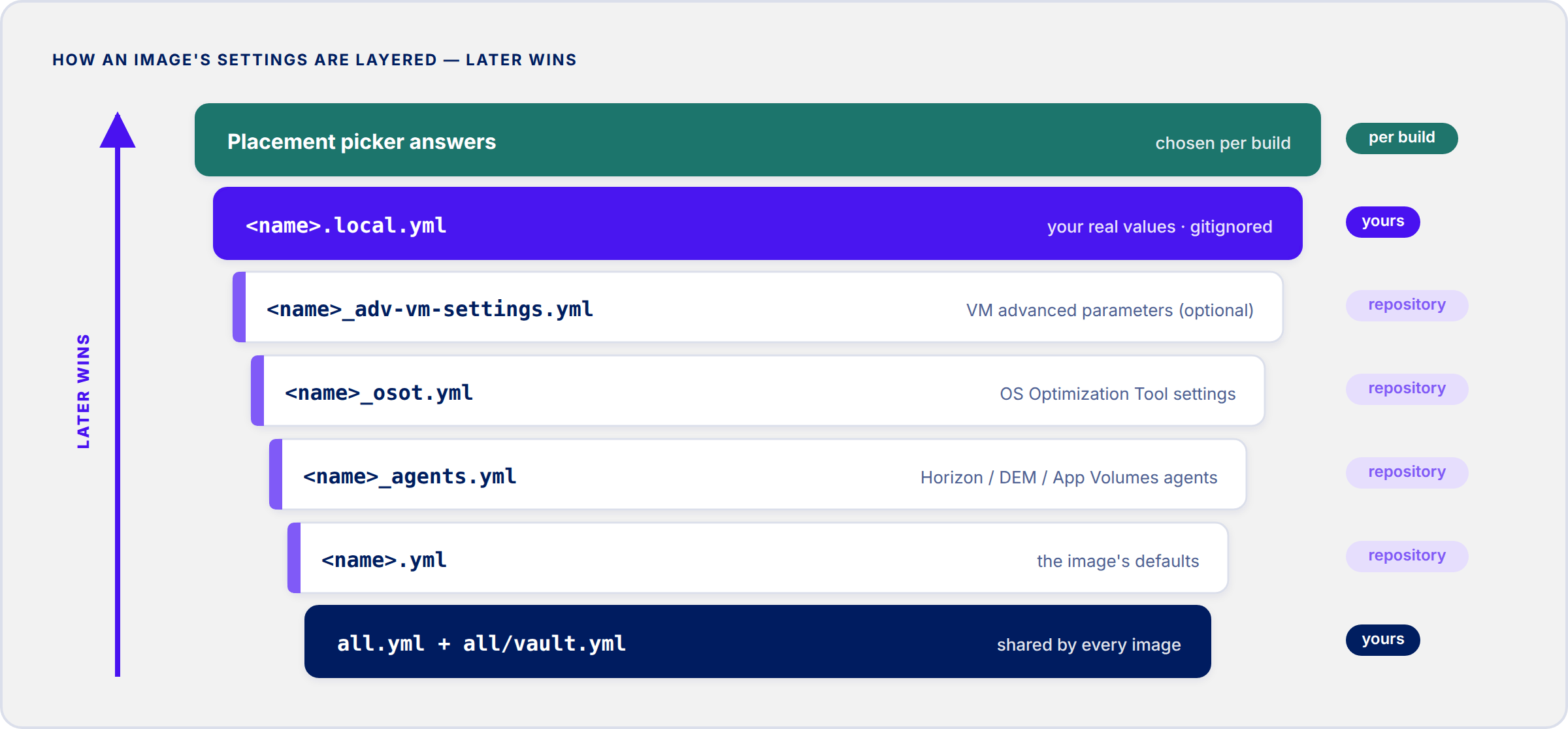
- All three: the guest network — guest_ip_cidr (the same reserved IP as in hosts.ini), guest_gateway, guest_dns_servers, and mac_address only if your network needs a DHCP reservation or MAC allowlisting. The default placement — vcenter_cluster, vcenter_datastore, vcenter_folder, vcenter_network — which the placement picker lets you override per build. The Horizon side — horizon_connection_server, horizon_api_username, horizon_api_domain, plus appvolumes_manager on the Windows images; these default to example.com in the committed files, so add them even where the .example doesn’t list them.
- w11_24h2_tpl: the installer paths on the NFS share (horizon_agent_installer, dem_agent_installer, appvolumes_agent_installer, osot_installer, osot_finalize_sdelete64_installer), horizon_pool_name, and win_iso_url if your Windows 11 ISO has a different filename. Also look at the locale settings in w11_24h2_tpl.yml — win_keyboard defaults to Norwegian, timezone to W. Europe — and override them here if they don’t suit you.
- rdsh_2025_tpl: the same installer paths, horizon_farm_name (an RDS farm, not a desktop pool), and iso_paths — the Server 2025 ISO is read from a datastore ([datastore] ISO/file.iso), not from NFS.
- ubt_2404_tpl: iso_paths (datastore ISO), horizon_agent_tarball on the NFS share, computer_ou_dn, domain_netbios_name, linux_login_group, linux_domain_join_username, nfs_server / nfs_export_path for the home directories, and horizon_pool_name.
Verify — this merges each image’s files in the same order build.sh does and lists anything still holding a placeholder, any installer or ISO path that doesn’t exist on the NFS mount, and any image missing from hosts.ini (run it with the venv active, it needs PyYAML):
cd ~/golden-imagespython3 - w11_24h2_tpl rdsh_2025_tpl ubt_2404_tpl <<'EOF'import os, re, sys, yamlgv = 'inventory/group_vars/'ph = re.compile(r'CHANGEME|REPLACE-ME|198\.51\.100\.|203\.0\.113\.|example\.com|x\.x\.x\.x|xx:xx', re.I)def check(label, data): bad = [(k, v) for k, v in data.items() if ph.search(str(v))] gone = [(k, v) for k, v in data.items() if (k.endswith(('_installer', '_tarball')) or k == 'win_iso_url') and str(v).startswith('/') and not os.path.exists(v)] status = 'OK' if not (bad or gone) else f'{len(bad)} placeholder(s), {len(gone)} missing file(s)' print(f'== {label}: {status}') for k, v in bad: print(f' placeholder {k}: {v}') for k, v in gone: print(f' not found {k}: {v}')check('all.yml', yaml.safe_load(open(gv + 'all.yml')) or {})hosts = open('inventory/hosts.ini').read()for key in sys.argv[1:]: merged = {} for suffix in ('', '_agents', '_osot', '_adv-vm-settings', '.local'): path = f'{gv}{key}{suffix}.yml' if os.path.exists(path): merged.update(yaml.safe_load(open(path)) or {}) check(key, merged) m = re.search(rf'^\[{key}\]\s*\n\s*\S+\s+ansible_host=(\S+)', hosts, re.M) if not m: print(f' hosts.ini no [{key}] group') elif ph.search(m.group(1)): print(f' hosts.ini ansible_host={m.group(1)} is a placeholder')EOF
Every image you intend to build should come back OK with no hosts.ini line under it. The script only checks what the files can tell it; the rest is checked live by scripts/build.sh <name> itself — its placement picker lists your real clusters, datastores, networks and Horizon pools/farms straight from vCenter and the Connection Server, and its pre-flight step refuses to start Packer until the build VM’s name resolves to the reserved IP. That’s the next step, in each OS’s own post.
Nightly backup of the control node
Git only holds what is safe to publish. Everything that makes the control node yours — the *.local.yml files, hosts.ini, all.yml, the encrypted vault and the saved build configs — exists only on the control node. A small script takes a timestamped archive of ~/golden-images every night at midnight and keeps the last 30 days.
What goes in, what stays out
- Included: all of ~/golden-images — scripts, images, the inventory (hosts.ini, all.yml, the encrypted vault, every *.local.yml) and saved configs/ — plus ~/.sync_to_repo.patterns.
- Left out: build transcripts (logs/), fetched install logs (build_logs/), Packer caches and the temporary .packer_vars.json. They are large and can be recreated by rebuilding.
- Never included: ~/.vault_pass. The archive carries the vault encrypted; the key to it should never sit in the same file.
Archives are written to ~/backups/golden-images/golden-images-YYYYMMDD-HHMMSS.tar.gz, in a folder only the owner can read (mode 700, files 600). Each archive is written as .part and renamed only once complete, then listed back to check it is readable and contains scripts/build.sh; a lock file stops two runs from overlapping. Archives older than KEEP_DAYS (default 30) are deleted. SRC, DEST and KEEP_DAYS can be overridden as environment variables.
1. The script — save it as ~/backup-golden-images.sh:
#!/usr/bin/env bash# backup-golden-images.sh - nightly snapshot of the production build tree.## Writes $DEST/golden-images-YYYYMMDD-HHMMSS.tar.gz containing ~/golden-images# (scripts, images, inventory incl. hosts.ini, all.yml, the encrypted vault and# every *.local.yml, saved configs) plus ~/.sync_to_repo.patterns. Build# transcripts, fetched build logs and Packer caches are left out. Archives# older than KEEP_DAYS are deleted.## ~/.vault_pass is deliberately NOT included: the vault in the archive is# encrypted, and the key should never sit next to it.## Restore (example):# mkdir /tmp/restore && tar -xzf ~/backups/golden-images/golden-images-<stamp>.tar.gz -C /tmp/restore# diff -r /tmp/restore/golden-images ~/golden-images # see what changed since then## Cron (crontab -e as the build user):# 0 0 * * * $HOME/backup-golden-images.sh >> $HOME/backups/golden-images/backup.log 2>&1set -euo pipefailSRC="${SRC:-$HOME/golden-images}"DEST="${DEST:-$HOME/backups/golden-images}"KEEP_DAYS="${KEEP_DAYS:-30}"STAMP="$(date +%Y%m%d-%H%M%S)"OUT="$DEST/golden-images-$STAMP.tar.gz"mkdir -p "$DEST"chmod 700 "$DEST" # archives hold site config - owner onlyexec 9>"$DEST/.lock"flock -n 9 || { echo "$(date -Is) another backup is still running - skipping"; exit 0; }[ -d "$SRC" ] || { echo "$(date -Is) ERROR: $SRC not found" >&2; exit 1; }EXTRA=()[ -f "$HOME/.sync_to_repo.patterns" ] && EXTRA+=(.sync_to_repo.patterns)umask 077tar -czf "$OUT.part" -C "$HOME" \ --exclude='golden-images/images/*/logs' \ --exclude='golden-images/images/*/build_logs' \ --exclude='golden-images/images/*/packer_cache' \ --exclude='golden-images/images/*/.packer_vars.json' \ "$(basename "$SRC")" "${EXTRA[@]}"mv "$OUT.part" "$OUT"# Sanity check: the archive must be readable and contain the build script.if ! tar -tzf "$OUT" > "$DEST/.listing" || ! grep -qx 'golden-images/scripts/build.sh' "$DEST/.listing"; then echo "$(date -Is) ERROR: $OUT looks incomplete" >&2; exit 1firm -f "$DEST/.listing"find "$DEST" -maxdepth 1 -name 'golden-images-*.tar.gz' -mtime +"$KEEP_DAYS" -print -delete \ | sed "s/^/$(date -Is) pruned /"echo "$(date -Is) OK $OUT ($(du -h "$OUT" | cut -f1))"
2. Test it once by hand, then schedule it:
chmod +x ~/backup-golden-images.sh~/backup-golden-images.sh # prints "... OK <archive> (<size>)"ls -lh ~/backups/golden-images/crontab -e # as the build user, add:0 0 * * * $HOME/backup-golden-images.sh >> $HOME/backups/golden-images/backup.log 2>&1
Cron uses the node’s own time zone. An Ubuntu server installed with defaults runs in UTC, so “midnight” is 01:00 or 02:00 in Norway — check with timedatectl and set it with sudo timedatectl set-timezone Europe/Oslo if you want local midnight.
3. Restore — unpack beside the live tree first and compare, rather than over it:
mkdir /tmp/restoretar -xzf ~/backups/golden-images/golden-images-<stamp>.tar.gz -C /tmp/restorediff -r /tmp/restore/golden-images ~/golden-images # what changed since then# copy back what you need, e.g.:cp -a /tmp/restore/golden-images/inventory/group_vars/w11_24h2_tpl.local.yml ~/golden-images/inventory/group_vars/
The archives live on the control node itself, so they protect against a bad edit or a broken sync, not against losing the VM. Copy them off the node (the NFS share, or a VM backup) if that matters to you.
Production checklist
Before you rely on the platform for production images, tick off the points below. Each row points back to the chapter that explains it.
| Done | Area | Check | Covered in |
|---|---|---|---|
| ☐ | Control node | Static IP and a DNS record. Time zone set (timedatectl) and the clock synced | Setting up the control node |
| ☐ | Control node | ansible –version, ansible-galaxy collection list and packer version match the tested versions | Verifying the platform, Software versions |
| ☐ | vCenter | Dedicated service account with the custom role, no admin account reused. Logging in with it shows only what the role grants | Credentials |
| ☐ | vCenter | Certificate trust: the check on this page uses validate_certs=false, fine for a lab. For production, trust your internal CA on the control node and validate | Verifying the platform |
| ☐ | Active Directory | Domain-join account(s) delegated Create and Delete on Computer objects for the target OU only. Clocks within 5 minutes of the domain controllers | Credentials, Firewall openings |
| ☐ | Vault | ~/.vault_pass is mode 600 and ansible-vault view works without a prompt. A copy of the vault password is stored outside the control node, e.g. in a password manager | Credentials |
| ☐ | SSH | Private key stays on the control node, public key is on every Linux build VM | Credentials |
| ☐ | NFS share | Export limited to named client IPs. Mounted through /etc/fstab with _netdev,nofail and still there after a reboot | Installer share (NFS) |
| ☐ | Network | Firewall flows opened. Every build VM has a reserved IP and a DNS A record that resolves to it | Firewall openings |
| ☐ | Configuration | The validation script reports OK for every image: no placeholders left, every installer and ISO path exists, every image has a group in hosts.ini | Before the first build |
| ☐ | Configuration | Site-specific values live only in *.local.yml, all.yml, hosts.ini and the vault, never in the committed files. Locale defaults (keyboard, time zone) checked per image | Before the first build |
| ☐ | GitHub sync | The rsync dry run reviewed before every real sync, so your own files are not overwritten | Pulling from GitHub |
| ☐ | Horizon | REST API account with only the rights needed to publish. Pool and farm names set per image | Placement and publishing |
| ☐ | Backup | Nightly backup scheduled and run once by hand. A restore tested into /tmp/restore. Archives copied off the node | Nightly backup |
| ☐ | Test build | One full build per image through build.sh, publishing to a test pool or farm before any production pool is touched | Placement and publishing |
Documented separately
The OS-specific build steps live in their own posts, each assuming the platform above is already in place:
- Ubuntu 24.04 LTS Desktop — Packer + Ansible, built on top of the manual Instant Clone template procedure
- Windows 11 24H2 — Packer + Ansible (autounattend with Audit Mode, UEFI + Secure Boot, OSOT, sysprep), for instant-clone desktop pools
- Windows Server 2025 RDSH — Packer + Ansible, published to a Horizon RDS farm
- Rocky Linux 9 — in progress
Software versions
What the platform described on this page runs on – the control node’s OS and the tool versions every image build has been tested against. Newer versions will most likely work, but this is the known-good set.
| Component | Version | Used for |
|---|---|---|
| Ubuntu | 24.04.5 LTS (kernel 6.8.0-142) | Control node OS |
| Python (venv) | 3.12.3 | ~/ansible-venv |
| ansible-core | 2.21.4 | All in-guest configuration and vCenter plays |
| Packer | 1.16.1 | VM creation and OS install |
| Packer plugin vsphere | 2.4.0 | vsphere-iso builder |
| Packer plugin ansible | 1.1.6 | Hands off from Packer to Ansible |
| community.vmware | 6.3.0 | Snapshots, VM lookup and delete |
| ansible.windows | 3.8.0 | Windows roles (win_* modules) |
| community.windows | 3.3.0 | Extra Windows modules |
| ansible.posix | 2.2.2 | Ubuntu roles (sysctl etc.) |
| pyvmomi | 9.1.1.0 | vCenter API scripts (clone, NIC, placement picker) |
| pywinrm | 0.5.0 | WinRM connection from Ansible to the Windows builds |
| requests-ntlm | 1.3.0 | WinRM NTLM transport for the Windows builds |
| PyYAML | 6.0.3 | Config parsing in the helper scripts |
| git | 2.43.0 | Pulling from / pushing to GitHub |
| dig (bind9) | 9.18.39 | DNS pre-flight check in build.sh |
| nfs-common | 2.6.4 | Installer share mount |
Disclaimer: Every tips/tricks/posting I have published here, is tried and tested in different it-solutions. It is not guaranteed to work everywhere, but is meant as a tip for other users out there. Remember, Google is your friend and don’t be afraid to steal with pride! Feel free to comment below as needed.