
Release date: September 27th 2023
Welcome to my VMware Horizon series. In this session I will describe how I upgraded the VMware Horizon Agent in my template to v. 2306. According to the VMware Horizon 8 2306 Release Notes, these are the changes to the Horizon Windows Agent:
- Horizon Agent for Windows
- The Horizon Agent Installer has a checkbox to automatically restart the system on successful completion.
- This release adds HEVC 4:4:4 support for Intel HW Encoding.
- Horizon now supports Windows 11 as a Guest OS when running on VMware Cloud on AWS.
- This release has added the FIDO2 Redirection feature for Windows Client and Agent, which enables users to take advantage of local endpoint FIDO2 components in the remote desktop or remote application. New GPO settings for this feature are Allow FIDO2 Authenticator Access which determines whether applications in remote desktops can access the endpoint’s FIDO2 authenticators and FIDO2 Allow List which allows you to specify applications that can access endpoint’s FIDO2 authenticators.
- The group policy Block Thumbnail Representation When Minimized determines whether hovering over the thumbnail of a remote desktop will show remote desktop content when its window is minimized.
- You can filter thousands of printers by column by activating the LBP Enabled option. You can also locate a specific printer by typing the printer name or partial name.
- The group policy Config the LBP Parallel Mode improves the printer mapping experience when users have massive LBP printers.
- Media Optimization for Microsoft Teams offers simulcast support, which enables multiple video call streams at the same time in meetings, allowing better experience with low network quality. (Windows, Mac, and Linux clients).
According to VMware’s official documentation, this should be done as step 11 in the supported update sequence.

I start out by downloading the installation media from VMware Customer Connect

As I’ve gone over to using MDT to create Horizon templates, described here: Automating Template Creation & Maintenance, I will update the Horizon Agent in the Deployment Share, and run through the task sequence to create a new template. Before I begin, I open the task sequence and can see that it has found the 2303 Agent in the Deployment Share.

I close the Deployment Workbench MMC before I continue. To update the Horizon Agent in the Deployment Share I will first delete the existing agent and msi-folder from the Deployment Share

Next, I copy the new VMware Horizon Agent executable to the “HorizonAgent” folder in the Deployment Share. It is important to make sure that the executable isn’t blocked by Windows Security, therefore I right-click the exe-file, select Properties and tick the Unblock box, if it exists. This also applies to the other executable files under the “D:DeploymentShareVMware” folder.
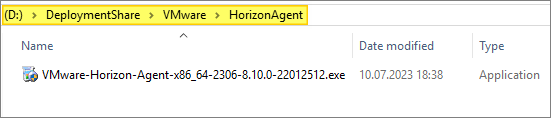

When I now open the Deployment Workbench MMC, the new Horizon Agent will be identified and the msi-files will be automatically extracted.


As my task sequence is based on the osot.xml template, I will also have to edit this file
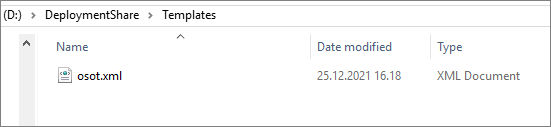
I locate the “Horizon Agent” step and adjust the name of the “ExeInstaller” to match the executable I copied in earlier

Once done, I open Deployment Workbench MMC and verify that the correct Horizon Agent is found, and update the deployment Share, before I run through the task sequence and push the new template to my desktop pool.
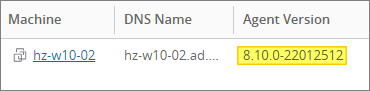
Having finished the Windows Agent upgrade, I can now proceed with upgrading the agent in my Linux template, covered here: VMware Horizon – Upgrade Horizon Linux Agent to v. 2306
VMware Horizon planning, deployment etc.
Official VMware Horizon 8 Documentation
Disclaimer: Every tips/tricks/posting I have published here, is tried and tested in different it-solutions. It is not guaranteed to work everywhere, but is meant as a tip for other users out there. Remember, Google is your friend and don’t be afraid to steal with pride! Feel free to comment below as needed.
 bjosoren's IT-Tech blog