
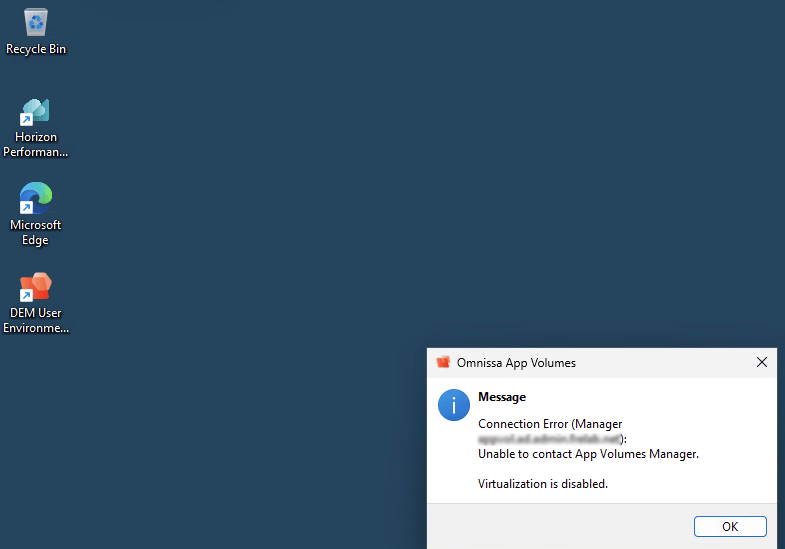
After building a new Windows 11 golden image with the November 2026 updates, every user who logged in got this message from the App Volumes Agent, and no applications were attached:
Connection Error (Manager “appvol.corp.example.com”): Unable to contact App Volumes Manager. Virtualization is disabled.
The same App Volumes 2609 environment worked perfectly for my Windows 11 24H2 and Windows Server 2025 RDSH images. It took a while to find out why, because the message is misleading: the agent can contact the manager. In this post I go through the symptoms, where the real error shows up, what I ruled out, the possible workarounds and the solution.
TL;DR
- Cause: Windows updates released on and after November 10, 2026 (for Windows 11 24H2/25H2 the cumulative update KB5132061) make Windows clients offer NTLM signing on all connections (KB5135557, CVE-2026-118737). App Volumes Manager passes the user’s NTLM login on to a domain controller over LDAPS, and Active Directory refuses a bind that asks for signing/sealing on a TLS connection.
- Where to see it: the manager’s production.log – “Cannot bind using sign/seal on a connection on which TLS or SSL is in effect”.
- Fix (temporary): HKLM\SYSTEM\CurrentControlSet\Control\Lsa\MSV1_0\ClientAllowUnsignedNtlm = 1 (REG_DWORD) on the virtual desktops, by GPO or in the golden image.
Environment
- App Volumes 2609 – Manager 4.23.0.4435 (two managers behind a load balancer), Agent 4.23.0.7122, domain connection over LDAPS.
- Horizon 2609 instant-clone desktops: Windows 11 24H2 (October patch level – working) and Windows 11 25H2 built on November 11, 2026 with KB5132061 (build 26200.9974 – failing).
At first it looked like a 25H2 problem. It isn’t: the difference is the November update, and any image – 24H2, 25H2 or Server 2025 – rebuilt with it will behave the same.
Where the error shows up
1. The agent log on the desktop
C:\Program Files\Omnissa\AppVolumes\Agent\Logs\svservice.log. The computer startup succeeds, so the manager is reachable. Only the user login fails: the NTLM handshake runs (Type 1 → Type 2 → Type 3), and the manager answers the Type 3 message with a second 401:
HttpComputerStartupThread: g_ManagerErrorCode = 0HttpSendRequest: ... status code 401. This status code 401 is expected during NTLM authentication.ProcessNTLMType2Buffer: NTLM Type 2: target -> name: [CORP], dnscomputername: [DC01.corp.example.com]ProcessNTLMType3Buffer: NTLM Type 3: target -> ntlmname: [LDAP/DC01.corp.example.com] ...ReadHTTPResponseHeader: WinHttpQueryHeaders failed (WWW-Authenticate) header not foundHttpSendRequest: ... WinHttpQueryHeaders returned status code 401HttpSendRequest: Setting g_ManagerMessage with error [Unable to contact App Volumes Manager.]Session([1][CORP\user]) User login over HTTP failed

2. App Volumes Manager – System Messages
Activity › System Messages shows “NTLM authentication Invalid: Authentication failed for: CORP\user” at the time of the login – but not why.

3. The manager’s production log – the real reason
On an upgraded manager the files are still under the old CloudVolumes path: C:\Program Files (x86)\CloudVolumes\Manager\log\production<nnnnnn>.log (the newest numbered file). For the failing login:
NTLM: Received NTLM authentication to "path: [/user-login]" (type 3)NTLM: Elapsed time between Type2 challenge and Type3 response: 0.02RADIR: LDAP bind failed: ... Failed with result code: 53 and error message: 00002029: LdapErr: DSID-0C09068C, comment: Cannot bind using sign/seal on a connection on which TLS or SSL is in effect, data 0, v4563NTLM: NTLM authentication result: InvalidManager: NTLM authentication Invalid: Authentication failed for: CORP\userCompleted 401 Unauthorized in 130ms
The manager does not validate the NTLM response itself: it passes it on to a domain controller as an LDAP SASL bind over its LDAPS connection. Because the November-patched client now offers signing, Active Directory refuses that bind before the password is even checked. That is also why the domain controller logs no event 4776 for the failing logins, while logins from the unpatched 24H2 desktops show up with error code 0x0.
What I ruled out
- Certificates: both managers’ certificates contain the load balancer name as SAN and chain to a trusted CA, the CRL check passes, and the error is the same with the agent’s certificate validation on or off.
- The load balancer: pointing the agent directly at one manager gives the same result, and the nginx log (nginx\logs\access_https.log) on that manager shows 401 → 401 for the patched desktop and 401 → 200 for the unpatched one.
- Agent version: identical (4.23.0.7122) on the working and the failing desktop – including the same NTLM channel binding.
- NTLM client policy: NtlmMinClientSec and LmCompatibilityLevel are identical on both.
- The patch level is the difference: 24H2 at build 26100.9711 (October) works, 25H2 at 26200.9974 with KB5132061 (November) fails. Get-HotFix and the UBR value show it quickly:

Possible workarounds
- Let the clients stop offering NTLM signing (works – used here). Microsoft documents a temporary compatibility switch in KB5135557: ClientAllowUnsignedNtlm = 1. It weakens the protection the update adds, and Microsoft says the key may be removed later.
- Switch the App Volumes domain connection from LDAPS to LDAP (not recommended). In Configuration › Domains with Security “LDAP (insecure)” the NTLM login became Valid, which confirms the cause – but in my lab the request then hung at “Detecting user entry” and the agent gave up after five minutes. It also sends the service account’s password in clear text. I switched back to LDAPS.
- Hold back the November update in the golden images (WSUS or the build) until Omnissa has a fix. Only a short-term option, since it leaves the images unpatched.
The solution
I added the registry value with Group Policy Preferences in the GPO linked to the desktops’ OU (Computer Configuration › Preferences › Windows Settings › Registry):
- Action: Update · Hive: HKEY_LOCAL_MACHINE
- Key path: SYSTEM\CurrentControlSet\Control\Lsa\MSV1_0
- Value name: ClientAllowUnsignedNtlm · Type: REG_DWORD · Value: 1

After recreating the desktops so the value is in place before the user logs in, App Volumes works again on the November-patched image. Check it on a desktop with:
Get-ItemProperty 'HKLM:\SYSTEM\CurrentControlSet\Control\Lsa\MSV1_0' -Name ClientAllowUnsignedNtlm

I’m also adding the value to my automated golden image builds, so it is in place from the very first boot regardless of Group Policy timing. The GPO stays as a safety net – and as the one place to remove it later.
Keep in mind
- This is a temporary workaround that weakens Microsoft’s new NTLM protection. Remove it when Omnissa ships an App Volumes fix.
- Microsoft’s phase 2 (May 2027) makes Windows servers require NTLM signing by default. App Volumes needs a proper fix before then.
- If you haven’t patched yet: your next golden image rebuild with the November update will hit this – add the value first.
Others have seen the same – see the thread Connection problems with November 25H2 updates on the Omnissa Community, where the same registry value is the accepted solution.
Documentation & sources
- KB5135557 – NTLM signing security improvements in Windows
- Omnissa Community – Connection problems with November 25H2 updates
- App Volumes – Upgrade to v. 2609
Disclaimer: Every tips/tricks/posting I have published here, is tried and tested in different it-solutions. It is not guaranteed to work everywhere, but is meant as a tip for other users out there. Remember, Google is your friend and don’t be afraid to steal with pride! Feel free to comment below as needed.